Disclaimer: 3
rd
party and/or custom firmware providing extra features are not covered in this manual.
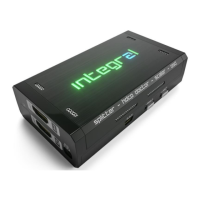
4K Integral 2 – User Manual
This APP request Bluetooth authorization and SD card/file writing permissions when installing.
The app will allow you to control and operate your HDfury Integral 2 and CEC components within your
Home Theater setup. It can perform the following:
- Reset/HPD/Read/Modify and Upload Configuration.
- Switch Input channel and Matrix/Splitter mode.
- Set Auto switching mode.
- Set Input Priority mode.
- Turn Logo LED ON/OFF.
- Define HDCP rules and fix HDCP error.
- Set EDID mode (Automix, Custom, Copy Top, Copy Bot, Fixed)
- Set Automix Algo with Min Mixed Capabilities, Max Audio/Min Video, Bot Output Priority, Top Output
Priority, Max Audio/Max Video.
- Set Automix enforceable video flags (BT2020, HDR10+, HDR HLG, Dolby Vision, 3D Remove, YCbCr)
- Set Automix enforceable audio flags (2.0, 5.1, full, native)
- Set the Custom EDID of your choice for Port 0 and 1 separately (choose from a list of 100 EDID)
- Select the scaling type (Auto, Custom, none)
- Define Auto Scaling for Port 1 from available presets.
- Define Custom Scaling mode for Port 0 and 1 (Upscale or Downscale)
- Set Mode, Colorspace and Deepcolor settings for any input types.
- Disable HDR, AVI or VSI and replace current metadata and infoframe by a custom one.
- Activate and configure OSD data, position, colors and transparency.
- Activate and configure OSD Mask position, colors and transparency.
- Activate and set OSD Text position, colors and transparency.
- Set CEC device with Video Processor or Audio System with ARC.
- Send live CEC command to the HDMI/CEC network.
- Display current link speed and infoframe information.
- Display incoming signal information and active link(s)
- Display GUI, FW and GoBlue version in use.
Get the APP from Google Play Market: here. For iOS, get it from APPstore: here.
On Android, you can create your own menu and add custom commands at any time through an editable
XML menu file. You can connect to Integral 2 and use the Bluetooth APP even when no signals is going
through the Integral 2
Note: Do not pair your phone to Integral 2 using Android BT Menu, just launch APP and it will
autoconnect


 To Next Page