EasyManua.ls Logo

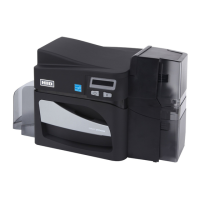
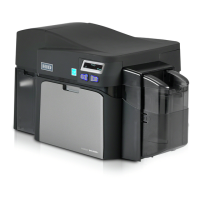
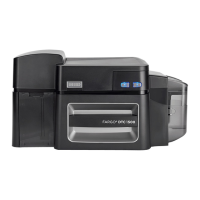
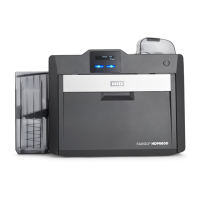
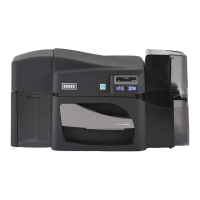
HID FARGO DTC4500e - User Manual

HID FARGO DTC4500e
83 pages
Print Icon
To Next Page IconTo Next Page
Loading...
FARGO
®
DTC4500e Card Printer
USER GUIDE
PLT-01669, 1.0
October 2013
© 2013 HID Global Corporation/ASSA ABLOY AB. All rights reserved.
15370 Barranca Parkway
Irvine, CA 92618

Table of Contents

Questions and Answers

  • T
    tlopezSep 23, 2025
    What does '# 139 Please Remove Ribbon' mean on HID Printer?
    • T
      troysheltonSep 23, 2025
      If your HID Printer displays '# 139 Please Remove Ribbon', it means the ribbon needs to be removed. Reset the printer and retry. If the problem persists, call for technical assistance.
  • F
    frank19Aug 25, 2025
    What does '# 110 Card Jam/Align error' mean on HID Printer?
    • W
      Wendy ColemanAug 25, 2025
      If your HID Printer displays '# 110 Card Jam/Align error', it means a card is jammed in the print station or card flipping area. To fix this, clear the jam and press the Pause button to continue.
  • G
    gjohnsonAug 25, 2025
    What to do if my HID FARGO DTC4500e says 'Ribbon Out'?
    • A
      Ashley HowellAug 26, 2025
      If your HID Printer shows '# 91 Ribbon Out', it means the print ribbon has run out. To solve this, install a new ribbon and press the Pause button to continue printing, or press the ON/OFF button to cancel the job.
  • J
    John ManningAug 27, 2025
    How to fix HID FARGO DTC4500e when it is unable to feed cards?
    • K
      Kenneth HarrisAug 27, 2025
      If your HID Printer is unable to feed cards (error # 81), here’s what to check: * Make sure the card thickness setting matches your cards. * Ensure the cleaning roller is correctly installed on the ribbon cartridge. * Check for card slippage and, if needed, run the printer cleaning routine. * Verify your cards are within the accepted size range. * Confirm the cards aren't sticking together. After checking these, press the Pause button to continue.
  • A
    Angela WilkinsSep 23, 2025
    What does '# 144 EEPROM Corrupt EEPROM Read Error' mean on HID Printer?
    • D
      Dylan HowellSep 23, 2025
      If your HID Printer displays '# 144 EEPROM Corrupt EEPROM Read Error', the EEPROM was restored with factory default values. If changes were made in the Advanced Setting tab in the printer driver, click the Default button to reset these numbers. Reset the printer and try again. If this problem persists, call for technical assistance.
  • C
    chadsanchezSep 13, 2025
    What does '# 131 Flipper Jam/ Home Error' mean on HID Printer?
    • J
      johnnyjonesSep 13, 2025
      If your HID Printer displays '# 131 Flipper Jam/ Home Error', a card has jammed in the printer’s flipper table, or the flipper failed to position properly. Clear any cards in the flipper table using the buttons to move the card out and resume printing. Reset the printer and retry. If the problem persists, call for technical assistance.
  • M
    Michelle RiggsSep 12, 2025
    What does '# 106 Job Data Error' mean on my HID Printer?
    • A
      amyhaleSep 12, 2025
      If your HID Printer displays '# 106 Job Data Error', the print data sent to the printer is corrupt or has been interrupted. Check the interface cable. Select the ON/OFF button to cancel the current print job and then resend the job.
  • M
    mayssamuelSep 12, 2025
    What does '# 2 Head Move Error' mean on HID Printer?
    • R
      robert77Sep 12, 2025
      If your HID Printer shows '# 2 Head Move Error', the printhead lift has malfunctioned. Reset the printer and try again. If the problem persists, call for technical assistance.
  • C
    Christine SolisSep 4, 2025
    What does '# 109 # 113 Ribbon Release Error' mean on my HID Printer?
    • T
      tatejaniceSep 4, 2025
      If your HID Printer shows '# 109 # 113 Ribbon Release Error', it means the printer can't locate the next ribbon panel to release the ribbon from the card. First, make sure the ribbon isn't stuck to the card. If it isn't, try replacing the ribbon or recalibrating the ribbon sensor. If the ribbon is broken, tape it back onto the take-up core and manually advance to the next panel. Press the Pause button to continue.
  • M
    Mary FletcherSep 2, 2025
    How to fix '# 82 Mag Jam' error on HID FARGO DTC4500e Printer?
    • K
      Katie MossSep 2, 2025
      If your HID Printer is displaying '# 82 Mag Jam', it indicates that a card is jammed in the magnetic station. To resolve this, clear any cards from the magnetic station using the buttons to move the card out, then press the Pause button to continue.

Summary

Introduction and Legal Information

Contact Information

1 Specifications

1.1 Regulatory Compliance

Details compliance with UL, CSA, FCC, CE, and environmental standards.

1.2 Safety Messages

Critical safety instructions and warnings for operating the printer safely.

1.3 Technical Specifications

Provides detailed technical specifications for the printer, including print methods, resolution, and speed.

1.4 Functional Specifications

Outlines functional aspects like print ribbons and supported card types.

2 Setup and Installation Procedures

2.1 About Moisture Condensation

Advises on preventing moisture condensation inside the printer.

2.2 Unpacking and Inspection

Guide on unpacking the printer and checking for included accessories and damage.

2.3 Print Ribbon Cartridge Installation

Step-by-step instructions for installing the print ribbon cartridge.

2.4 Placement of Blank Cards into the Input Card Hopper

Procedure for loading blank cards into the printer's input hopper.

2.5 Card Size Selection

Instructions for selecting the correct card size for the printer.

2.6 Printer Power

Steps for connecting and powering on the printer.

3 Print Driver Installation

3.1 Driver Installation Instructions

Instructions for installing the printer driver and its components.

3.2 Swift ID Installation Instructions

Information and procedures for installing and using Swift ID.

3.2.4 Printer Connected Via USB Connection

Instructions for connecting Swift ID via USB.

3.2.5 Uninstalling Swift ID

Steps to uninstall Swift ID from the printer.

3.2.6 Additional Swift ID Rules

Specific rules and behaviors related to Swift ID usage.

4 Printer Preferences

4.1 Card tab

Configuration options for card settings within Printer Preferences.

4.1.1 Configuration tab

Settings for optional features, event monitoring, and language.

4.1.2 Calibrate Ribbon tab

Procedure to calibrate the printer's ribbon sensor.

4.1.3 Clean Printer tab

Instructions for running the printer cleaning routine.

4.1.4 Advanced Settings tab

Allows adjustment of internal printer settings and firmware configurations.

4.2 Device Options tab

Options for dual-sided printing and image rotation.

4.2.1 Ribbon Type dropdown

How to select the appropriate ribbon type from a dropdown menu.

4.2.2 Selecting the Fluorescent Panel Ribbon Type

Guide to selecting and using fluorescent ribbons for added security.

4.2.3 Creating a Custom Fluorescent Image (using the YMCFKO Ribbon)

Methods for creating custom fluorescent images on cards.

4.2.4 Configuring Fluorescent Data (F-Panel for YMCFKO Ribbon) using the Application

How to configure fluorescent data using application software.

4.3 Image Color tab

Controls image quality settings like color matching and dither.

4.4 Image Calibrate tab

Adjusts the position of the printable area on the card.

4.5 Magnetic Encoding Tab

Options for controlling the magnetic stripe encoding process.

4.5.1 Using the Magnetic Encoding Tab - ISO Standards

How to configure magnetic encoding using ISO standards.

4.5.2 Using the Magnetic Encoding Tab - Custom Encoding or Raw Binary Encoding Mode

Configuring magnetic encoding with custom or raw binary modes.

4.5.3 Reviewing the Sample String

Examples of valid magnetic stripe data strings.

4.5.4 Sending the Track Information

How track data is sent to the printer for encoding.

4.6 Overlay; Print Area tab

Controls printing and overlay for specific areas on the card.

4.7 K Panel Resin tab

Controls where the resin black (K) panel is printed.

4.8 Printer Info tab

Displays printer status, serial number, and firmware version.

5 System Overview and Troubleshooting

5.1 Sequence of Operations

Explains the printer's operational steps for troubleshooting.

5.2 Troubleshooting Steps

Covers error buttons, error messages, specific tools, and status icons for troubleshooting.

6 Firmware Upgrades

6.1 Upgrade the Printer Firmware

Step-by-step guide to updating the printer's firmware.

7 HID Global Technical Support

7.1 Reading the Serial Numbers on a FARGO Printer

How to determine the printer's manufacturing date from its serial number.

8 Appendix A

8.1 Defined Area

How to define specific areas on a card for printing or overlay.

HID FARGO DTC4500e Specifications

General IconGeneral
Print TechnologyDye-sublimation / Resin thermal transfer
Resolution300 dpi
ConnectivityUSB 2.0, Ethernet
Supported Card SizesCR-80, CR-79 adhesive back
Memory32 MB RAM
Print AreaEdge-to-edge
Power Requirements100-240 VAC, 50-60 Hz
Print SpeedUp to 225 cards per hour (YMCKO)
Weight12 lbs
Card Thickness0.009" - 0.040" / 0.2286 mm - 1.016 mm
Operating System SupportWindows 7, 8, 10
Card Capacity100 cards (standard input hopper)

Related product manuals