26
• Using Mouse: Select Start Sequence in right-click menu.
5. Digital Zoom:
• Using Mouse: Select Digital Zoom in right-click menu.
6. Switch between Main and Aux Output:
• Using Front Panel/Remote: Click MAIN/AUX button.
• Using Mouse: Select Aux Monitor/Main Monitor in right-click menu.
Using the Mouse in Live Preview
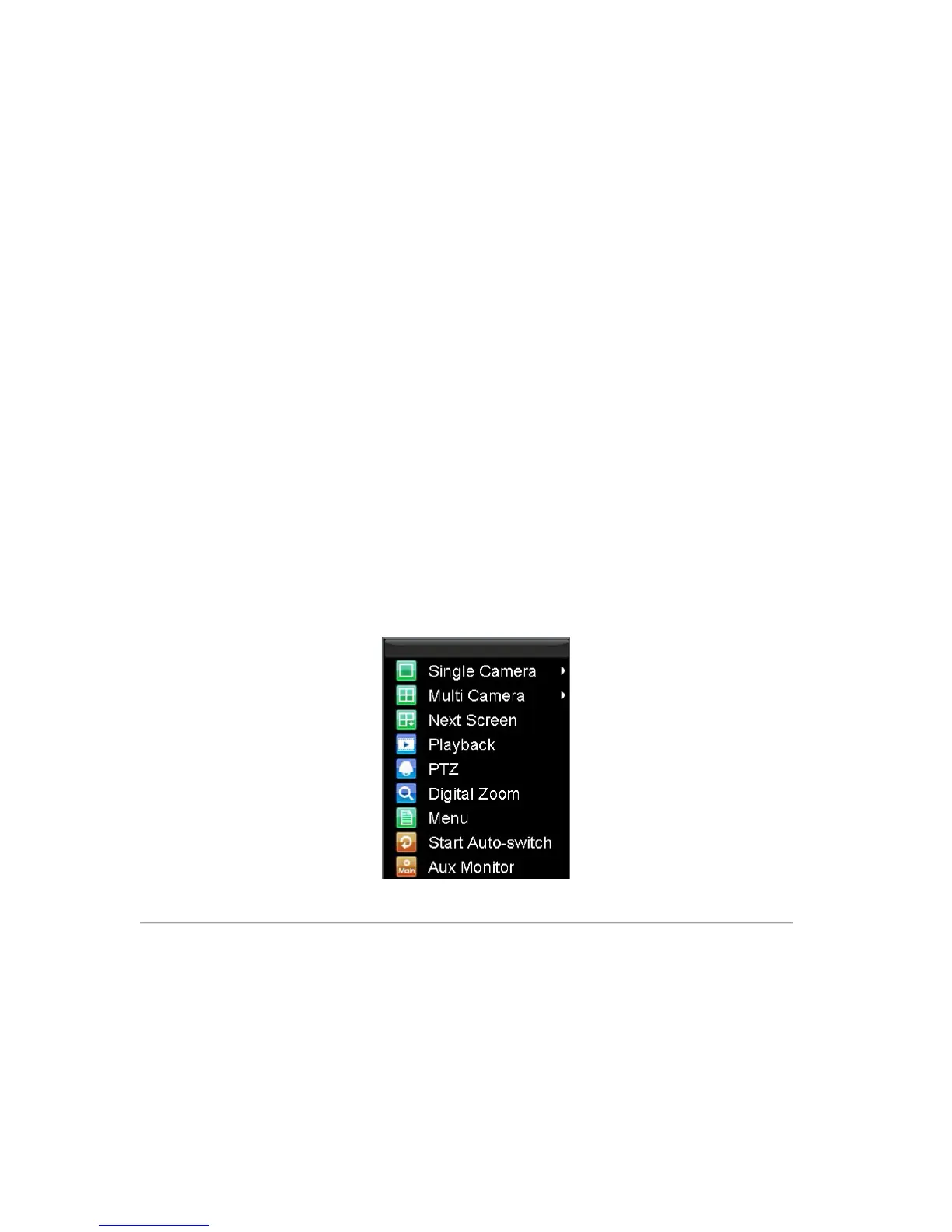
Many features of the Live Preview can be quickly accessed by clicking the right-button of the mouse (shown in Figure
2). These features include:
• Single Camera: Switch to a full screen display of the selected camera. Camera can be selected from a
drop down list.
• Multi-Camera: Switch between different display layout options. Layout options can be selected from a
drop down list.
• Next Screen: When displaying less than the maximum number of cameras in Live Preview, clicking this
feature will switch to the next set of displays.
• Playback: Enter into Playback mode.
• PTZ: Enter PTZ Control mode.
• Digital Zoom: Enter Digital Zoom interface.
• Menu: Enter Main menu.
• Start Auto-switch: Enable sequencing in Live Preview mode.
• Aux Monitor: Enter Aux operation mode.
Note: The dwell time of the preview configuration should be set before using Start Auto-switch.
Note: If you enter Aux monitor mode and the Aux monitor is not connected, switch back to the Main output with the
MAIN/AUX button on the front panel or remote.
Figure 2. Live Preview Mouse Menu
Using Digital Zoom
To use digital Zoom in Live Preview mode:
1. Right-click using the mouse in Live Preview mode.
2. Select Digital Zoom from Mouse menu.
3. Left-click and drag the red box to the desired area for zoom. The zoomed image will be magnified by
4x. A sample of this can be seen in Figure 3.


 To Next Page
 Loading...