Access to the Ewon Cosy+ 11 (32)
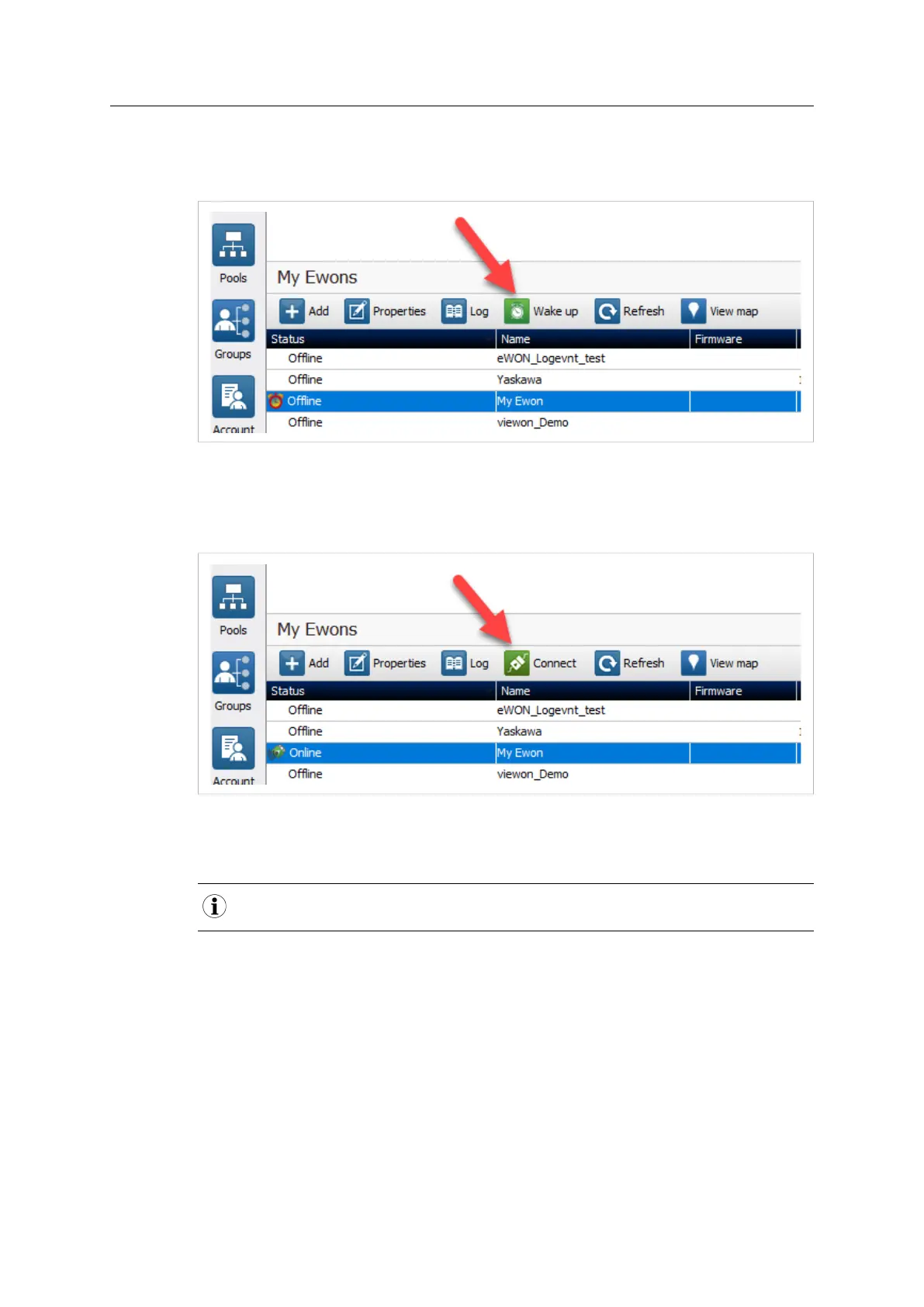
5. Click the green Wake up button displayed in the Ewon Cosy+ list menu to wake up your
Ewon Cosy+.
By doing so, eCatcher sends an SMS to switch your Ewon Cosy+ online.
Fig. 8 Wake up your Ewon Cosy+ — 2
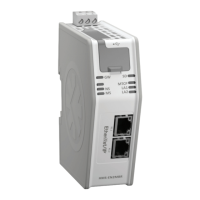
6. Click the green Connect button (previously Wake up button) once the Ewon Cosy+ changes
status to <Online>. The <Connect> button is displayed in the Ewon Cosy+ list menu and
establishes the remote connection. eCatcher is now attempting to establish a VPN
connection to the Talk2M server.
Fig. 9 Wake up your Ewon Cosy+ — 3
7. Once the VPN connection established, eCatcher displays the Ewon Cosy+ in the “Active
connection” section.
With your smartphone, you can also send the SMS “Talk2M_Connect” or “Talk2MConnect” to your Ewon
Cosy+ to wake it up.
The computer is now connected to the Ewon Cosy+ using the VPN tunnel and you can use the
remote connection.
You can click the IP address link in the “Active Connection” section to display, in a web browser,
the homepage of the Ewon Cosy+ web interface.
3.5 Step 5: Access the Web Configuration Interface
To access the web interface of your Ewon Cosy+, proceed as follows:
1. Open your Internet browser on your computer.
► Target the IP address — LAN or VPN — of your Ewon Cosy+
Ewon Cosy+ User Manual
UM-0005-00 1.0 en-US



 To Next Page