Rev. 1.30 19 of 34 November 13, 2020
e-Link32/e-Link32 Pro User’s Guide
2 MDK_ARM (KEIL) Setup and Use
2 MDK_ARM (KEIL) Setup and Use
▀
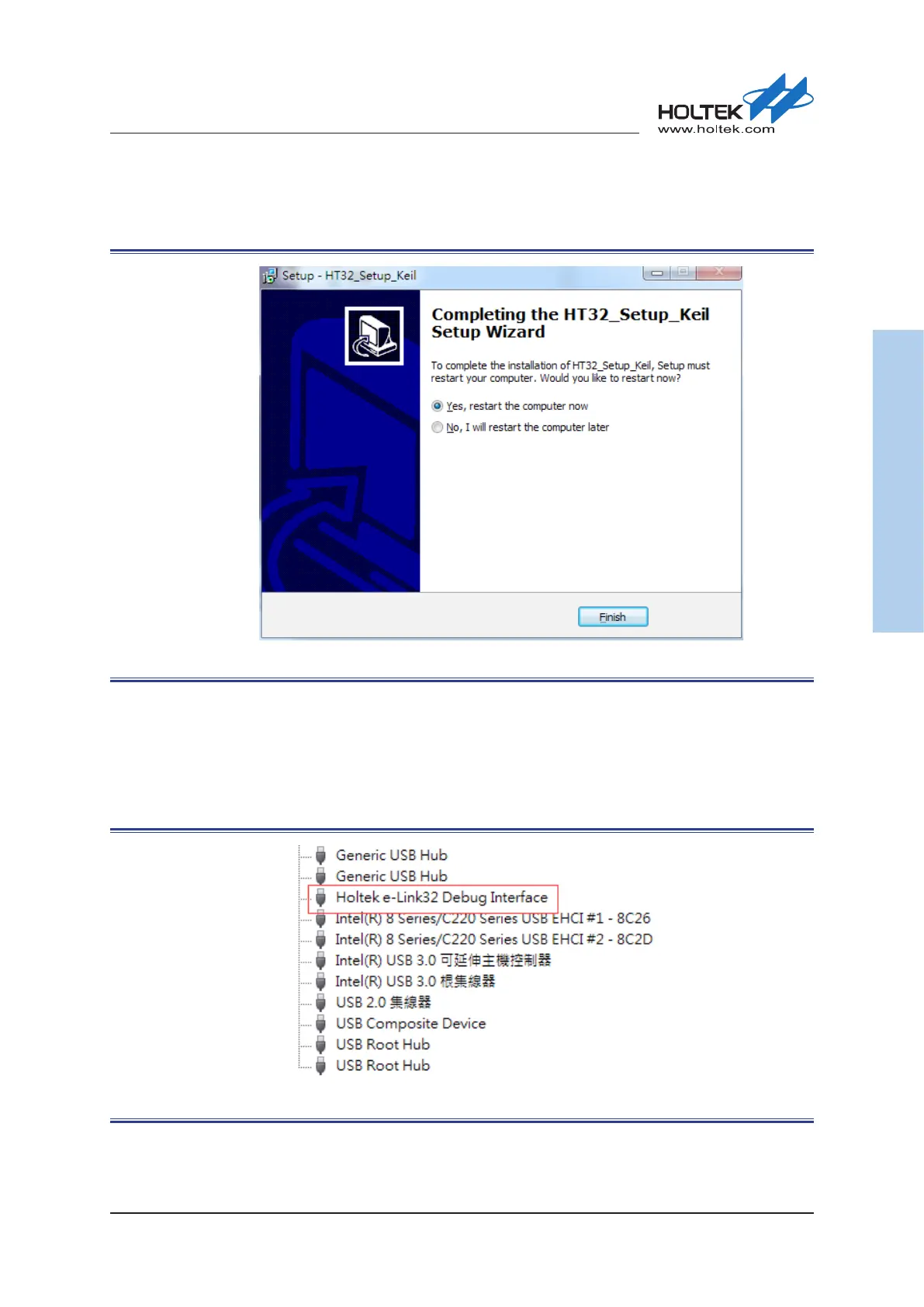
Once the installation has nished, press the “Finish” button to enter. The completed window will
be displayed after which the “Finish” button should be selected to restart the computer.
Figure 17. Keil Installation Completion
▀
Connect the e-Link32/e-Link32 Pro to the PC’s USB port.
▀
Open the PC’s “Device Manager” to check the connection status of the e-Link32/e-Link32 Pro.
▀
If the e-Link32 is connected, a connection device named “Holtek e-Link32 Debug Interface” will
appear on the “Device Manager” window. This will conrm that the installation has been suc-
cessful.
Figure 18. e-Link32 Device Name



 To Next Page