Configuring Network Settings
35
Configuring Email Settings
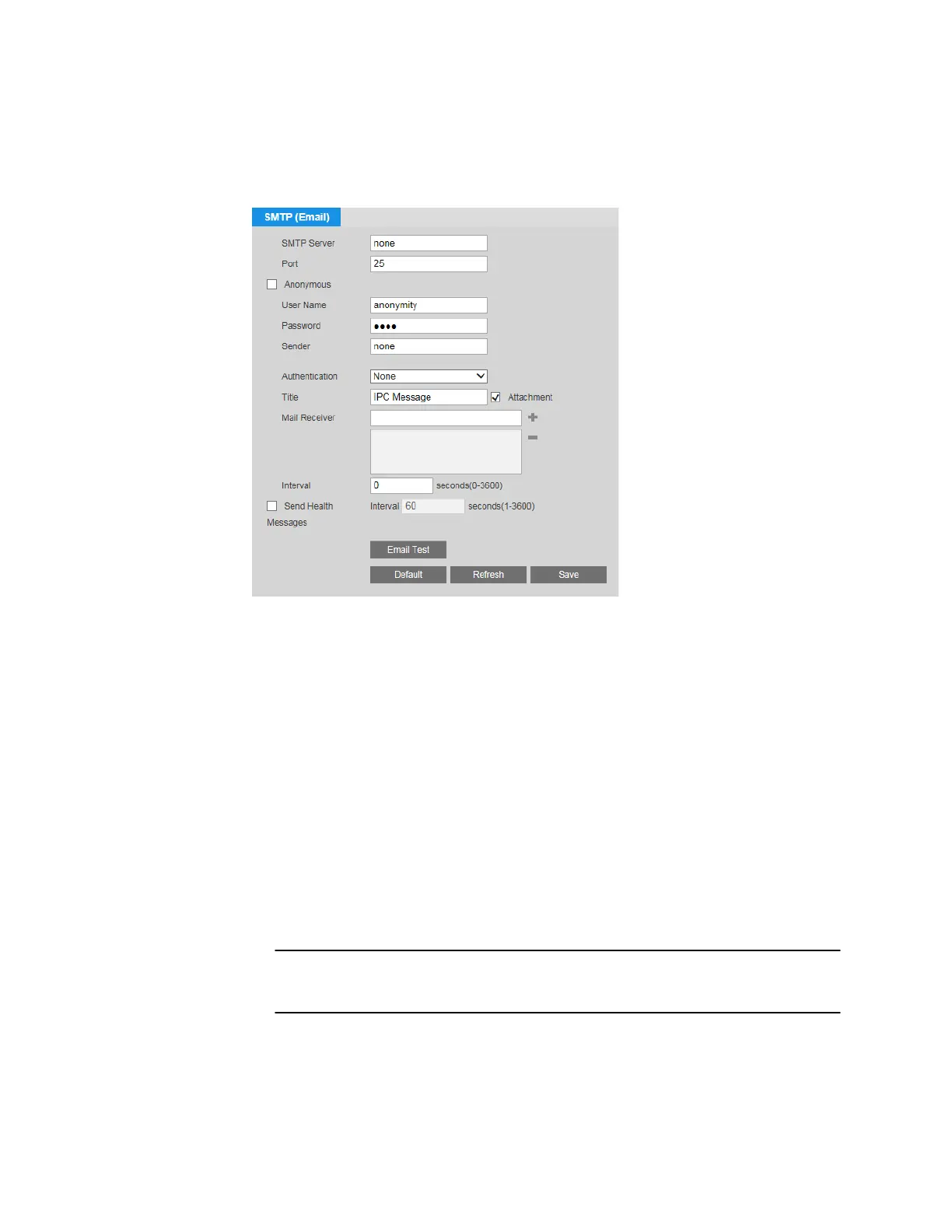
You can configure email notification settings on the Setup > Network Setup > SMTP page.
To set up email notifications:
1. In the SMTP Server and Port fields, enter the SMTP server and port information.
2. In the User Name and Password fields, enter the sender’s email user name and
password. Alternatively, if the server supports anonymous login, you can select the
Anonymous check box to log in without a user name and password.
3. In the Sender field, enter the sender’s email address.
4. From the Authentication list, select an encryption mode (SSL or TLS) or select None.
5. In the Title field, enter the text that you want to appear in the subject line of the email.
6. Select the Attachment check box if you want to enable snapshot attachments.
7. In the Mail Receiver field, enter the recipient’s email address, and then click the + sign
to add it to the list. You can enter up to three email addresses. To remove an address
from the list, select it, and then click the – sign.
8. In the Interval field, specify the interval between email notification messages. Enter a
value between 0 (no interval) and 3600 seconds (60 minutes).
Note Setting an interval between email notifications reduces the load on the email
server if multiple notifications are triggered simultaneously.
9. To have the system periodically verify that the email notification settings are working,
select the Send Health Messages check box, and specify the Interval.
10. Click Save to apply the settings.
11. Click Email Test to send a test email to verify that the settings are configured properly.


 To Next Page
 Loading...