56
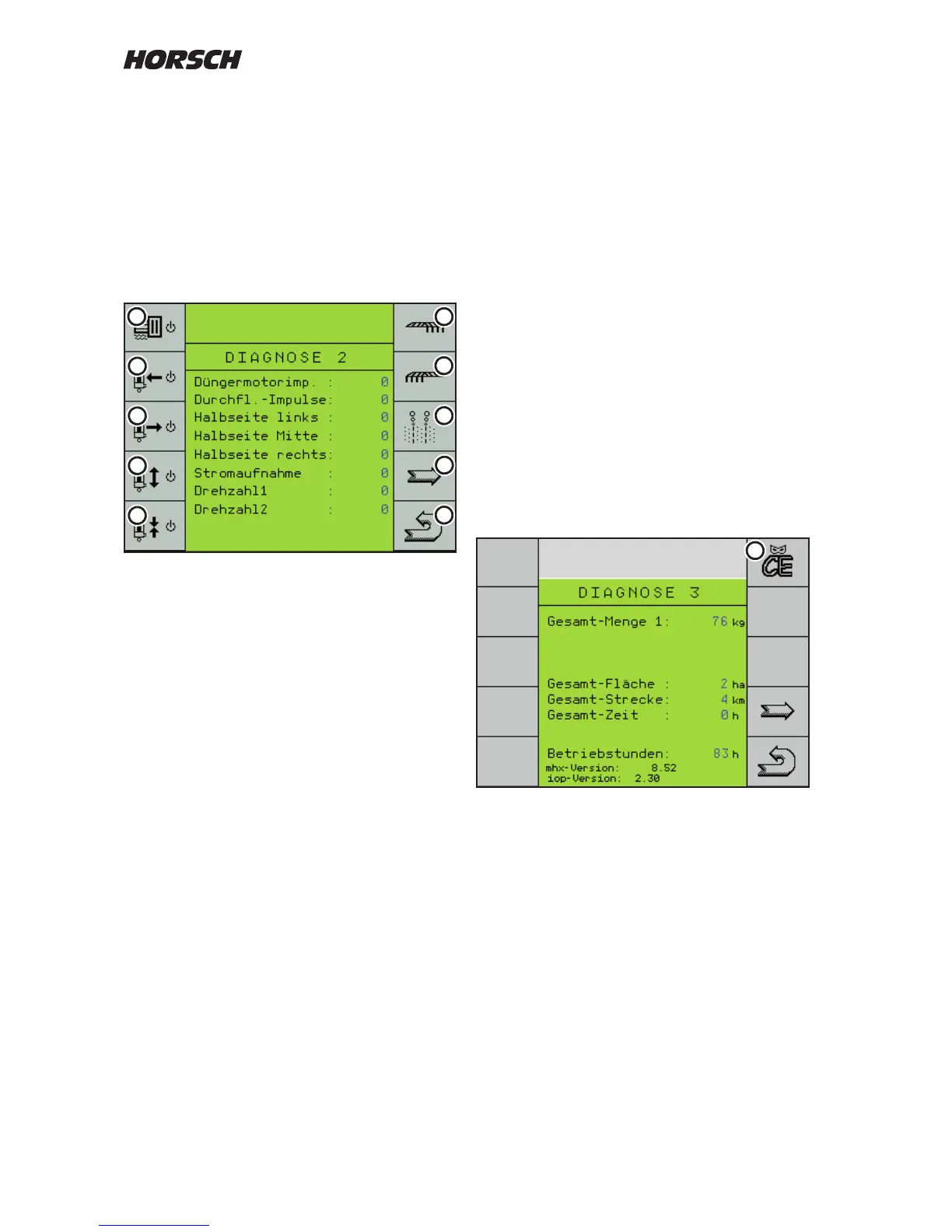
The second page in the diagnostics system is
displayed.
Here one can check the functions of the metering
drive for the fertiliser hopper, the hydraulic bout
marker control with lifting hydraulics and the
extension for the wing hydraulics as well as
the half width control and the pre emergence
markers.
The hydraulic functions (2 - 5) are shown at the
bottom of the display when current is switched on.
1. Button fertiliser metering motor
The fertiliser metering motor runs until the
key is pressed again. The display shows
and successively counts the fertiliser motor
pulses.
2. Bout marker left
The key switches current to the hydraulic
valve for left hand bout marker.
3. Bout marker right
The key switches current to the hydraulic
valve for right hand bout marker.
4. Machine "Lift" The key
switches current to both solenoid valves for
the lifting hydraulics.
5. Machine "Fold" The key
switches current to both solenoid valves for
the the machine's wing hydraulics.
6. Button for half width control right
The servo motor moves as long as the key is
held depressed or until the next limit switch
is reached.
7. Button for half width control left
The servo motor moves as long as the key is
held depressed or until the next limit switch
is reached.
8. Key for pre emergence markers:
When pressing the key current is applied to
both cables of the boutmarkers.
9. Arrow keys to third page "Diagnostics".
10. Return to work page.
With the arrow key (9) you open the page
"Diagnostics 3". Here the total performance of
the machine is displayed.
These data cannot be deleted!
The key (10) can be used to select machine
data.
The mhx-version shows the software status in
the computer, e.g. 8.52.
On machines with two computers, both software
states are displayed. The software states should
be identical.
Dierent software combinations can lead to
problems.
1
1. Delete Pool (CE)
This button deletes the log (pool) in the
terminal. After pressing this button, the
system will restart.
The terminal in this case fetches the
data, graphics for the screen and also the
language from the computer.
A restart may become necessary after a
malfunction, when changing the language
or in case of program changes.
4
3
5
2
8
10
6
7
9
1


 To Next Page