Low blue light mode (select products only)
Your computer display is shipped from the factory in low blue light mode for improved eye comfort and
safety. Also, blue light mode automatically adjusts blue light emissions when you are using the computer
at night or for reading.
WARNING! To reduce the risk of serious injury, read the
Safety & Comfort Guide
. It describes proper
workstation setup and proper posture, health, and work habits for computer users. The
Safety &
Comfort Guide
also provides important electrical and mechanical safety information. The
Safety &
Comfort Guide
is available on the web at http://www.hp.com/ergo.
Wake-on-voice (select products only)
Use the wake-on-voice feature to bring the computer out of the Sleep state quickly.
To access the wake-on-voice settings, follow these steps:
1. Select the Search icon in the taskbar, type XiaoWei in the search box, and then select XiaoWei.
2. When the tool opens, scan the QR code with your mobile device, which takes you to the settings
page, where you can select your wake-on-voice features.
3. Follow the on-screen instructions.
NOTE: Allow the XiaoWei app to continue running on the computer.
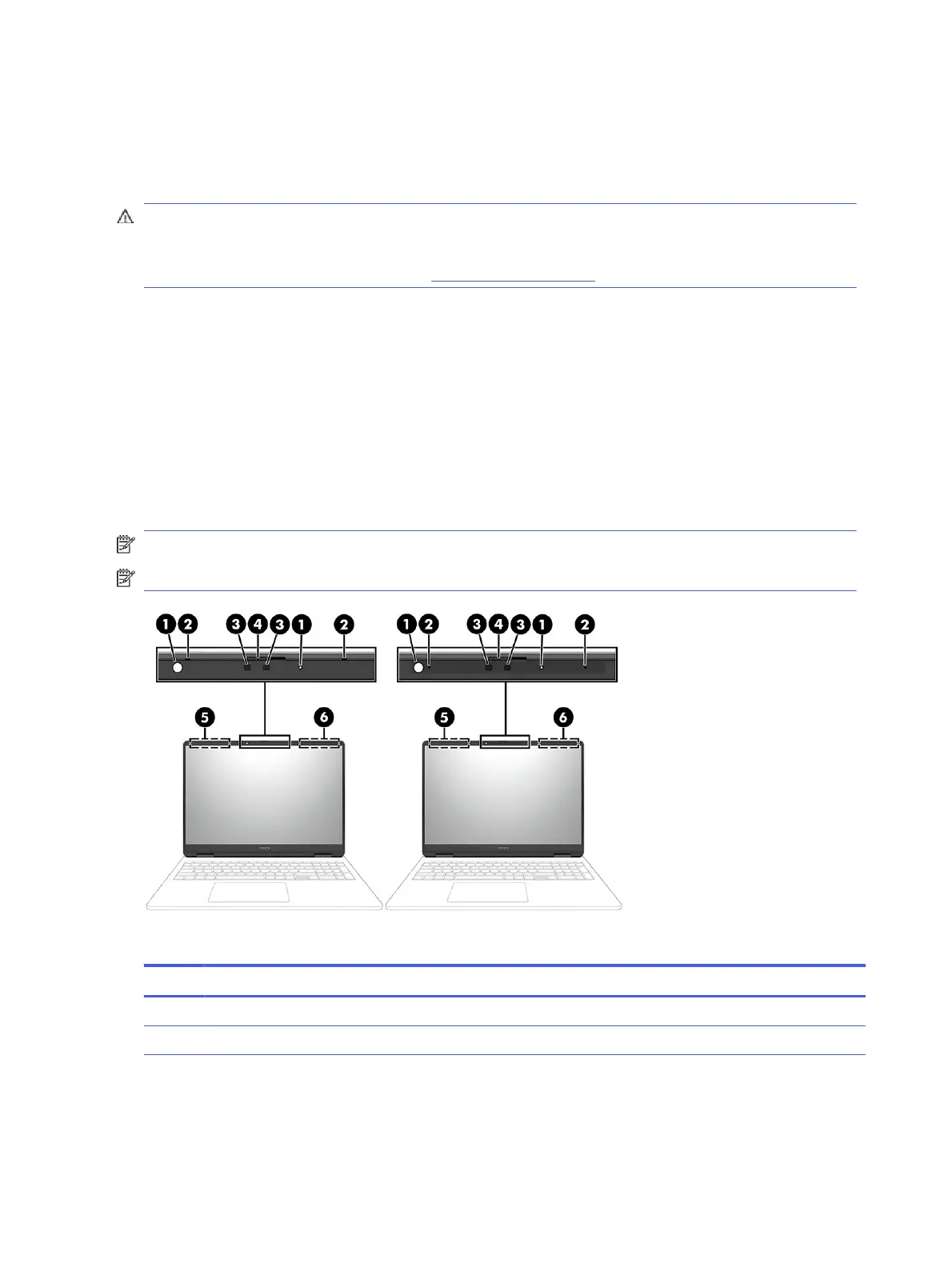
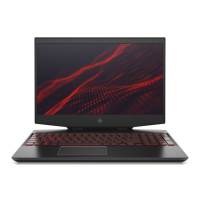
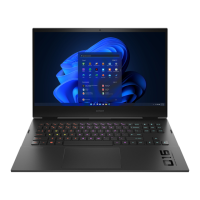
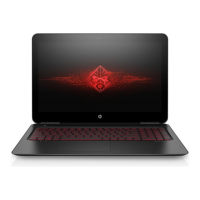
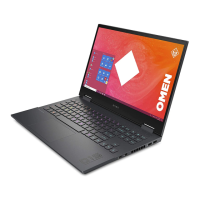
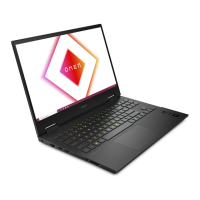
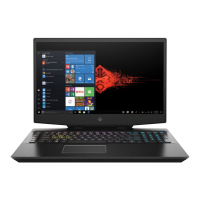
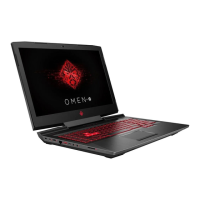
NOTE: Refer to the illustration that most closely matches your computer.
Table 2-4
Display components and their descriptions
Component Description
(1) Camera lights (2) On: One or more cameras are in use.
(2) Internal microphones (2) Record sound.
10 Chapter 2 Getting to know your computer



 To Next Page