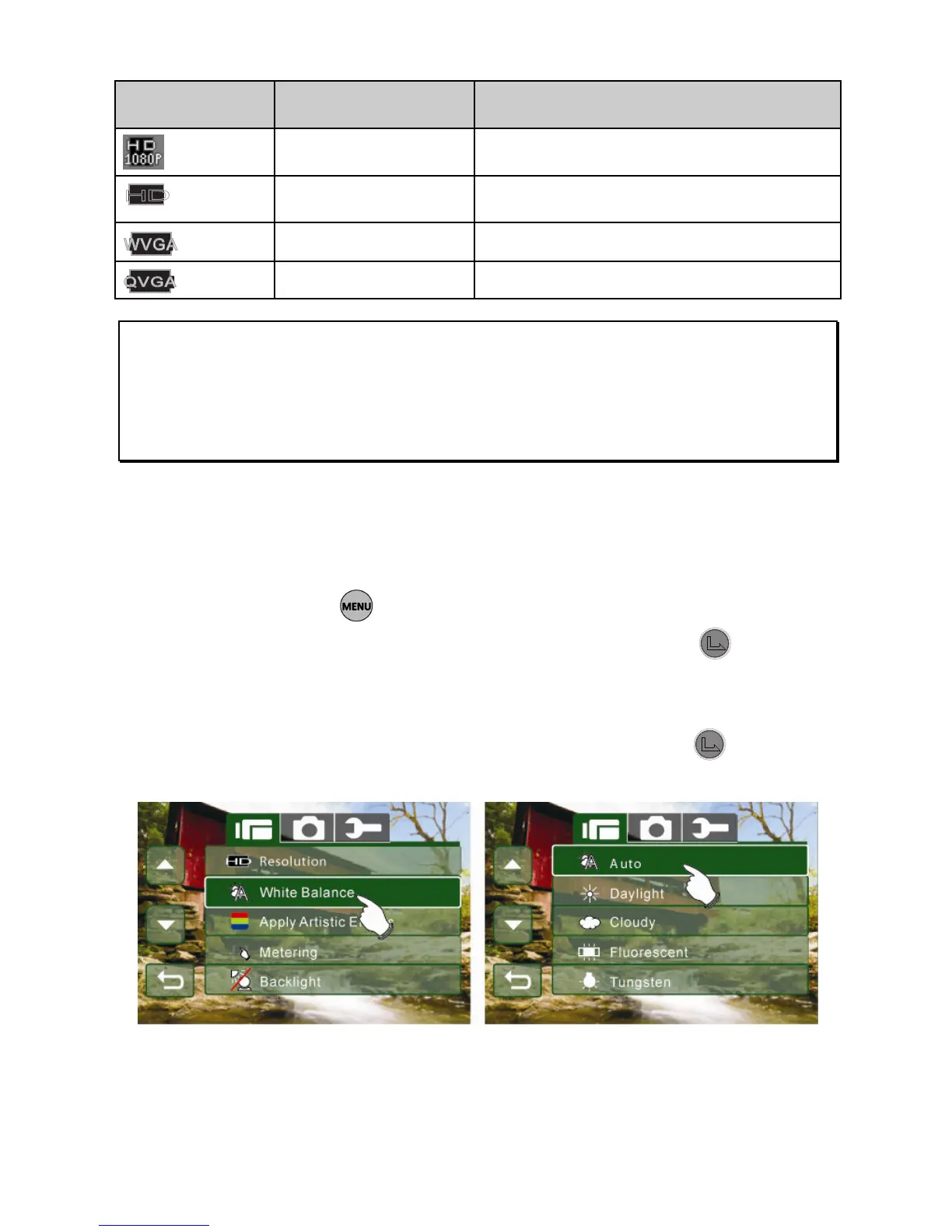
HD 1280 x 720
WVGA 848 x 480
QVGA 320 x 240
Notes:
1. When setting to HD1080p, HD or WVGA resolution, the LCD display
aspect ratio is 16:9.
2. When setting to QVGA video resolution, the LCD display aspect ratio
is 4:3.
6.1.2 47BWhite Balance
1. Turn on the Digital Camcorder and make sure it is in the
Video mode.
2. Press the button and move the 4-Way Direction
Button to highlight White Balance. Press the button
or touch the icon on the screen to display the submenu.
3. Press the 4-Way Direction Button to select Auto, Daylight,
Cloudy, Fluorescent or Tungsten. Press the button or
touch the icon on the screen to select the item.



 To Next Page