Using the Clock
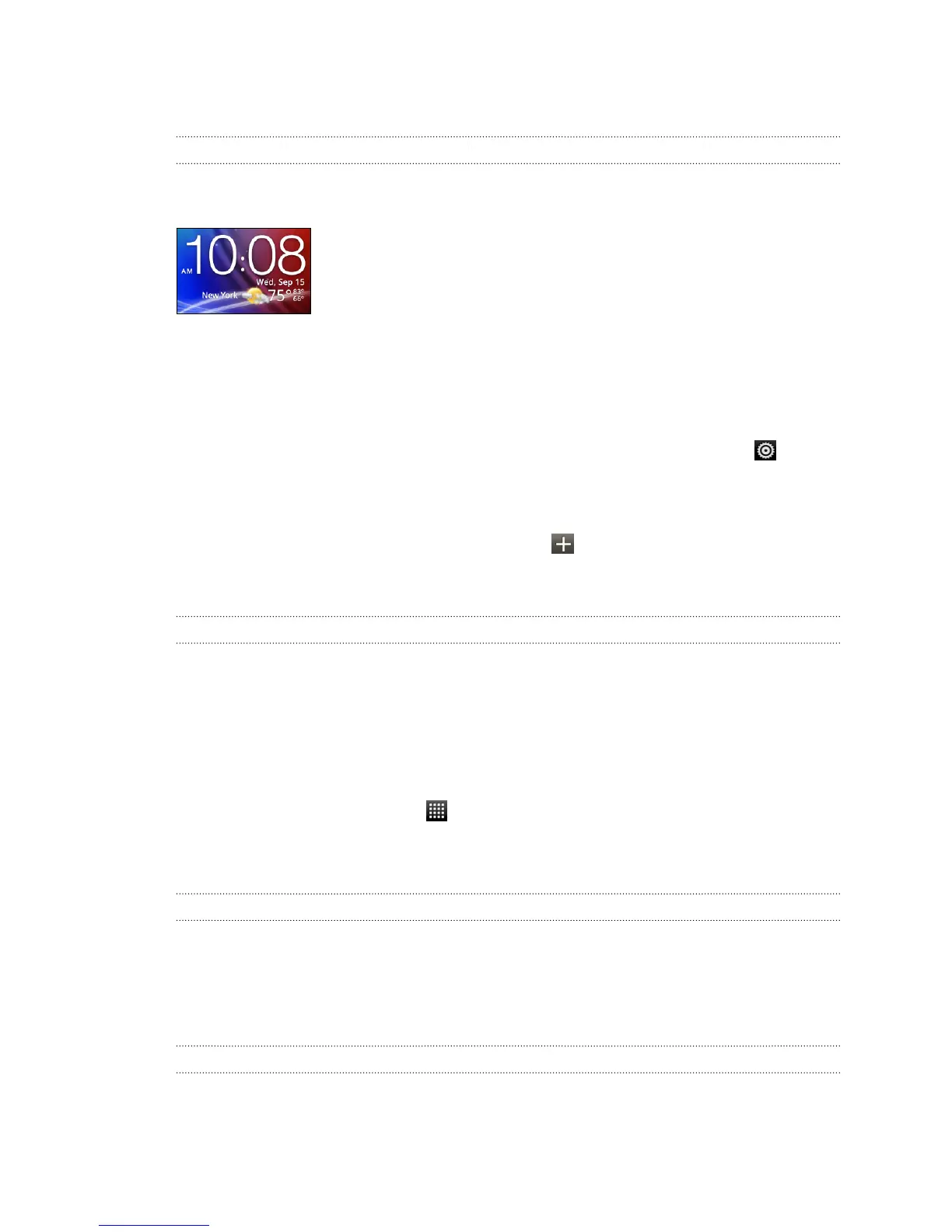
About the HTC Clock widget
Use the HTC Clock widget to see your current date, time, and location. You can also
use the Clock to show the time in another city.
Changing the location on the Clock widget
By default, the Clock widget on the Home screen displays your current weather. You
can customize the Clock widget on your Home screen to show the weather of another
location.
1. Press and hold the clock on the Home screen, and then drag it to the button.
2. Tap the clock to change its settings.
3. Choose a city.
If you don't see the city that you want, tap to search for it and add it.
4. Tap Done.
Using the Clock app
Get more from the Clock app than just the regular date and time. Use HTC Explorer as
a desk clock complete with weather information or as a world clock so you can see
what time it is in several cities across the globe. You can also use it as an alarm clock,
stopwatch, and countdown timer.
To open the Clock app, do one of the following:
§ Tap the Clock widget on the Home screen.
§ From the Home screen, tap
and then tap Clock.
Tap the tabs on the bottom row or slide your finger across the tabs to switch
between the different functions of the Clock app.
Using Desk Clock
The Desk Clock displays the current date, time, and weather. It also shows an alarm
clock indicator and the battery level.
Tap the weather image or information to open the Weather app where you can see
weather forecasts for the next few days.
Using World Clock
Use the Clock app's World Clock tab to check the current time in several places
around the globe. You can also set your home city, add more cities to the world clock
list, and manually set your time zone, date, and time.
95 Android Market and other apps



 To Next Page