3-1
3 Wireless Connection Setup
3.1 Setting Up a Wireless Connection Using the
WPS Button
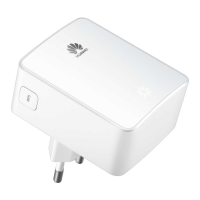
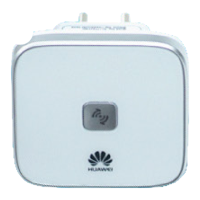
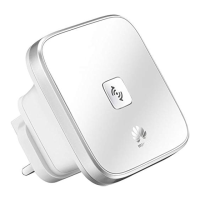
Push the WPS button once to quickly set up a wireless connection between the
WS322 and any WPS-capable device. Before you set up a wireless connection using
the WPS button, verify the following:
The wireless network security mode of the WS322 is WPA2-PSK or
WPA-PSK/WPA2–PSK.
The wireless device (laptop, tablet, or mobile phone) to connect to the WS322
is WPS-capable.
Step 1 Press the WPS button on the wireless device to start WPS negotiation.
For details, see the user guide for the wireless device.
Step 2 Within 2 minutes, press and hold the WPS button on the WS322 for 1
second or more. The WPS button indicator blinks.
When the WPS indicator on the WS322 is steady on, a connection between the
WS322 and wireless device is set up. The WPS indicator is on for 300 seconds. Then
the WPS indicator turns off.
3.2 Manually Setting Up a Wireless
Connection
The wireless configuration software provided by Windows is used as an example to
describe how to set up a wireless connection.


 To Next Page