10
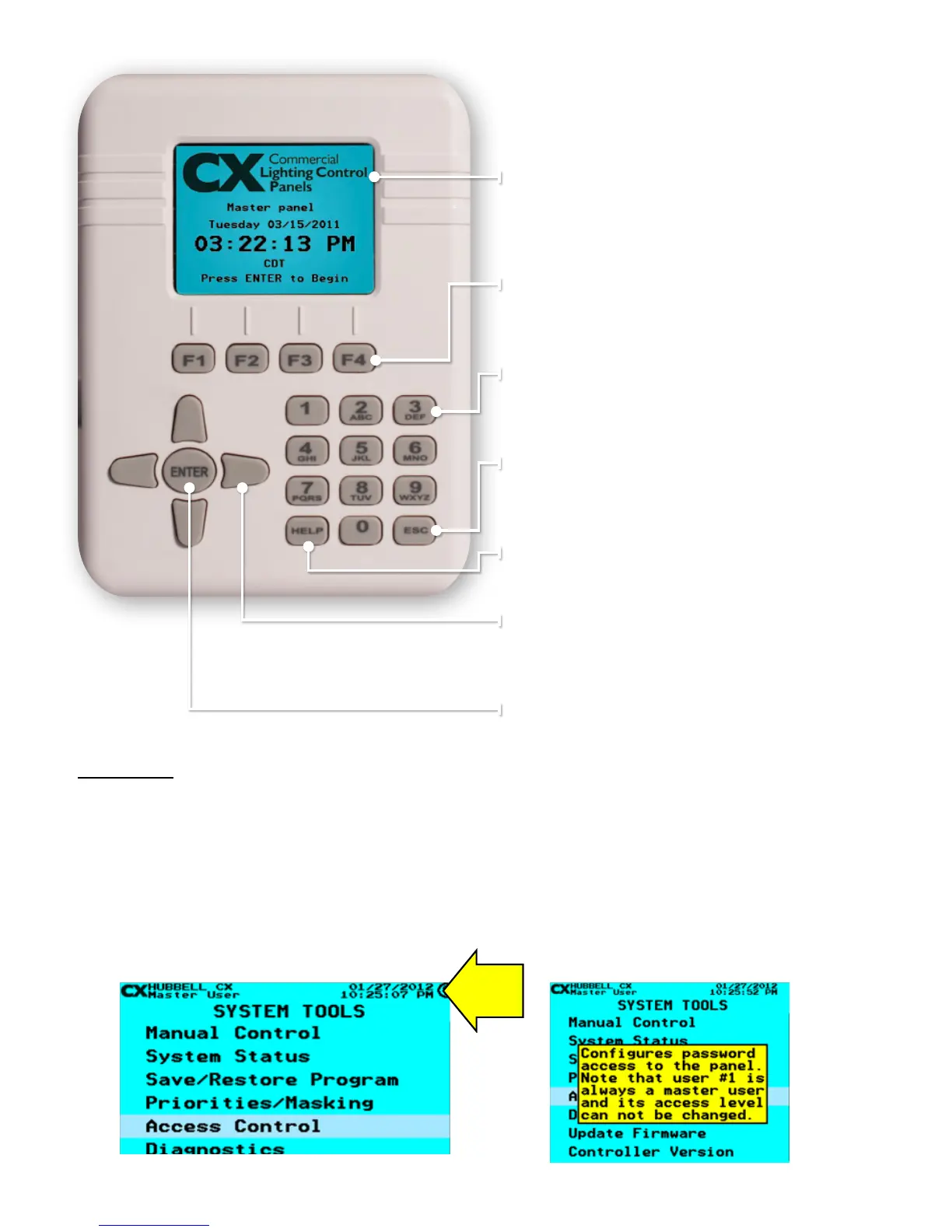
Color LCD Display – Allows for most programming
to be completed in a single screen. Right side scroll bars
appear when more choices are available than
are currently visible.
Function Keys – These keys provide programming choices
in various screens. Key labels appear on-screen when keys
are available.
Alpha-Numeric Keypad – This keypad is used to populate
names and numeric values while programming. Tap/Scroll
operation is similar to that used for cell phones.
Escape Key – This key takes the user to the previous
screen. Warning prompts when changes have been made
but not saved.
Help Key – This key will bring up help screens in specic
locations driven by the eld that is highlighted.
Navigation Keys – Allows user to navigate Up/Down/
Right/Left/Toggle through editable elds to select program
choices.
Enter Key
– Use this key to make selections.
HELP Screens
The CX Panel system has been designed to include HELP screens throughout the menu structure. Descriptive information is
available when a HELP symbol is indicated in the upper right corner of the display, (a question mark in a circle).
Press the HELP button, a yellow Help screen will appear with the additional information.
When nished with the information press HELP again OR the ESC key to return to the previous Menu. Please note that the
HELP text applies to the eld that is highlighted. If you do not see the HELP symbol, then that selection does not have a HELP
screen.
Icon



 To Next Page