11
Function Keys
The F1, F2, F3, and F4 Function Keys located just above the numerical keypad provide additional programming options in various
screens. These will appear when additional options are available.
Select Screens
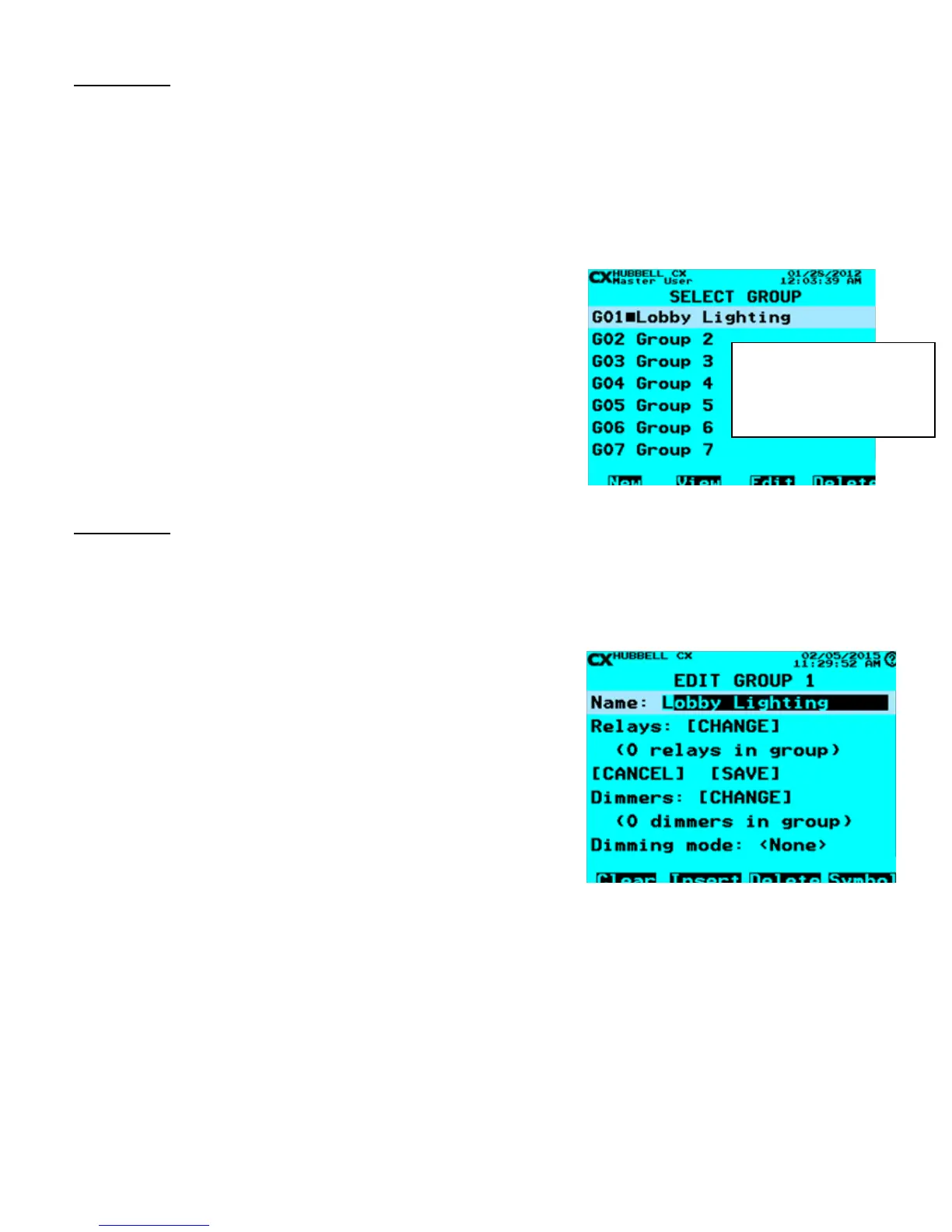
The following Function Key actions occur in the “Select” screens for Open/Close Times, Groups, Schedules, Holiday Dates,
Holiday Schedules, Inputs, Outputs, and Access Control:
EXAMPLE - Select Group - Highlight a Group then press ENTER. You
may use the function keys instead for added functionality:
F1 = Create a New Group. This key will take the user to the next un-
programmed Group.
F2 = View an existing Group. This key will allow viewing of the Group,
but does not allow programming.
F3 = Edit an existing Group. This key allows editing of an already
programmed or un-programmed Group.
F4 = Delete an existing Group. This key allows for the deletion of
programming of a Group. The system will prompt the user to select Yes
or No to the deletion before removing programming.
Name Screens
The following Function Key actions occur in the “Name” screens for Open/Close Times, Relay Function, Groups, Schedules,
Holiday Dates, Holiday Schedules, Inputs, Outputs, and Access Control:
EXAMPLE - Edit Group - Highlight a Group. Press ENTER. To NAME
the Group, Use the Alpha-Numeric keypad to enter each letter,
pressing the specic key multiple times to scroll. Pressing ENTER
at any time while in the name eld will pull up a table of architectural
naming words. Scroll up/down to highlight the desired word and press
ENTER to populate the selection into name eld. More than one
word may be selected in sequence Name length may be up to 19
characters including spaces.
F1 = Clear the current name. This key will clear the Group Name that
appears in the eld.
F2 = Insert a space. When the Insert, F2 button, is pressed the
location of the cursor will make a space and push any text to the right
of the cursor to the right.
F3 = Delete a character. Use the <> Arrow keys to navigate to a
location and delete a character.
F4 = Insert special character. Use the up and down arrow keys to search
special characters (-.#’&@/+).
NOTE: Actions will become
visible above the function keys
when additional programming
inputs are possible
.
EXAMPLE: Select Groups
EXAMPLE: Name Group



 To Next Page