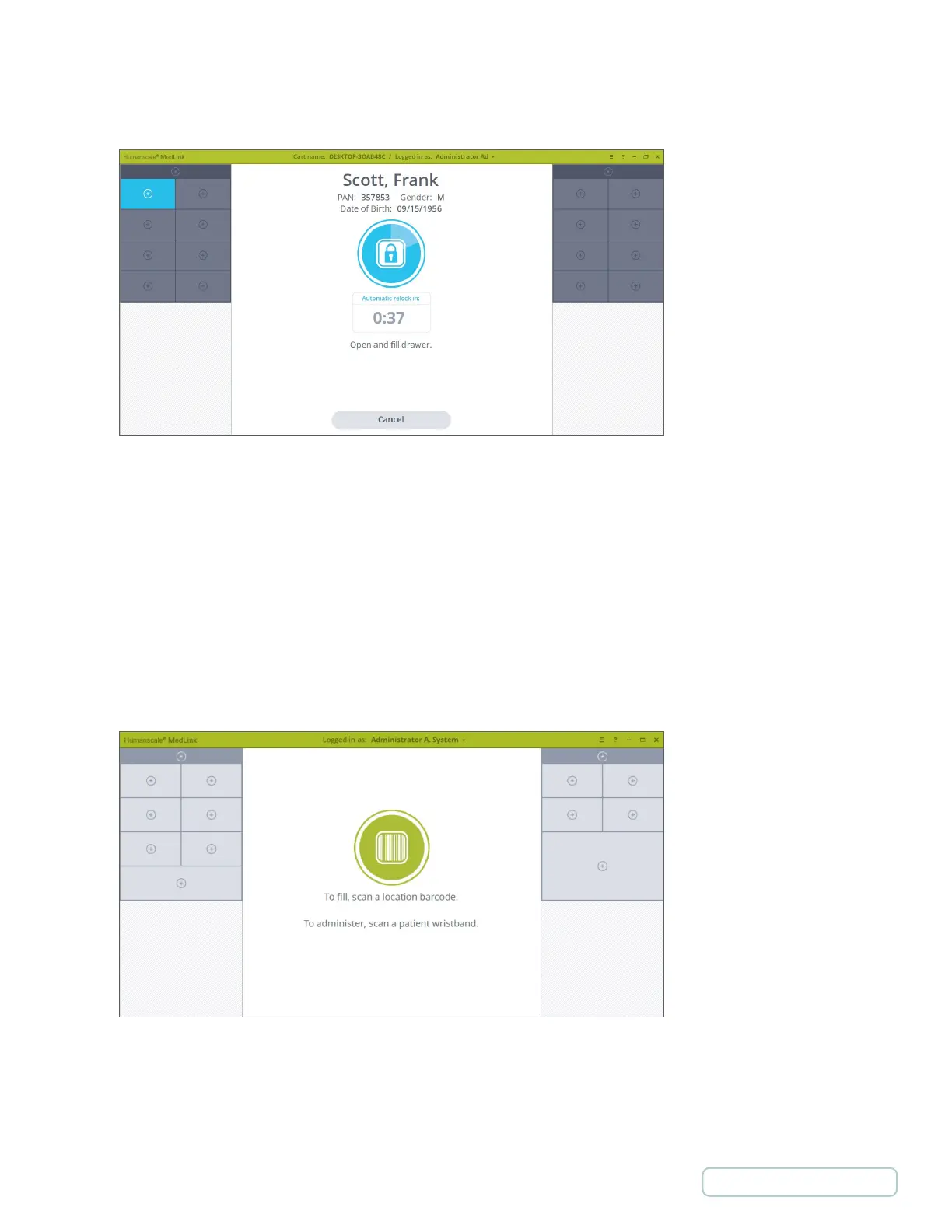
4. Scan the Patient-specific barcode on the label printed by the Automated Dispensing Cabinet. If the patient is recognized
in the ADT feed, and an unassigned drawer is available, a drawer will automatically be assigned to the Patient and will open
automatically to be filled.
5.6.2 ASSIGNING A DRAWER TO A PATIENT MANUALLY
In case Patient’s barcode is not available to scan during the assigning process a Patient can be manually assigned to a drawer by
selecting Patient from the Patient List.
The system must be connected to an HL7 engine with an ADT feed so that Patient barcodes can be looked up. This process can only
be started after a Location Barcode has been scanned or Pharmacy Mode is enabled.
1. Ensure you are near to your Automated Dispensing Cabinet or in your medication store room and have access to the
MedLink
TM
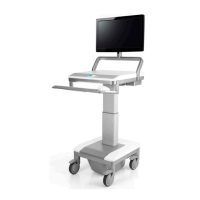
location bar code. Upon logging in to the software, you will be presented with the home screen.
2. Scan the location bar code as prompted to tell the system you are in a designated location for assigning and filling drawers.
3. When the location bar code is successfully scanned, the center icon will change to blue.
Figure 32 - Drawer Assigned and Opened
Figure 4 – Home Screen
39
Return to Table of Contents



 To Next Page