5.12 OPENING DRAWERS WITHOUT SCANNING BARCODES
When Location Scanning and Override processes are enabled, there is a choice to scan the “Location barcode” or use an
administrative login to “Override” the Location scan for the open action. The override may optionally be followed by a prompt to
enter a “Reason” for the override. This override action is recorded and noted in reports.
1. If a barcode is damaged or unavailable to scan and you need to access that Drawer, begin by selecting a Drawer and
clicking the Open button.
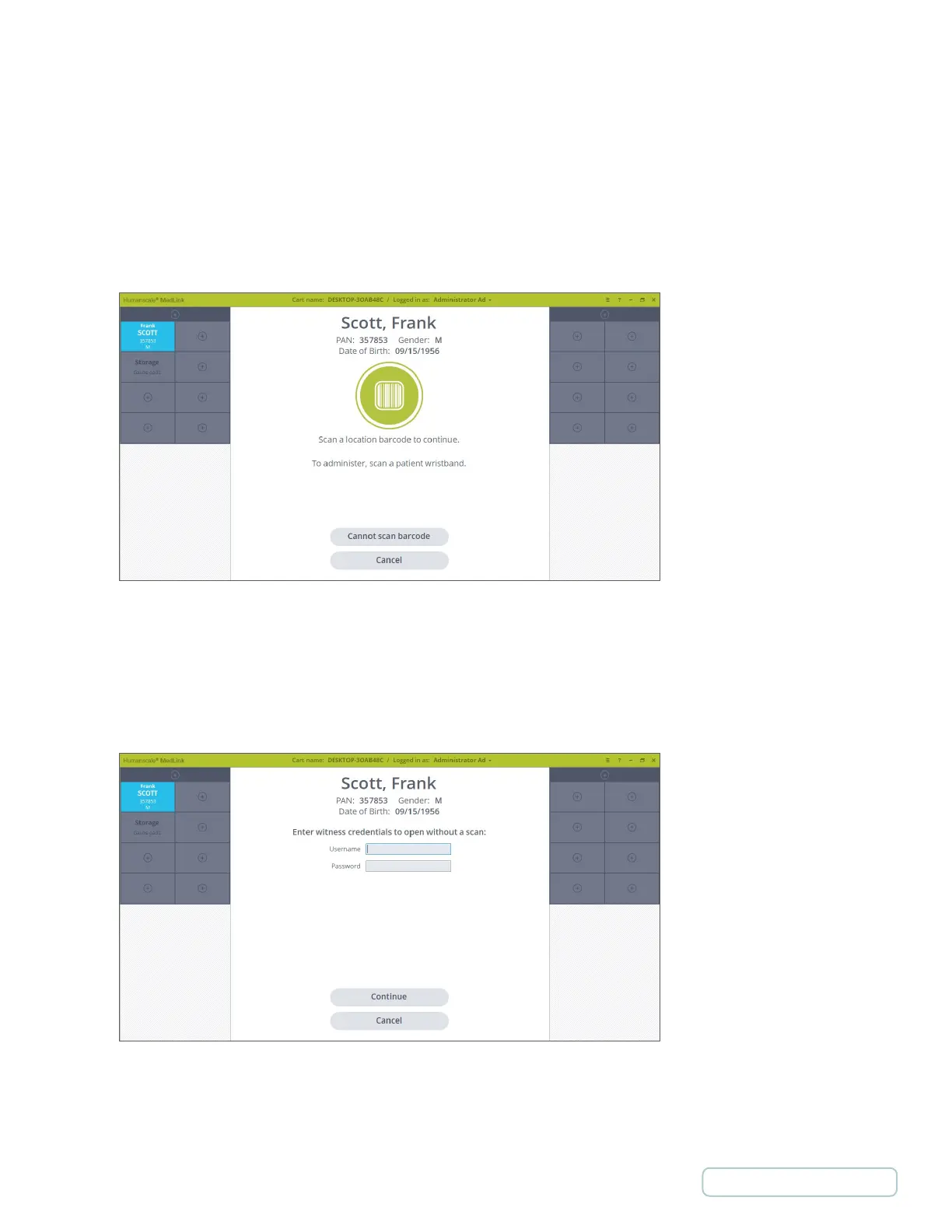
2. On the following screen where you are prompted to scan a barcode to continue, click the Cannot Scan Barcode button.
Depending how the system is configured, you will be taken to the either the “Witness” override process, or the “PAN/MRN”
override process.
• If the system is configured to use the Witness override process, you will be prompted to enter the login credentials of
a colleague to see that you are opening a Drawer without the security of scanning a barcode.
Figure 58 - Location Barcode Can’t be Scanned
Figure 59 - Witness Credential
52
Return to Table of Contents



 To Next Page