5.8 UNASSIGNING AND REASSIGNING DRAWERS
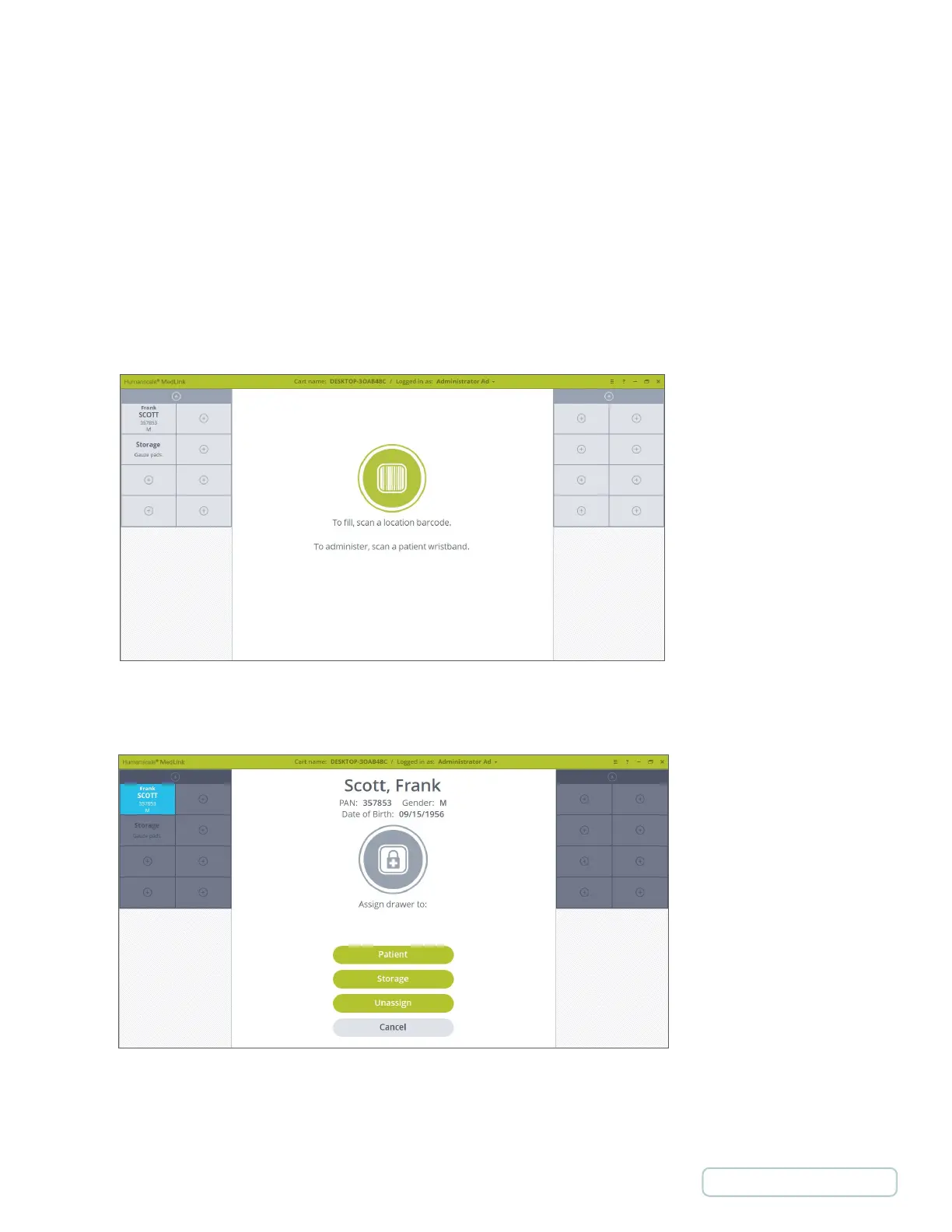
1. Begin by following the prompt on the Home screen to scan a Location barcode.
2. Click on the Drawer you want to reassign.
3. You are prompted to choose whether you want to open or reassign the Drawer. The options of More… button will
be discussed in details later in this document at 5.14 Managing Drawers.
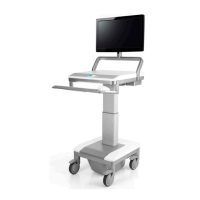
Drawer Selected Screen Options Selecting Reassign the following options are available:
Patient – Assigning drawer to another patient.
Storage – Assigning drawer to Storage
Unassign – Unassigning drawer
The three processes are similar, but this example follows the unassign option. Click the Unassign button to continue.
Figure 46 – Home screen with Storage Drawer
Figure 47 - Reassigning Options
44
Return to Table of Contents



 To Next Page