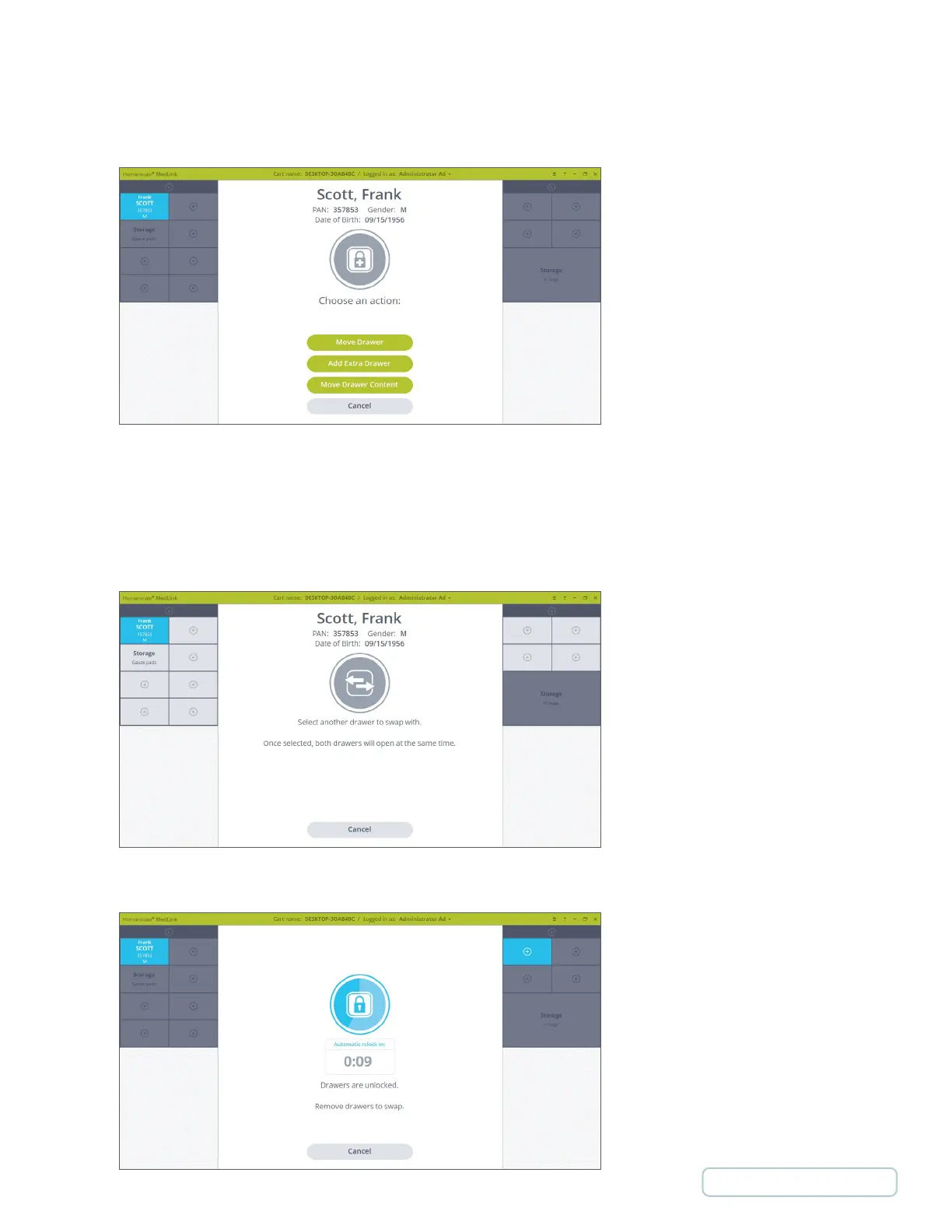
2. Click on the “Move Drawer” button.
NOTE: If you are logged in as a user without the move Drawer permission enabled you will not see the move Drawer
button.
3. If you have not already done so, you will be prompted to scan a Location barcode. The Drawer swapping process
should only be carried out in a designated area such as a medication store room, therefore scanning the Location
barcode is needed.
4. The first Drawer selected stays highlighted, and you will be promoted to choose a second Drawer where you want to
move the first drawer to.
5. Click on another Drawer of matching size. The second Drawer also highlights, and both Drawers will be unlocked.
Figure 64 – Select Another Drawer
Figure 65 – Both Drawers are Unlocked
Figure 63 - Drawer Selected Secondary Screen
55
Return to Table of Contents



 To Next Page