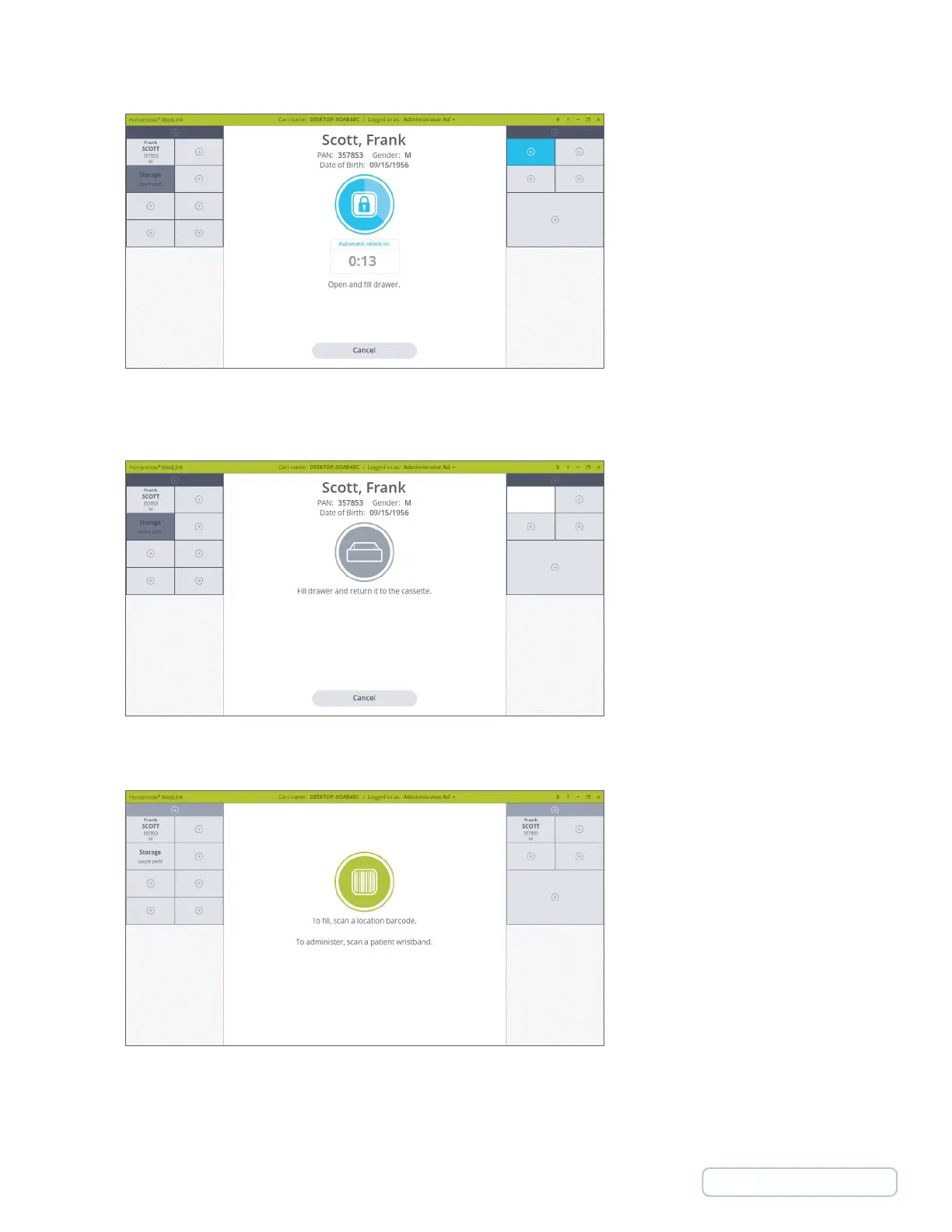
4. Click on the drawer that you would like to add. Only the selected Drawer unlocks.
5. The display changes to prompt you to open the Drawer and insert any medication. The display indicates the Patient
details (the same Patient whose Drawer was originally selected to start this process).
6. The display returns to the Home screen, with the new Drawer front indicating it is now Assigned to the same Patient.
Figure 69 – Open Extra Drawer
Figure 70 – Extra Drawer is Open
Figure 71 –Extra Drawer is Assigned
58
Return to Table of Contents



 To Next Page