ColorFlex EZ User’s Manual Version 2.2
43
10. Press NEXT (up arrow) if it is shown to move to the next data view in the product
setup.
11. Press VIEW AVG (GO) to show the average of all the measurements made in the
averaging sequence.
Note: If a bar code reader is installed, scan the bar code now, and the ID will
appear beneath the average color values.
12. Press READ (Go button) to take another reading in this product setup.
13. Once the average is displayed, press VIEW STDDEV (right arrow) to show the
standard deviation of all the measurements made in the averaging sequence.
Working with Saved Readings
Readings stored in the ColorFlex EZ’s memory during the read process may be viewed, printed,
and deleted later, if desired.
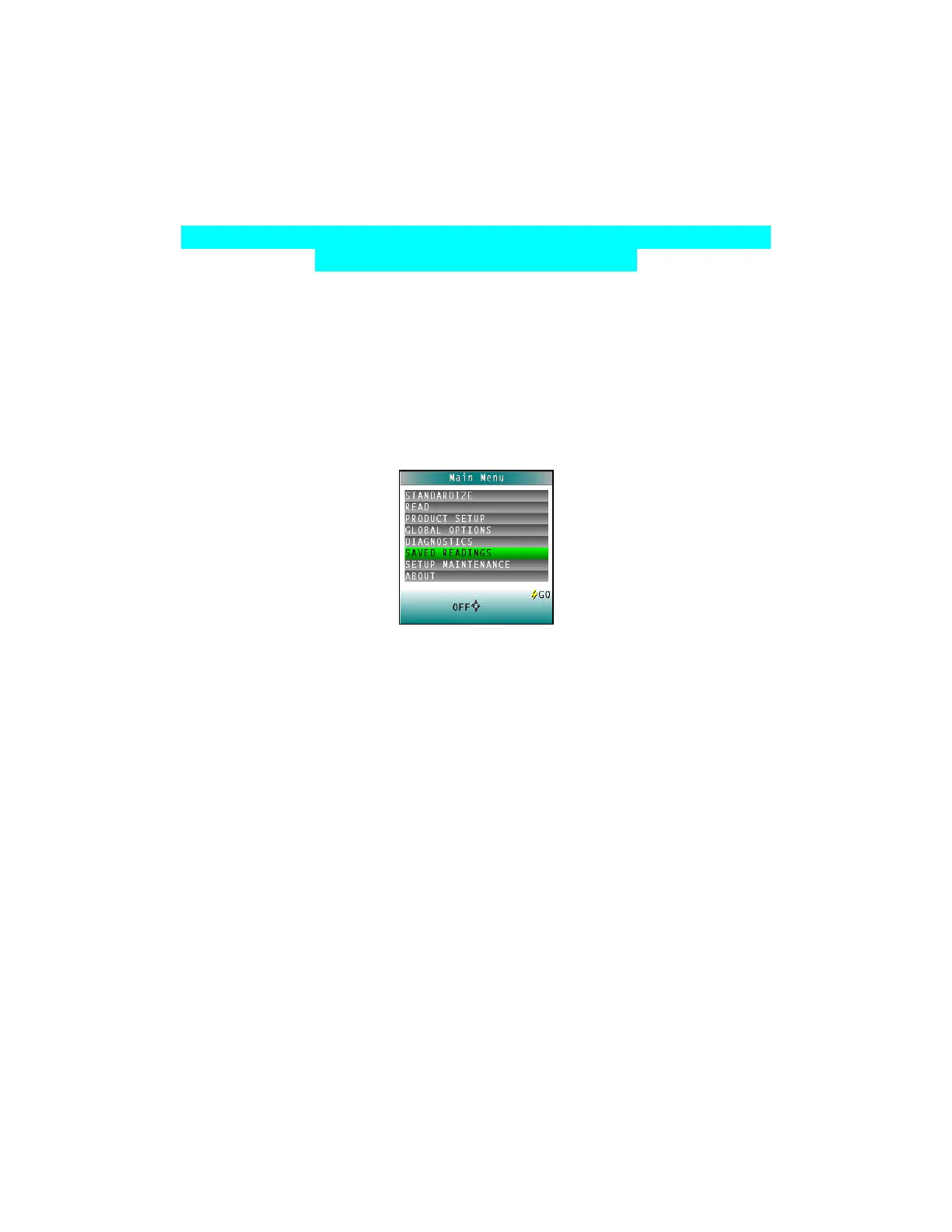
Figure 65. Select Saved Readings
To work with saved readings, select SAVED READINGS from the main menu by moving the
cursor highlight to its position using the UP and DOWN arrow buttons and then pressing the
center GO button. The Saved Readings menu appears.
Choose the desired function by scrolling using the UP and DOWN arrow buttons until it is
highlighted and then pressing the RIGHT arrow button. The various functions perform as
described below.
• Delete All Readings
DELETE ALL SAVED READINGS displays confirmation message to proceed. When GO
is pressed, the measurements stored in the ColorFlex EZ’s memory are erased.
When complete, a confirmation message is shown and the user is returned to the
SAVED READINGS menu.


 To Next Page