Network Camera User Manual
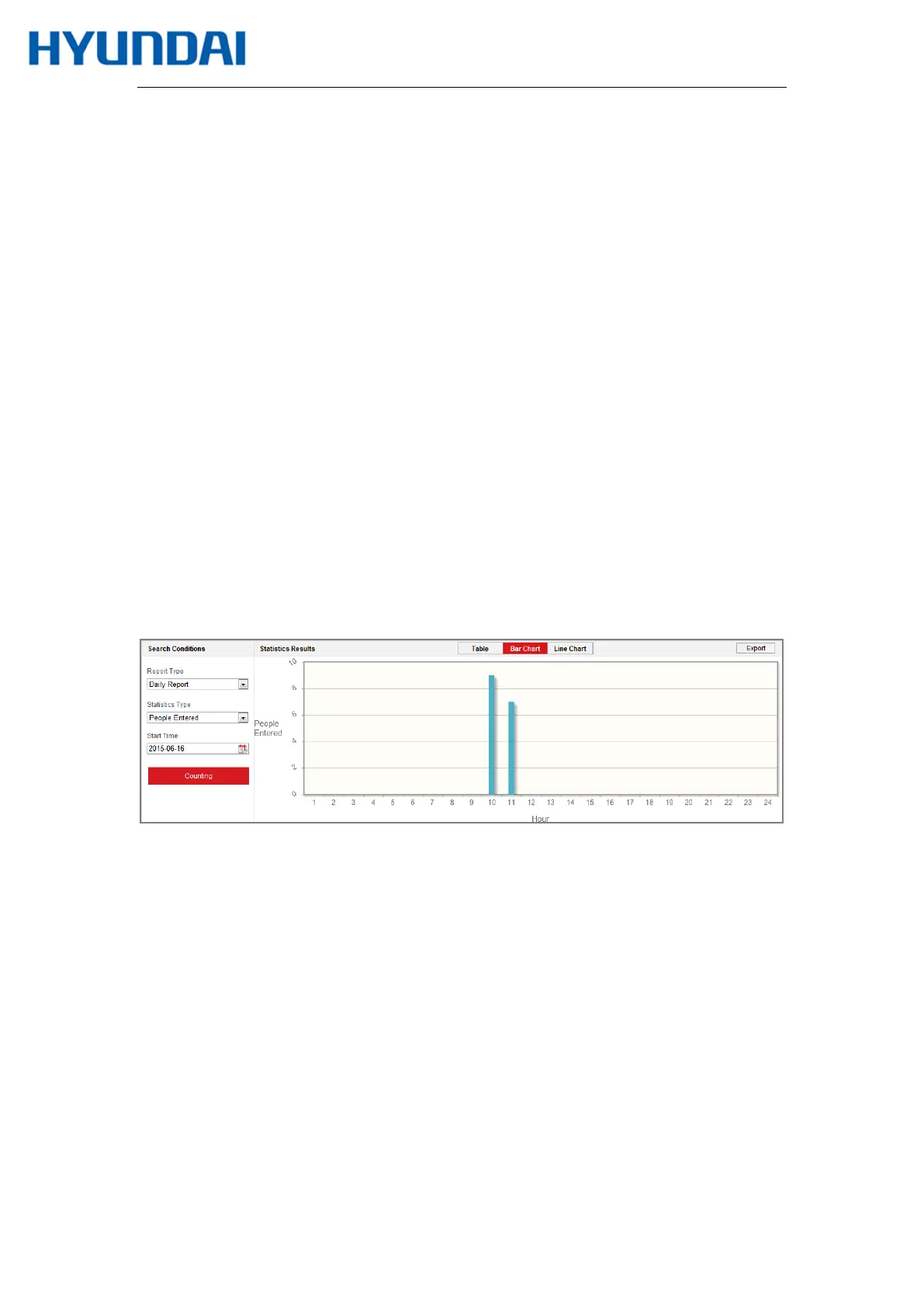
counting data from application tab. To get more intuitional results, you can display the data
in different charts.
Steps:
1.
Select the report type. Daily report, weekly report, monthly report, and annual
report are selectable.
Note: Daily report calculates the data on the date you selected; weekly report calculates
for the week your selected date belongs to; monthly report calculates for the month your
selected date belongs to; and the annual report calculates for the year your selected date
belongs to.
2.
Select the statistics type. People Entered, and People Exited are selectable.
3.
Select the start time, and click Counting.
The counting result displays in the statistic result area. Click Table, Bar Chart, or Line
Chart to display the result in different way.
Note: If you select table to display the statistics, there is an Export button to
export the data in an excel file.
Figure 14-2 People Counting
14.3 Heat Map Statistics
After you enable the heat map function, you can view and download the heat map data from
application tab. To get more intuitional results, you can display the data in different charts.
Steps:
1.
Select the report type. Daily report, weekly report, monthly report, and annual
report are selectable.



 To Next Page