Part 1 - Remote Setup
27
FTP Upload
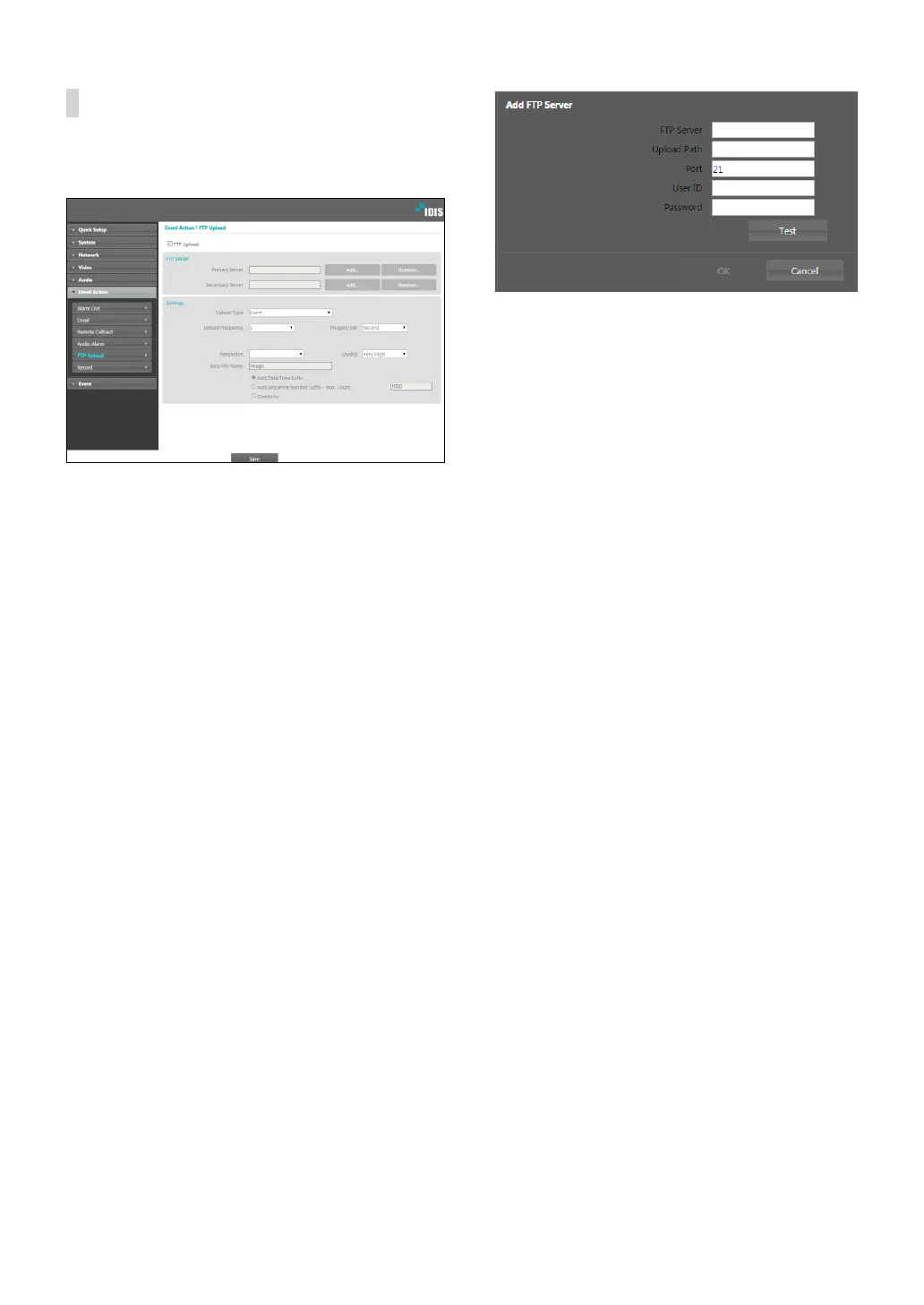
Select FTP Upload to upload .jpg image of the event
detected to an FTP server.
• FTP Server: Click Add to register a new FTP server.
Click Remove to remove a registered FTP server.
When an event is detected, a .jpg image of the event
detected image is uploaded to the Primary Server.
If the upload to the Primary Server fails, the le will
be uploaded to the Secondary Server. Upload to the
Secondary Server will continue to be attempted until
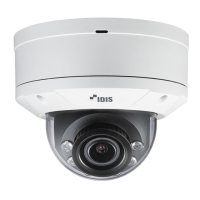
successful. Fill out the elds below and click Test to
test the FTP server connection settings. Once the test
is complete, click OK.
- FTP Server: Enter the FTP server’s IP address (or
domain name).
- Upload Path: Designate the le upload path.
- Port: Enter the FTP server’s port number.
- User ID, Password: Enter the user ID and password
needed for connecting to the FTP server.
• Settings: Congure image and upload settings.
- Upload Type: Choose an upload type. Select
Always to upload images using the settings below,
irrespective of event detection. Select Event to
upload images using the settings below when an
event is detected.
- Upload Frequency: Activated only when Upload
Type has been set to Always. Designate the upload
speed. The specied number of images will be
uploaded to the FTP server during the specied
period of time.
- Image per: Activated only when Upload Type has
been set to Event. Designate the upload speed.
Select Upload for and specify a duration. Images
will be uploaded for the specied duration at the
specied upload speed. Select Upload while event
status is active to upload images at the specied
speed only while event status is active.
- Resolution/Quality: Choose the resolution and
quality of the images to upload to the FTP server.
Range of resolution settings you can use here can
vary depe nding on the resolution setting applied
under Video > Streaming.
- Base File Name: Enter a name for the les to be
uploaded to the FTP server and then choose le
identication options. Select Add Date/Time Sux
to add event detection date and time information
to each image le. Select Add Sequence Number
Sux - max. Count to number the image les
based on the order of event detection. Select
Overwrite to overwrite the previous image with
the new image. Event type is automatically added
to the le names.



 To Next Page