Part 1 - Remote Setup
21
Streaming
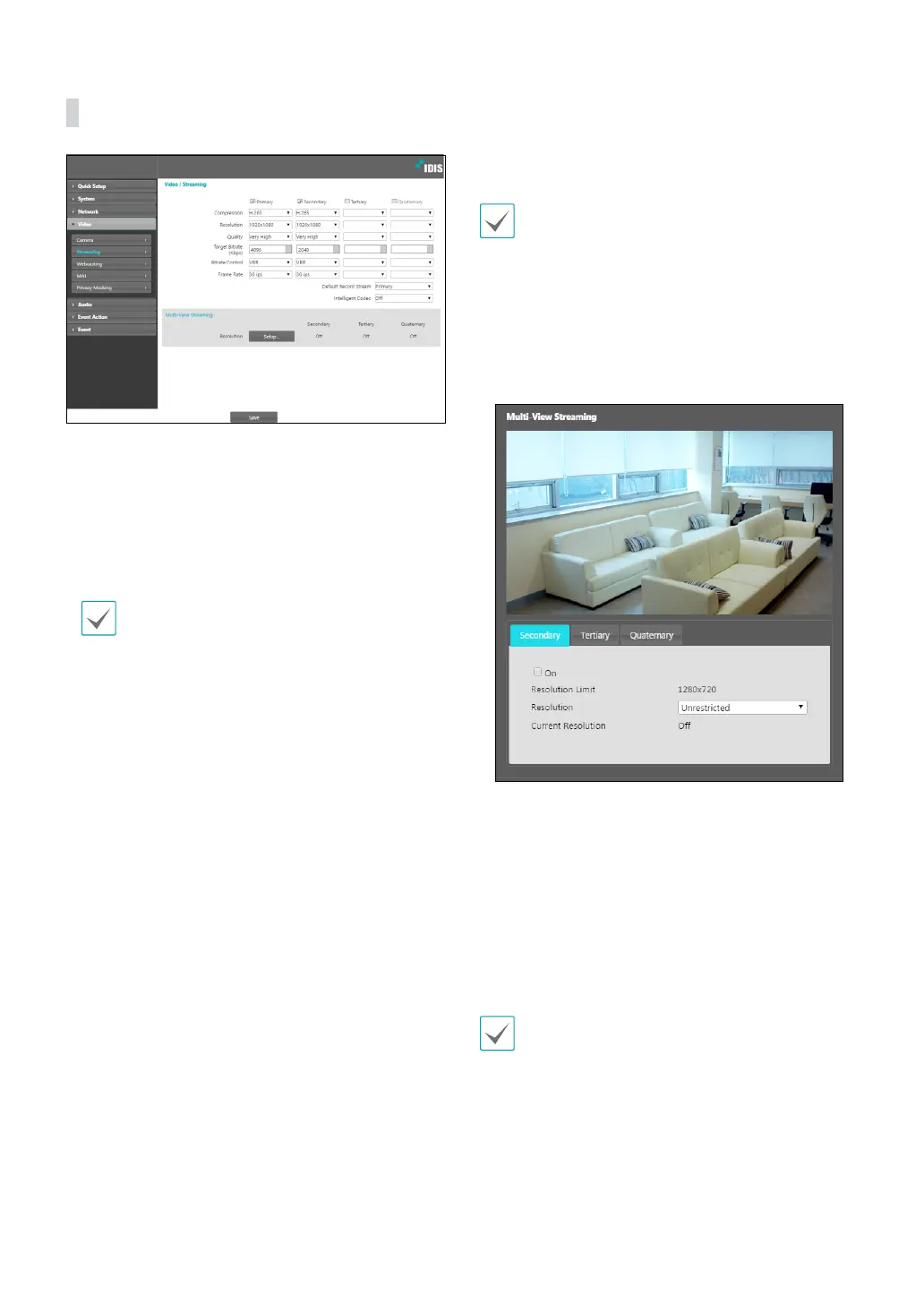
• Primary/Secondary/Tertiary/Quaternary:
Multistreaming is supported. Enable/disable
streaming use. The stream you set rst has priority.
• Compression: Choose the streaming compression
method. The H.265 compression does not support
ONVIF Protocol and RTSP.
When using H.265 compression, a device that does
not support H.265 compression may prevent the
screen from being displayed.
• Resolution: Choose a resolution setting for video
streaming. The resolution varies depending on the
camera model. The current stream resolution cannot
be higher than the higher stream resolution. Quality:
Choose a quality setting for video streaming.
• Target Bitrate(Kbps): Set the target bitrate. When
Quality is set to Manual, you can congure the value
of the target bitrate. If not, the set value of the target
bitrate for each Quality appears.
• Bitrate Control: Choose a bitrate control mode for
video compression.
- CBR (Fixed Bitrate): Maintains the current bitrate
regardless of motion change in the video.
- VBR (Variable Bitrate): Bitrate varies depending
on motion changes in the video. Less movement
places less load on the network and takes up less
storage space.
• Frame Rate: Choose a frame rate setting for video
streaming.Default Record Stream: Choose a stream
to use for recording. This setting, however, may not
apply if a recording stream has been designated from
the remote program or the SD memory card recording
feature has been enabled.
• Intelligent Codec: Analyze real-time video
intelligently to minimize bitrate while maintaining
frame rate and image quality.
In environments where there are many video changes,
image quality can be reduced.
• Multi-View Streaming: Designate a specic area of
the screen and stream images from that area only.
(not supported for the primary stream) Click Setup to
designate a streaming area.
Select On and then specify the streaming area’s
resolution.
- Resolution Limit: Indicates the maximum
resolution that can be set for the streaming area.
- Resolution: Designate a streaming area.
Designated area is marked in red on the screen. You
can adjust the resolution of the area or reposition
the area by dragging and dropping using the
mouse.
- Current Resolution: Displays the resolution of the
designated streaming area.
If multiple users are connected to the camera, the
increase in bandwidth use can lower the frame rate.
• When using Multi-View, the display of the
IntelliVision event object may be restricted.


 To Next Page