EasyManua.ls Logo

Ihse 474 Series - User Manual

Default Icon
89 pages
Print Icon
To Next Page IconTo Next Page
Loading...
IHSE GmbH
Maybachstrasse 11
88094 Oberteuringen
Germany
info@ihse.de
www.ihse.de
Tel. +49 7546-9248-0
Fax +49 7546-9248-48
User Manual
Edition: 2014-04-15
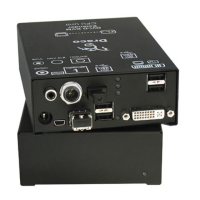
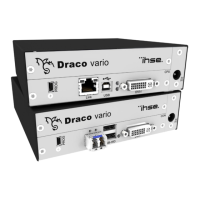
Draco
KVM Extender
Model:
474 Series

Table of Contents

Questions and Answers

  • M
    Martha GilbertAug 15, 2025
    What to do if Ihse 474 shows a blank screen?
    • C
      Catherine SmithAug 15, 2025
      If you're seeing a blank screen with your Ihse Extender, start by verifying the power supply units and their connection to the power network. Then, check the interconnect cables and connections between the N Unit and CPU Unit. Also, ensure the DVI-D cable is properly connected to the CPU. If a video signal is detected from the source (computer), download DDC information from console monitors and reboot the CPU if needed. Finally, check the DVI-D cable connection to the monitor, ensuring it's secure and of good quality.
  • C
    Calvin WallaceAug 18, 2025
    Why is my Ihse 474 Extender config.txt parameter not working?
    • J
      Jamie JohnsonAug 18, 2025
      If a config.txt parameter isn't working on your Ihse Extender, first, make sure the parameter is correctly written into the Config.txt file and that the changes are saved. Also, verify that the start command #CFG is written into the first line of the Config.txt file. Ensure that the parameter is spelled correctly and uses the correct capitalization. If the issue persists, try restarting the extender.
  • D
    Daniel GarciaAug 21, 2025
    What to do if Ihse 474 Extender has a blank screen?
    • M
      Michael MillerAug 21, 2025
      If your Ihse Extender shows a blank screen, several factors could be the cause. First, check the power supply units and their connection to the power network. Then, inspect the interconnect cables and connections between the N Unit and CPU Unit. Also, verify the DVI-D cable connection to the CPU. If a video signal is detected at the CPU Unit, check the connection, length, and quality of the interconnect cables between the units. If no monitor is detected, check the DVI-D cable to the monitor, ensuring it's properly connected and the thumbscrews are tightened.
  • C
    colleencortezAug 25, 2025
    Why is my Ihse 474 USB-HID not working?
    • M
      Mr. Adam TaylorAug 25, 2025
      There are several reasons why the USB-HID on your Ihse Extender might not be working. It could be due to the board being in Command Mode; press to exit. Check the USB cable connection to the CPU, and try another USB port if necessary. If there are problems with the USB connection, check the USB cable connection to the USB-HID device. Ensure the USB-HID device is connected. If the USB-HID device is not supported, contact your dealer.
  • A
    Alexandra PowellAug 27, 2025
    How to fix Ihse Extender USB 2.0 connection issues?
    • V
      Victoria McdonaldAug 27, 2025
      To resolve USB 2.0 connection issues with your Ihse Extender, start by checking the USB cable connection to the CPU and try a different USB port if needed. Ensure the interconnect cable and connectors between the N Unit and CPU Unit are properly connected. Also, make sure the USB 2.0 device is connected. If the device is not supported, check the installation and necessary drivers on the CPU. Try reconnecting the USB 2.0 device or contact your dealer.
  • R
    Ryan WatsonAug 30, 2025
    What to do if Ihse 474 USB 2.0 embedded is not recognized?
    • H
      Haley GarciaAug 30, 2025
      If the USB 2.0 embedded on your Ihse Extender is not recognized, check the USB cable connection to the CPU, and try another USB port if necessary. Also, ensure the interconnect cable and connectors between the CON Unit and CPU Unit are properly connected. Verify that the USB 2.0 device is connected. If the USB 2.0 device is still not recognized, check the installation and necessary drivers on the CPU. Try reconnecting the USB 2.0 device, and if problems persist, contact your dealer.
  • E
    Erin MooreSep 2, 2025
    How to troubleshoot Serial Connection on Ihse 474?
    • K
      Kendra LeeSep 2, 2025
      To troubleshoot serial connection issues on your Ihse Extender, first check the baud rate and general settings of the serial interface. Then, verify the connection via the serial cable to the CPU. If there's no serial connection to the end device, connect the serial end device and switch it on, checking the serial cable connection. If you're using hardware handshake, adjust the serial interface to X-ON / X-OFF software handshake.
  • A
    Ashley HendricksSep 5, 2025
    Why is there no Analog Audio from my Ihse 474?
    • R
      Robin MorganSep 5, 2025
      If you're not getting any analog audio from your Ihse Extender, make sure the analog audio source is connected to the CPU or audio source, and check the audio cable. Ensure the analog audio source is switched on and the analog output is activated at the CPU or audio source. Also, verify the analog audio sink (e.g., speakers) is connected and switched on, checking the audio cable connection. If using a microphone, ensure it's connected and the audio cable is properly connected. Check the connection to the CPU, the audio cable, and the audio configuration if there's no audio connection to the audio sink (e.g. CPU).
  • S
    Stacy SuttonSep 8, 2025
    What causes no Digital Audio output on Ihse 474?
    • J
      Jillian JoyceSep 9, 2025
      If you're experiencing no digital audio output on your Ihse Extender, first connect the digital audio source and check the audio cable connection. Ensure the digital audio source is switched on and the digital output is activated at the CPU or audio source. Also, make sure the digital audio sink is connected and the audio cable is properly connected. Check the signal at the CPU Unit. If there's digital silence at an active audio source, check the LEDs at the CPU Unit, verify the audio format, and try changing the audio input.
  • C
    Carol RobertsonSep 12, 2025
    What to do if Ihse 474 Extender Upgrade Module USB-HID is not detected?
    • U
      uvazquezSep 12, 2025
      If the Ihse Extender Upgrade Module USB-HID is not detected, check the connection of the USB cable to the USB-HID device and ensure the device is connected. Verify the interconnect cable and connectors between the CON Unit and CPU Unit. If the keyboard is in Command Mode, press to exit. If problems persist, contact your dealer.

Summary

Safety Instructions

Description

System Overview

Describes the components (CPU/CON modules) and their connectivity in a KVM system.

Product Range

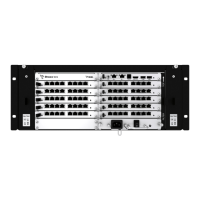
Details the various KVM Extender chassis and module types available.

Configuration

Configuration File

How to set parameters via the Config.txt file for CPU, CON, and both units.

Troubleshooting

General Failures

Provides solutions for common issues with Config.txt parameters and extender functionality.

Blank Screen

Troubleshooting steps for issues causing a blank screen or no video signal.

USB-HID

Diagnosing and resolving problems related to USB-HID devices and connectivity.

USB 2.0 Embedded

Troubleshooting for USB 2.0 embedded modules, focusing on connectivity and device detection.

Ihse 474 Series Specifications

General IconGeneral
CategoryExtender
ManufacturerIhse
SerialRS-232
PowerExternal Power Supply
Video InterfaceDisplayPort
Distance (Fiber Optic)Up to 10km
USBUSB 2.0
AudioSupported
InterfaceDisplayPort
ModelIhse 474 Series
Storage Temperature-20°C to 60°C

Related product manuals