34
USING THE SOFTWARE – MACINTOSH (CONTINUED)
Rotating a Display:
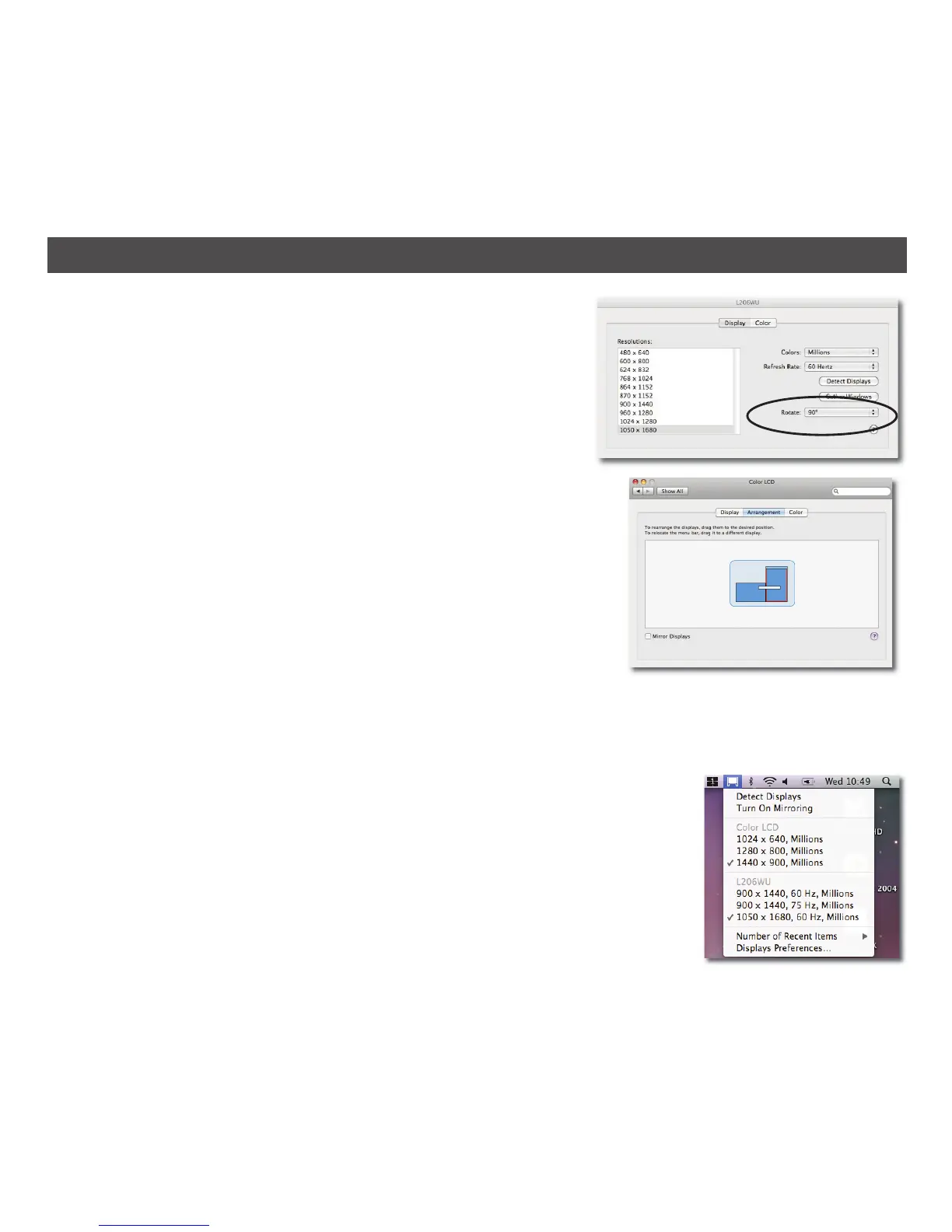
If you wish to rotate your display, you can configure the
orientation using the Rotate pull down menu. Select the
appropriate angle of rotation to match your display’s set up.
Each time the user rotates, any changes to settings made to
the mode, resolution, frequency or depth are remembered the
next time the user switches back to that angle of rotation.
Changing the Main Display:
You can change which is the main display by moving the Menu
Bar between displays. Changing the main display affects where
new windows appear and the position of the Dock.
The Menu Bar can be moved so that it is shown on an alternative
display. Clicking the white menu bar and dragging it to the
desired display will perform this action.
Configuring Displays from the Menu Bar:
If you have checked the Show displays in menu bar option in Display Preferences, then you can
configure displays by clicking the display icon in the top right menu bar of the main display. This
will show a menu similar to the one shown at the right.
This menu allows you to perform the following actions:
• Detect all displays connected to the MAC.
• Turn display mirroring on or off.
• Set the resolution of both the primary display, and the additional
display(s), by selecting one of the recently used resolutions.
• Configure how many ‘recent resolutions’ should be shown in this
menu.
• Open the Display Preferences.


 To Next Page