Controlling the Display:
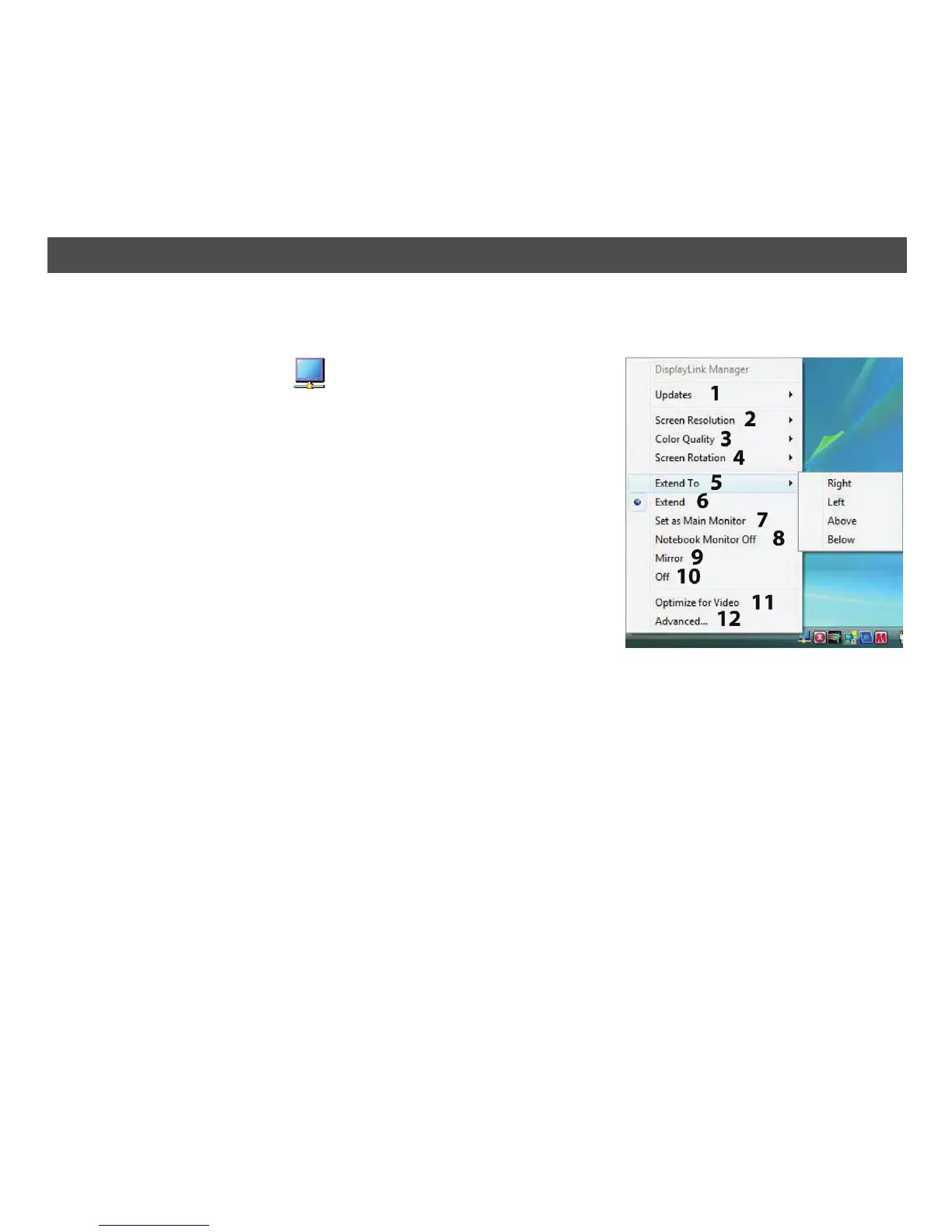
When devices are attached, an icon appears in the taskbar. This gives you access to the DisplayLink
manager menu.
Click the Remote Monitor
indicator; a menu will appear
with several options as shown:
1 UPDATES: Connects to the Windows Update and checks for
newer versions and downloads them, if available.
2 SCREEN RESOLUTION: Displays a list of available resolutions.
Some resolutions may be in brackets “[ ]”. This occurs when
connecting a monitor with a preferred mode higher than the
maximum supported resolution of the DisplayLink device. In
this case, the preferred resolution of the monitor cannot be
supported. Modes in brackets imply that these are modes
not reported by the monitor, but have been made available
by the DisplayLink software for you to try. As these are
inferred modes from the preferred mode of the monitor,
they are not guaranteed to work with the display.
NOTE: This mode is only available when set to Extend.
3 COLOR QUALITY: Select Medium (16-bit) to change the color depth of the extended display
to 16-bit or select Highest (32-bit) to change it to 32 bit.
NOTE: This mode is only available when set to Extend.
4 SCREEN ROTATION:
NORMAL: No rotation is applied to the DisplayLink display.
ROTATED LEFT: Rotates the extended or mirrored display by 270 degrees.
ROTATED RIGHT: Rotates the extended or mirrored display by 90 degrees.
UPSIDE-DOWN: Rotates the extended or mirrored display by 180 degrees.
19
USING THE SOFTWARE – WINDOWS VISTA AND XP


 To Next Page