This section describes how to use DisplayLink’s Software. The section is divided into sub-sections
relating to your operating system.
Controlling the Display
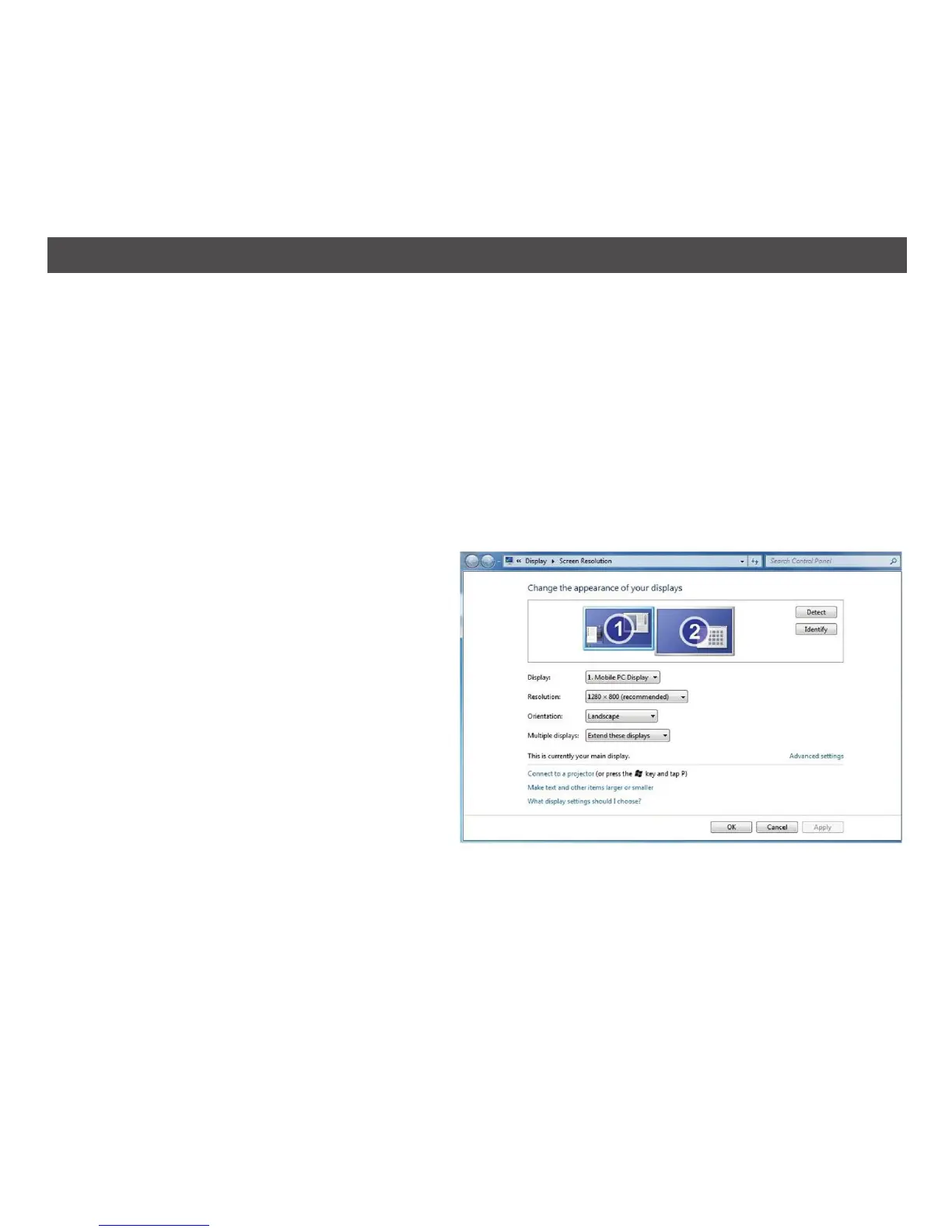
On Windows 7, you can configure a DisplayLink device through the use of Windows Display
Properties (WDP). WDP provides a simple method to attach, rotate, duplicate or extend screens
as well as modify screen resolution.
To Open WDP:
There are several ways to open WDP.
1. Right-click on the desktop.
2. Select Screen Resolution from the menu.
3. WDP opens.
OR
1. From Start menu > Devices and Printers.
2. Double-click the DisplayLink Device icon.
3. WDP opens.
OR
1. Right click on the DisplayLink icon.
Note: The DisplayLink icon is only visible
in the task bar when there is a connection
between the USB Transmitter and the
Receiver.
2. Click Advanced.
15
USING THE SOFTWARE – WINDOWS 7


 To Next Page