Managing the External Display:
When attaching a display that the software has not seen
before, the display will default to being extended to the
right of the main display.
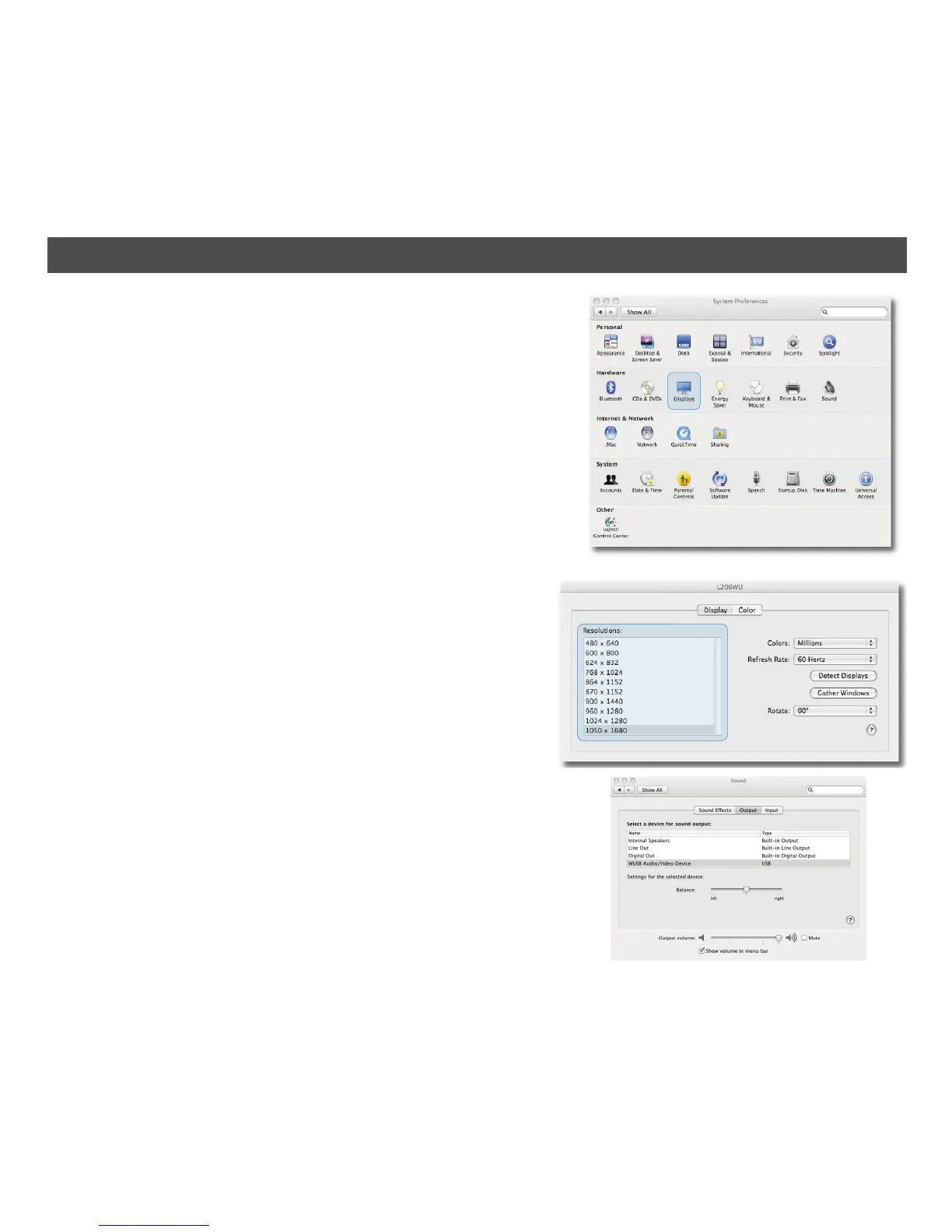
To configure the settings for each of your displays,
select System Preferences from the Apple menu at the
top left of your main monitor. This will open the Display
Preferences window on each of your attached displays
allowing you to configure each display as required. If
desired, click Gather Windows to bring all the Display
Preferences windows onto the main display. However, it
is recommended to set each individually.
After opening the Display Preferences, you can set the
options as follows:
Setting the Display Resolutions:
To change the display’s resolution, select an available
resolution from the Display Preferences window of the
display you wish to change. The resolutions available
depend on both the DisplayLink-enabled product and
the capabilities of the connected display.
Setting the Sound Input:
From System Preferences window, select the Sound
option, then click the Output tab. Select WUSB Audio/
Video device from the options.
33
USING THE SOFTWARE – MACINTOSH


 To Next Page