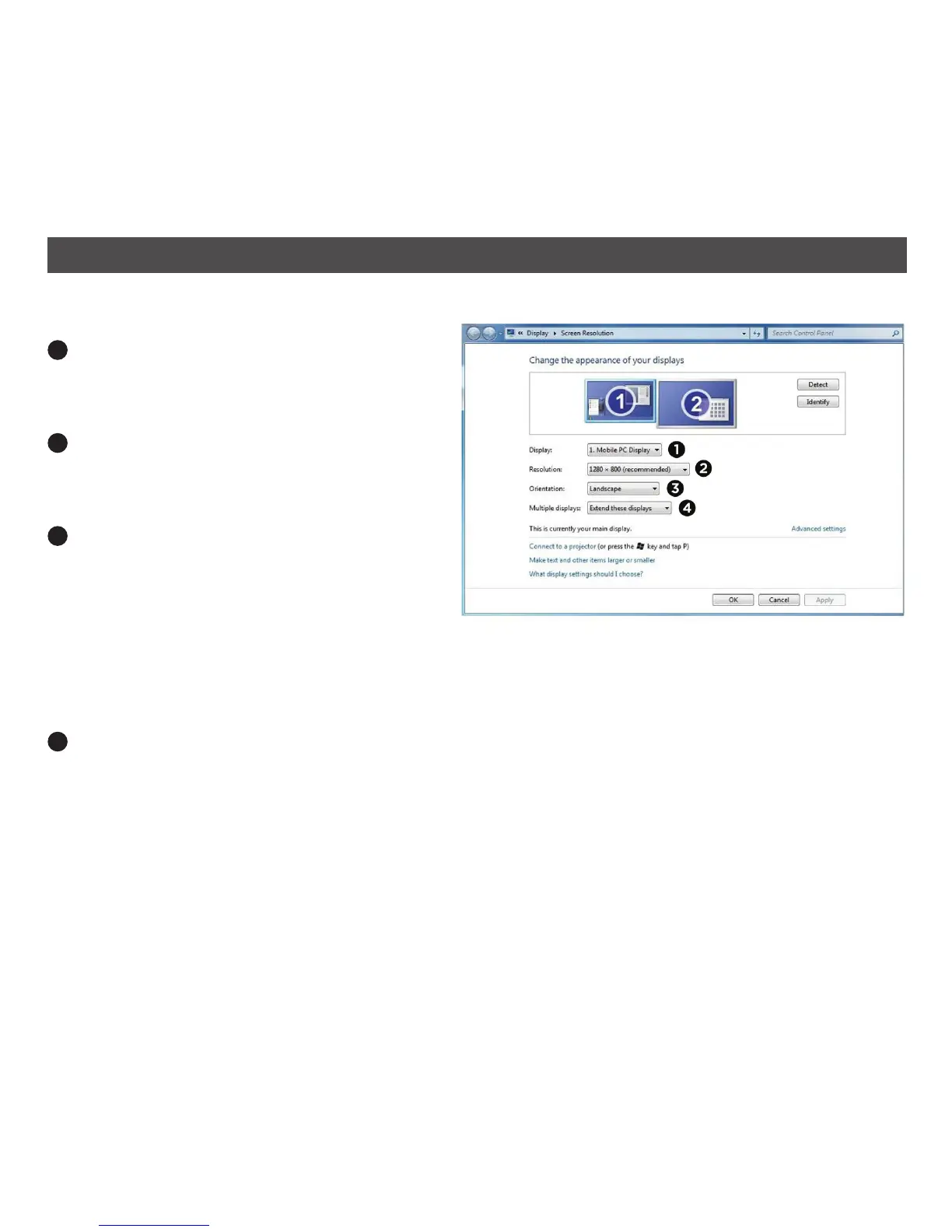
After opening WDP, you can set the display options as follows:
1
DISPLAY: Use the pull down menu
to select the desired display to be
configured.
2
RESOLUTION: Use the pull down menu
and then the slider to select the desired
resolution.
3
ORIENTATION: Use the pull down menu
to select a desired orientation:
LANDSCAPE: Sets the display to
landscape view.
PORTRAIT: Sets the display to portrait
view.
LANDSCAPE (FLIPPED): Sets the display to upside down landscape view.
PORTRAIT (FLIPPED): Sets the display to upside down portrait view.
4
MULTIPLE DISPLAYS: Use the pull down menu to select the desired display setting:
DUPLICATE THESE DISPLAYS: Reproduces (mirrors) the main display on the second
display.
EXTEND THESE DISPLAYS: Extends the main display onto the secondary display.
SHOW DESKTOP ONLY ON 1: The desktop appears on the display marked 1. The display
marked 2 becomes blank.
SHOWS DESKTOP ONLY ON 2: The desktop appears on the display marked 2. The display
marked 1 becomes blank.
16
USING THE SOFTWARE – WINDOWS 7 (CONTINUED)


 To Next Page