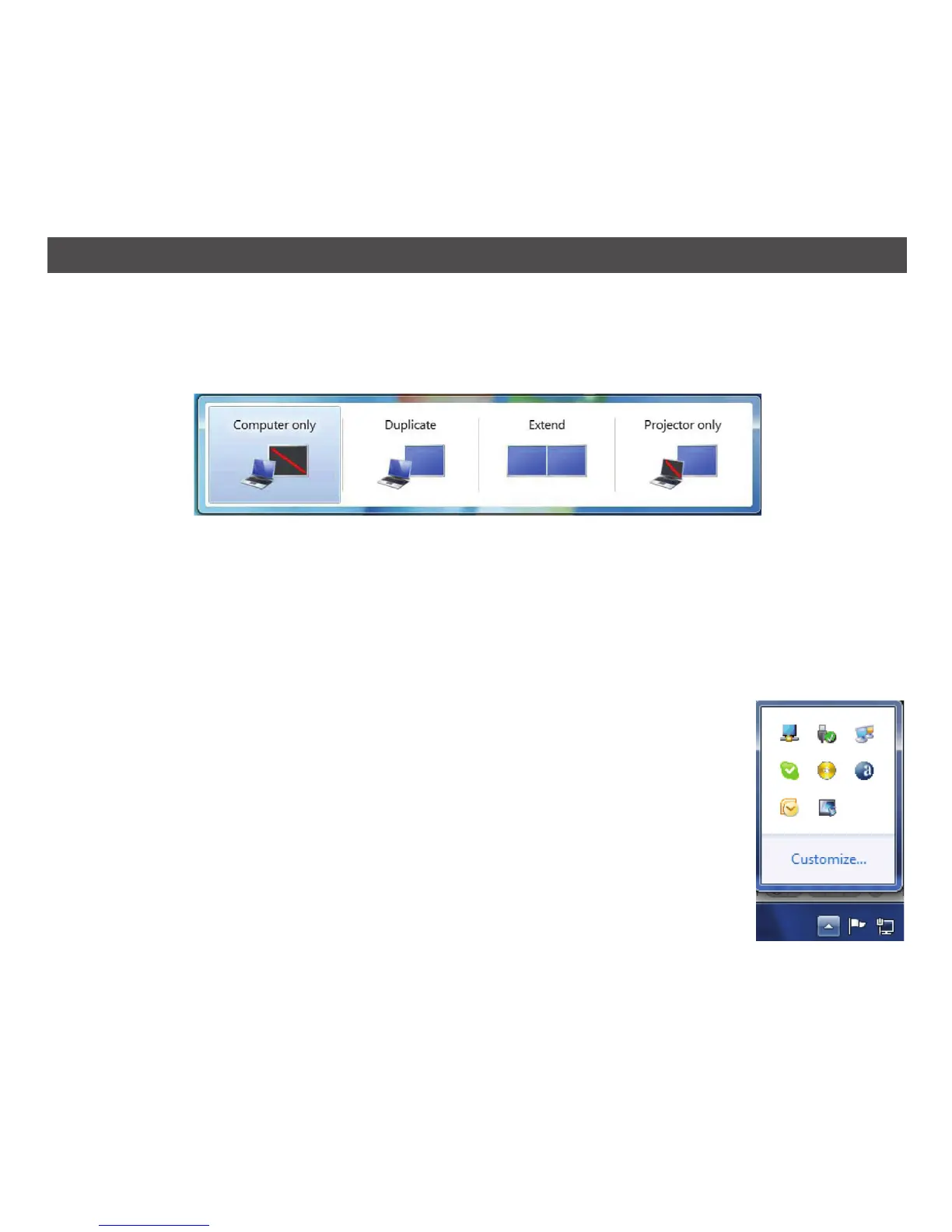
To control the behavior of an attached DisplayLink display, it is also possible to use Windows Key
+ P to display a menu (and cycle through it) to switch modes as follows:
To Control the Display:
1. Press the Windows Key + P key simultaneously; the following menu will appear:
2. Click on one of the options:
COMPUTER ONLY: Will only show the computer’s screen; it will not output to the external TV,
monitor or projector.
DUPLICATE: Reproduces (mirrors) the main display on the second display.
EXTEND: Extends the main display onto the secondary display.
PROJECTOR ONLY: Will only show the external TV, monitor or projector’s screen; it will not show
the main computer’s display.
The DisplayLink Icon Application
You can configure the behavior of the DisplayLink Graphics Adapter through
the DisplayLink icon application on the taskbar, where present.
To show the DisplayLink Manager Menu:
1. From the taskbar, click the Show hidden icons arrow to show all available
icons; the following screen will appear.
See the following page for detailed descriptions.
17
USING THE SOFTWARE – WINDOWS 7 (CONTINUED)


 To Next Page