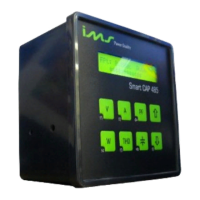
Manual de Instalação e Operação
When one or more capacitors have KVAr different from the others the control passes to
be by “Req. Pow.” (required reactive power). The required power is calculated from the
values programmed of the FP( power factor ) control band and of the measurement of FP.
Thus the controller goes adding capacitors banks according to the required power until
reaching the wished power factor band. In case the power factor surpasses the programmed
upper limit, the Smart Cap 485 is going to start to withdraw capacitors banks, initiating by
the one of smaller reactive power.
Attention: For the Smart Cap 485 to correct the power factor correctly it is essential that
the setup of the reactive powers of each capacitors bank has been made correctly in the
equipment (see item 9.8).
8.2. MANUAL MODE
When in manual mode the equipment is inactive regarding the power factor control, not
actuating in the outputs.
The alarms stay all disabled in this operation mode.
OBS.: The function in manual mode commands all the outputs, independent of the input
time or programmed outputs.
Once programmed in manual mode, the Smart Cap 485 will remain in this mode until a
new programming will be made, even that it occurs the power failure during this period.
8.3. PROGRAMMING KEYS UTILIZATION
When it is in the programming mode the keys pass to be used as second function
(F0..F4). The variables or parameters to be programmed can be in numeric or text form.
Keys description
Key <F1> – confirms the current parameter and advances to the next;
Key <F4> – Leave the programming;
Key <←> – Advances the slider one place;
Key <→> – Retrocede the cursor one place;
Key<↑> - Increases a position (it can be a numeric variable or text);
Key<↓> - Decreases a position (it can be a numeric variable or text);
Display format
For numeric values the display is shown with a slider below the value when this is changed.
Example: 127 the slider is on the first place
Programming a variable or parameter
To modify the value of a numeric variable:
Press <↑> to increase the value or <↓> to decrease the value, use the keys <←> or <→> to
advance or retrocede the slider one place.
To confirm the programming and pass to the next parameter press <F1> and to leave
without changing the value press <F4>.
Example:
The variable “PT primary” is with the value 127 in its parameter and will be reprogrammed to
13800.
SMART CAP 485 46


 To Next Page
 Loading...