iNetVu Troubleshooting Guide - 1201 Flyaway
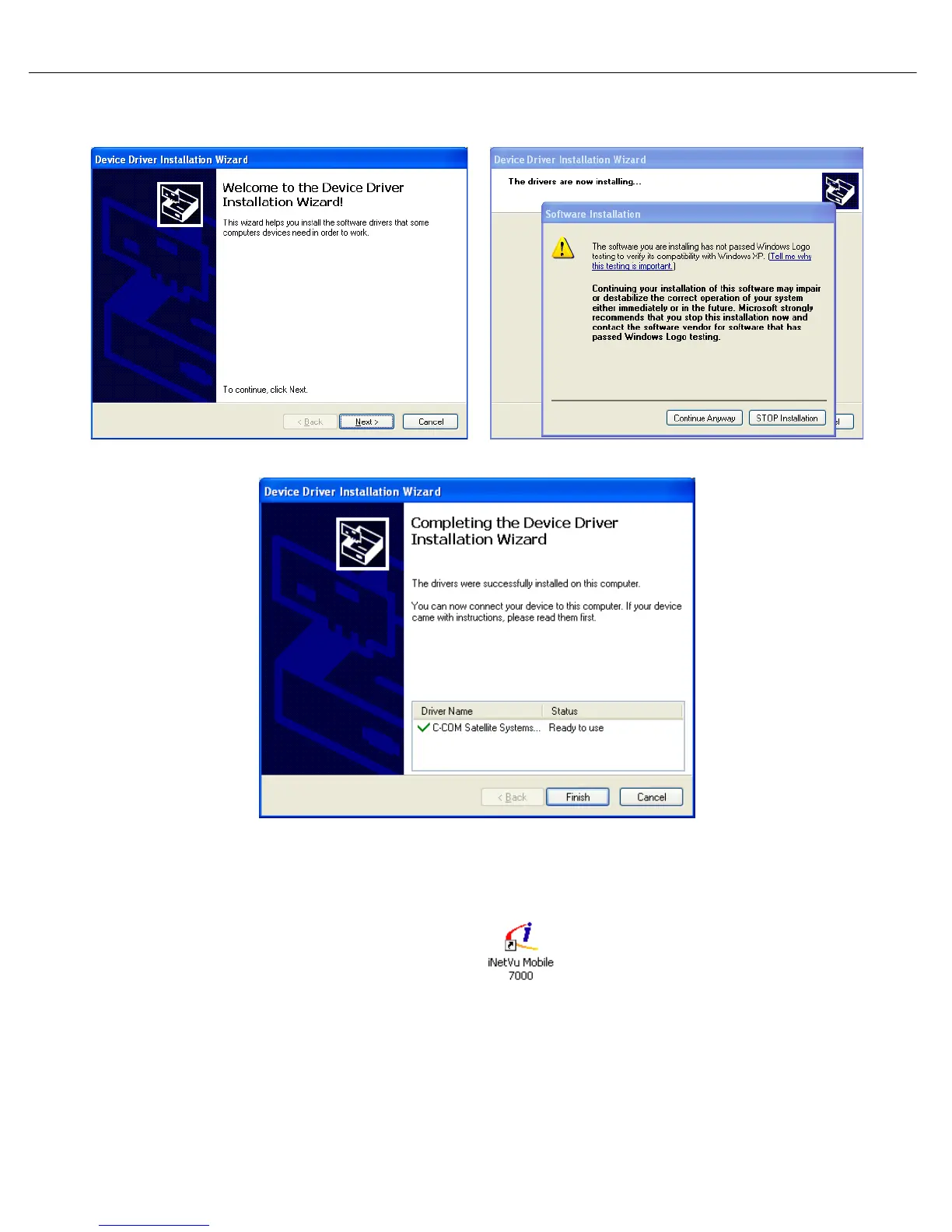
3. Continue through the Device Driver Installation Wizard.
Click “Next” Click “Continue Anyway”
Click “Finish” to continue.
4. Now continue through the iNetVu Software installation and close when complete. A new Icon
will automatically be placed on the Desktop.
5. Now that the drivers and software package has been installed, connect the iNetVu 7000
Controller via USB to your PC.
6. Windows XP users will have to follow the new hardware wizard and let windows automatically
install the drivers.



 To Next Page