iNetVu Troubleshooting Guide - 1201 Flyaway
Updating the Firmware
1. Launch the iNetVu 7000 Mobile Software. Since the software is being upgraded, the Software and
Firmware will not match. Please follow the steps below to update the Firmware.
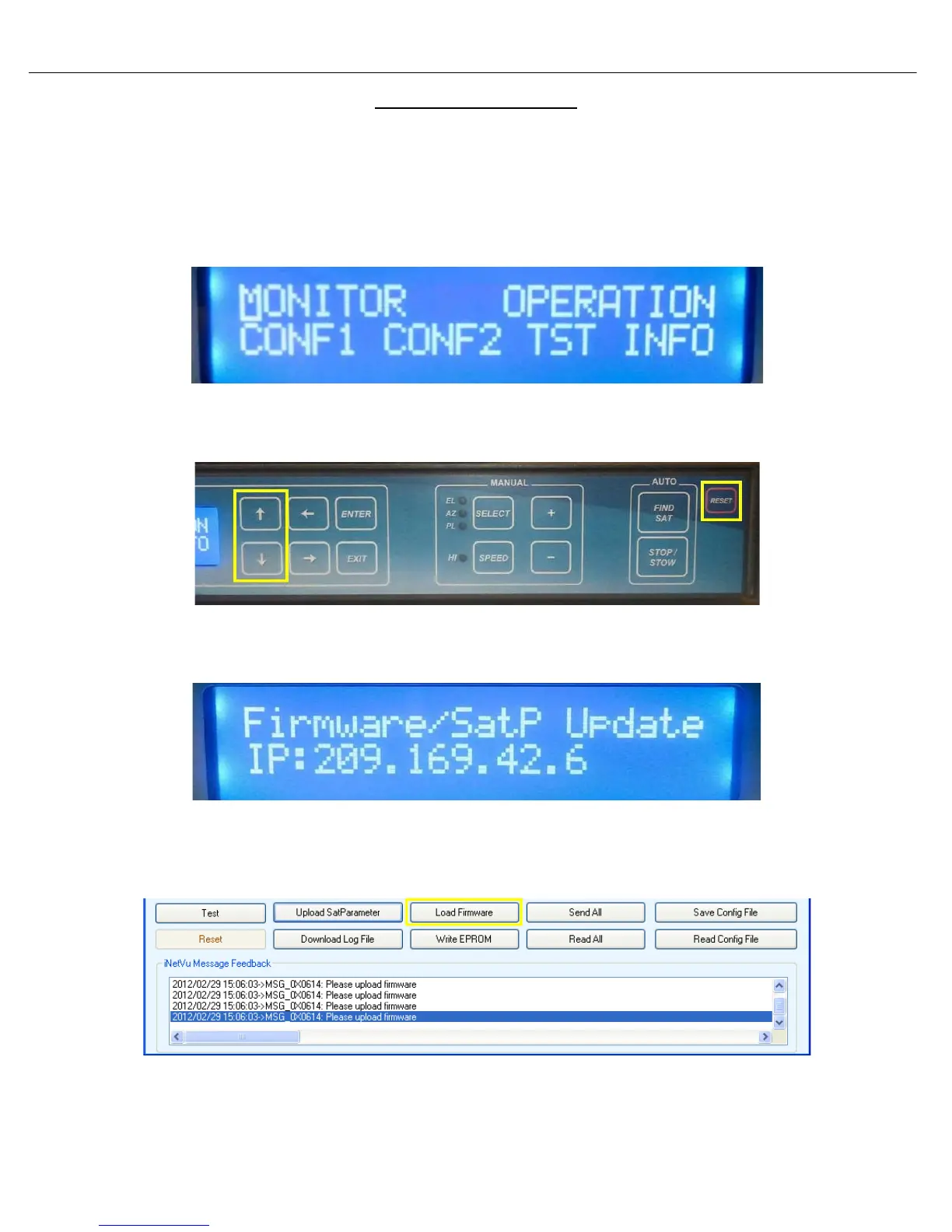
a) Once the controller is fully booted and the software is launched, the LCD should display what
is shown below. If your results differ, please contact C-COM Technical support.
Note: Screens may differ depending on Firmware. Ver. 7.5.5 shown below
b) Press and release the “Reset” button. While the controller is resetting hold the “↑” and “↓”
keypads simultaneously for 5 seconds to initiate the firmware update process.
c) The controller LCD should display what is shown below (IP will differ). If you did not achieve
this, please repeat step b)
d) The iNetVu software should now automatically switch to the “Maintenance” Screen. Once on
this page hit “Load Firmware” Please stand by for 45-60 seconds allowing the process to finish.
Do not power the controller off during this process.
Once completed the controller will restart



 To Next Page