InfiRay Outdoor • Z oom V 2 • User Manual www.infirayoutdoor.com
All rights reserved and shall not be copied and distributed in any form without written permission
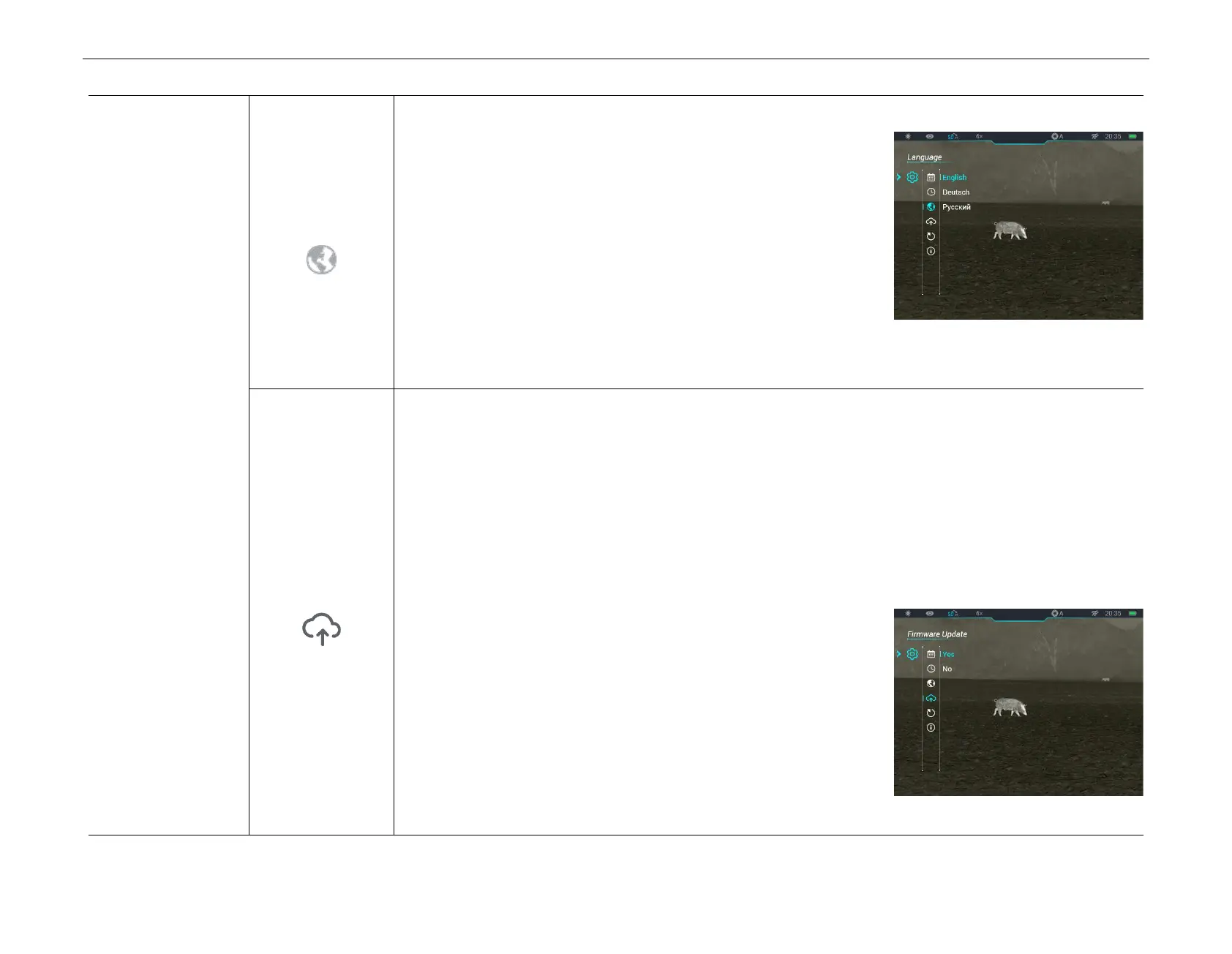
S etting the syste m lan g uage
● In the S ettings submenu, select the L anguag e menu option with
the U p (6) / D o w n (8) button.
● Enter the La n g u age submenu with a short press of the M (7)
button.
● Select the desired language with a short press of the U p (6) / D ow n
(8) button.
● Press the M (7) button briefly to confirm the selection. At the same time, it will save setting and exit to the
Settings submenu automatically.
U p d ate firm w are for Z o o m V 2 series
Before updating, you need to copy the downloaded firmware program to the memory storage build-in the
Zoom V2.
Connect Zoom V2 series to the computer and power on Zoom.
Open the ZOOM_Storage folder and create a new folder names "update" in the computer.
Copy the downloaded firmware program (.zip) to the update folder in the ZOOM_Storage.
Then, in the S ettings submenu, select the F irm w are U pd ate menu
option with the U p (6) / D ow n (8) button.
Enter the F irm w are U pd ate submenu with a short press of the M
(7) button.
● Short press the U p (6) / D ow n (8) to select Yes or No. Select Yes to
confirm update and select N o to cancel update.
● Confirm your selection with a short press of the M (5) button.


 To Next Page
 Loading...