EasyManua.ls Logo

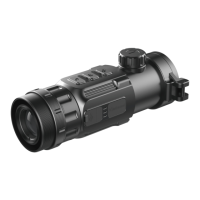
InfiRay Clip CH50 V2 - User Manual

InfiRay Clip CH50 V2
25 pages
Print Icon
To Next Page IconTo Next Page
Loading...
All rights reserved and shall not be copied and distributed in any form without written permission.
11th Guiyang Street, YEDA,
Yantai 264006, P.R. China
+86-400-998-3088
1
Clip CH50 V2
Thermal Imaging Attachment
User Manual
V1.1
IRay Technology Co., Ltd.

Questions and Answers

  • M
    Michelle OlsonAug 4, 2025
    How to fix image blurring on InfiRay Thermal cameras?
    • K
      Katherine FletcherAug 4, 2025
      If the image from your InfiRay Thermal camera is blurring, try the following: * Adjust the focal length of the objective lens until the image becomes clear. * Perform image calibration, if it has been a while since the last calibration.
  • K
    kelleycoleAug 8, 2025
    How to correct blurred vision in InfiRay Thermal cameras?
    • W
      westcherylAug 8, 2025
      If you are experiencing blurred vision through your InfiRay Thermal camera, adjust the sight distance of the eyepiece until the image becomes clear.
  • T
    Tammie CannonAug 13, 2025
    What to do if InfiRay Thermal camera fails to start up?
    • A
      Alexandra HubbardAug 13, 2025
      If your InfiRay Thermal camera fails to start, first check the battery installation and power level to ensure it's correctly installed and not depleted. Also, verify that the voltage of the external power supply is sufficient.
  • D
    David YoungAug 18, 2025
    Why is there no analog video output from my InfiRay Clip CH50 V2?
    • C
      Cassidy GonzalezAug 18, 2025
      If there is no analog video output from your InfiRay Thermal camera, ensure that the analog video output is enabled. If it is already enabled, the data cable may be faulty; try replacing it with a new one that supports data transmission.
  • J
    John HicksAug 25, 2025
    What to do if the reticle swings when aiming with InfiRay Thermal cameras?
    • M
      Mario BrownAug 25, 2025
      If the reticle swings and you cannot aim at the target with your InfiRay Thermal camera, the day light sight parameter might not be the correction distance of 100 yards. Replace the day light sight with a 100-yard sight.
  • B
    brian15Aug 28, 2025
    What to do if eyepiece is stuck during installation in InfiRay Clip CH50 V2 Thermal cameras?
    • J
      Julie HolderAug 29, 2025
      If the attachment’s eyepiece is stuck during installation on your InfiRay Thermal camera, loosen the eyepiece, push it back to square, and then rotate the mounting. This issue may occur if the eye relief mounting limit block isn’t placed parallel to the rail slot or if the position is dislocated.

Summary

1. Description

2. Components and Controls

2.1 Components

Lists and describes the physical parts of the device.

2.2 Controls

Details the functions of device buttons in various operational modes.

8. Menu;Status Bar Icons

4. Specifications

5. Product Characteristics and Function

6. Operation System

6.1 Power on; Power off

Instructions for turning the device on and off.

6.2 Standby Mode

How to enter and exit standby mode for power saving.

6.3 Status bar

Explanation of information displayed on the status bar.

6.4 Navigation Menu

Guide to navigating through the main menu and its options.

6.5 Advanced Menu

Accessing and utilizing advanced menu functions and settings.

6.6 Calibration the sensor

Procedures for sensor calibration to improve image quality.

6.7 Image Calibration

Steps to align the infrared image with the day sight reticle.

6.8 E-Zoom center adjustment

How to adjust the E-Zoom center for precise reticle alignment.

6.9 Bad Pixel Calibration

Process for calibrating and correcting dead or hot pixels in the image.

6.10 Compass Calibration

Steps to calibrate the internal compass for accurate orientation readings.

6.11 Stadiametric Rangefinder

How to use the stadiametric rangefinder to estimate object distances.

7. Accessory Equipment

7.1 Bluetooth Remote Controller

Instructions for installing and using the Bluetooth remote controller.

7.2 Mobile App

Guide to downloading and connecting with the Xinfrared BC mobile application.

8. Preventative Maintenance

8.1 Battery Installation

Detailed steps for correctly installing the device's batteries.

8.2 Product Cleaning and Maintenance

Guidelines for proper cleaning and general maintenance of the device.

8.3 Safety Regulation

Essential safety precautions and regulations for device operation and handling.

9. General Trouble Shooting

Image blurring

How to resolve issues related to image blurring.

Blurred vision

Steps to fix problems causing blurred vision or image.

No analog video output

Troubleshooting for issues with analog video output.

Fail to start up

Solutions for the device failing to power on.

Eyepiece stuck during installation

How to resolve the eyepiece becoming stuck during installation.

Reticle misalignment at target

Addressing issues where the reticle is not aligned with the target.

10. Appendix

10.1 User Interface Description

Overview of the custom interface and data cable capabilities.

10.2 Product Dimensions

Technical drawings and measurements of the device's physical dimensions.

InfiRay Clip CH50 V2 Specifications

General IconGeneral
BrandInfiRay
ModelClip CH50 V2
CategoryThermal cameras
LanguageEnglish

Related product manuals