Live Data Mode
RECORDING (CAPTURING) LIVE DATA
106 3140d
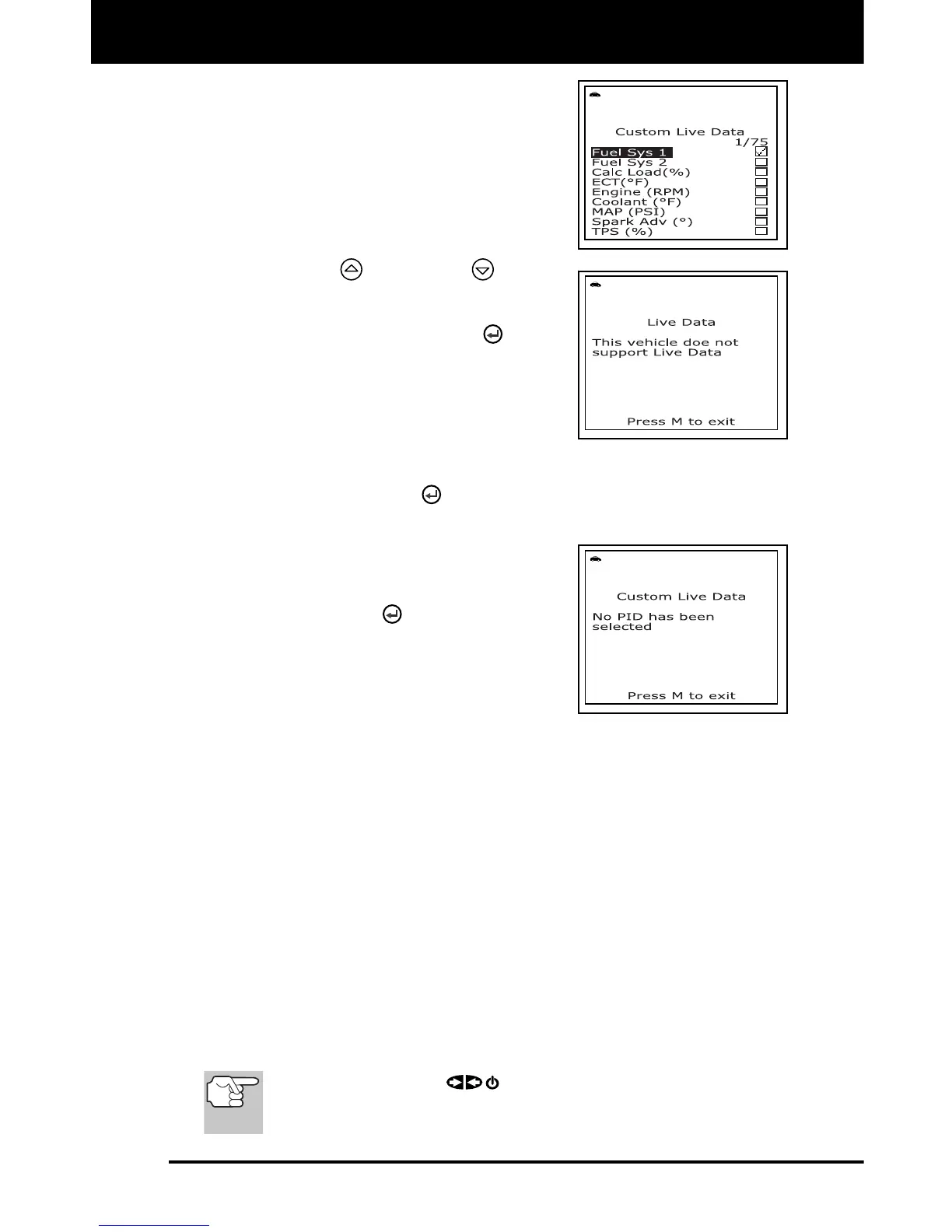
The "Custom Live Data" menu
displays, with the first PID in the
menu highlighted.
If Live Data is not supported by the
vehicle under test, an advisory
message displays. Press the M
button to exit. Live Data is not
available for your vehicle.
4. Use the UP
and DOWN buttons
to scroll through the available PIDs.
When the PID you wish to display is
highlighted, press the ENTER
button
to select it (a "checkmark" will show in
the checkbox to the right of the PID to
confirm your selection). Repeat the
procedure until only the PIDs you want
to display have all been selected.
To deselect a currently selected PID, highlight the PID, then
press the ENTER
button. The checkmark will be removed
from the checkbox.
5. When you are finished making your
selection(s), scroll to the end of the PID
list and highlight the word DONE, then
press the ENTER
button.
If no PIDs have been selected, an
advisory message displays. Press
the M button to return to the Custom
Live Data menu.
The scan tool is now in "Custom Live Data" mode. Only the PIDs
you selected are shown on the scan tool’s display.
6. To exit the "Custom Live Data" mode, press and hold the M button
until the Main Menu displays.
RECORDING (CAPTURING) LIVE DATA
You can record and save several frames of Live Data information for
each PID supported by the vehicle in the scan tool's memory. Recorded
Live Data can serve as valuable information to help you in the
troubleshooting of vehicle problems.
There are two ways that the scan tool can "record" Live Data:
Record by DTC Trigger
Record by Manual Trigger
If the POWER/LINK
button is pressed at any time while
in Live Data mode, any stored (recorded) Live Data will be
cleared (erased) from the scan tool’s memory.


 To Next Page