Using the Scan Tool
VIEWING ABS DTCs
3140d 49
The Diagnostic Trouble Code (DTC) and related code definition
are shown in the lower section of the LCD display.
I/M MONITOR STATUS icons are not displayed when
viewing enhanced DTCs.
Freeze Frame data, a small arrow is shown in the
upper/lower right-hand corner of the code display area
to indicate the presence of additional information. Use
the
and buttons, as necessary, to view the
additional information.
The scan tool will display a code only if codes are present in the
vehicle’s computer memory. If no codes are present, a “No OEM
Enhanced DTC’s are presently stored in the vehicle’s computer”
is displayed. Press the M button to return to the Main Menu.
3. If more than one code was retrieved press the DTC/FF button, as
necessary, to display additional codes one at a time.
Whenever the Scroll function is used to view additional codes,
the scan tool’s communication link with the vehicle’s computer
disconnects. To re-establish communication, press the
POWER/LINK button again.
4. When the last retrieved DTC has been displayed and the DTC/FF
button is pressed, the scan tool returns to the “Priority” Code.
To exit the enhanced mode, press the M button. The scan tool
returns to the Main Menu.
VIEWING ABS DTCs
Refer to Vehicle Applications on page 132 for Manufacturers
covered.
Reading ABS DTCs
1. When View ABS DTCs is chosen from the System Menu, a "One
moment please" message displays while the scan tool retrieves the
selected DTCs.
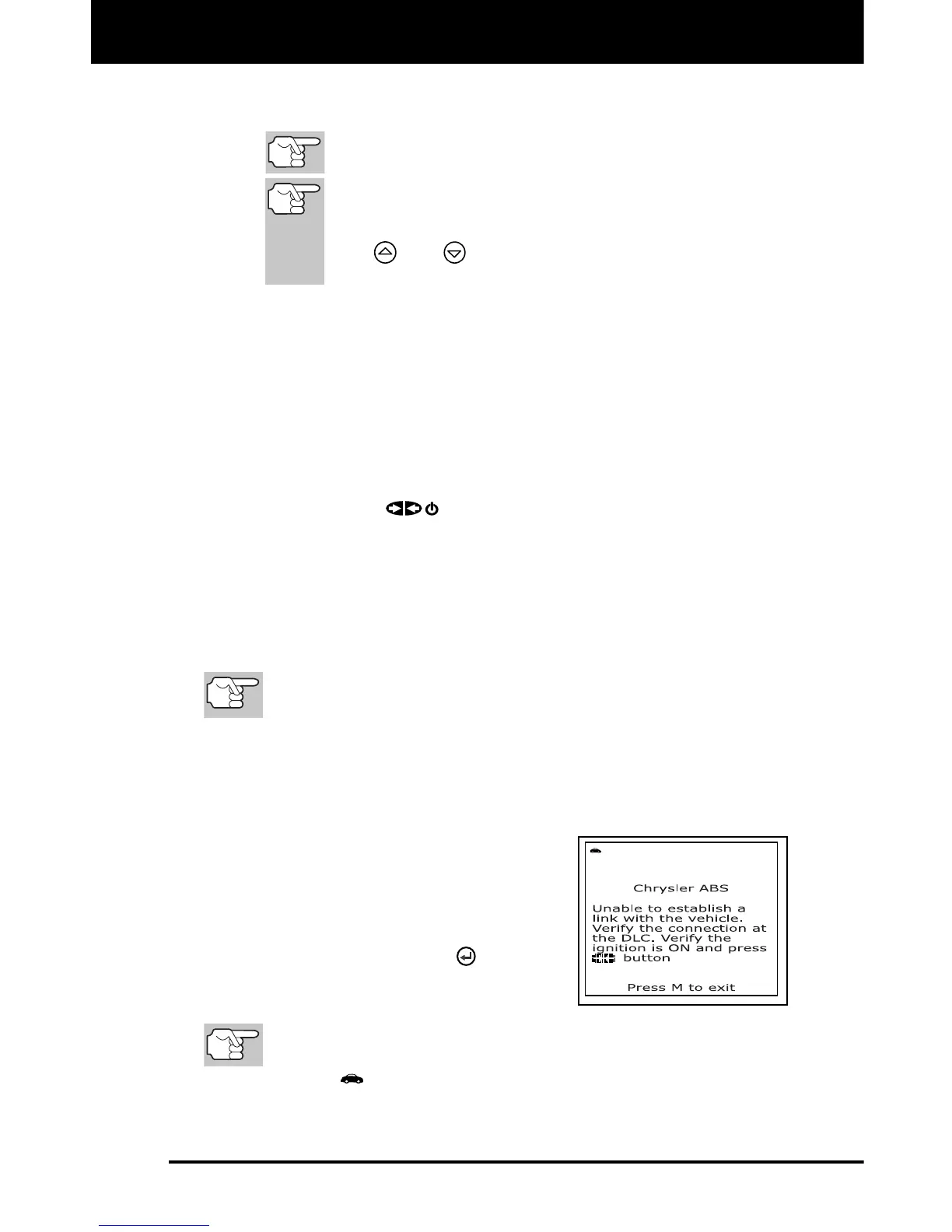
If the scan tool fails to link to the
vehicle’s computer, a "Linking
Failed" message shows on
the scan
tool’s display.
- Verify the ignition is ON, then
press the ENTER
button to
continue.
2. To read the dis
p
lay:
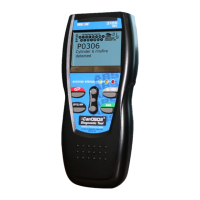
Refer to DISPLAY FUNCTIONS on page 9 for a description of
LCD display elements.
A visible icon indicates that the scan tool is being powered
through the vehicle’s DLC connector.


 To Next Page