Using the Scan Tool
ABOUT REPAIRSOLUTIONS®
56 3140d
Write the codes down on a piece of paper for reference before
erasing.
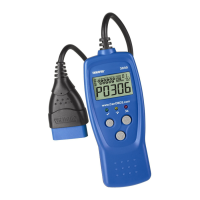
1. After the erase procedure is performed, most of the Monitor icons on
the scan tool’s display will be flashing. Leave the scan tool
connected to the vehicle, and perform a Trip Drive Cycle for each
"flashing" Monitor:
Misfire, Fuel and Comprehensive Component Monitors run
continuously and their icons will always be on solid, even after
the erase function is performed.
Each DTC is associated with a specific Monitor. Consult the
vehicle's service manual to identify the Monitor (or Monitors)
associated with the faults that were repaired. Follow the
manufacturer's procedures to perform a Trip Drive Cycle for the
appropriate Monitors.
While observing the Monitor icons on the scan tool’s display,
perform a Trip Drive Cycle for the appropriate Monitor or
Monitors.
If the vehicle needs to be driven in order to perform a Trip
Drive Cycle, ALWAYS have a second person help you.
One person should drive the vehicle while the other
person observes the Monitor icons on the scan tool for
Monitor RUN status. Trying to drive and observe the scan
tool at the same time is dangerous, and could cause a
serious traffic accident.
2. When a Monitor's Trip Drive Cycle is performed properly, the
Monitor icon on the scan tool’s display changes from "flashing" to
"solid,” indicating that the Monitor has run and finished its diagnostic
testing.
If, after the Monitor has run, the MIL on the vehicle's dash is not lit, and
no stored or pending codes associated with that particular Monitor are
present in the vehicle's computer, the repair was successful.
If, after the Monitor has run, the MIL on the vehicle's dash lights
and/or a DTC associated with that Monitor is present in the
vehicle's computer, the repair was unsuccessful. Refer to the
vehicle's service manual and recheck repair procedures.
ABOUT REPAIRSOLUTIONS®
RepairSolutions® is a web-based service created to assist professional
technicians in quickly and accurately diagnosing and repairing today’s
vehicles. RepairSolutions® allows you to view, save, and email the
diagnostic data retrieved from a vehicle’s on-board computer(s) using
an Innova scan tool. RepairSolutions® also provides access to an
extensive knowledge database including:
Verified Fixes – Find the most likely fixes reported and verified by
ASE Technicians for the retrieved DTCs.
Step-By-Step Repair Instructions – View available repair
instructions to properly perform the fix.


 To Next Page