GM OBD1 Systems
CODE RETRIEVAL PROCEDURE
3140d 93
- If the information shown in the “Current Selection” field is
correct, highlight Current Selection, turn ignition key ON (DO
NOT start engine) and press the ENTER
button. Proceed
to step 4 to continue.
If the year shown is not correct, highlight Select New Vehicle
and press the ENTER
button to return to the “Select
Vehicle Year” menu to make your corrections.
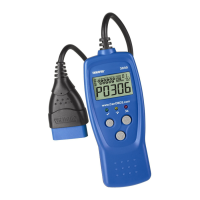
5. When the scan tool is in the process of retrieving codes, a "One
moment please..." message shows on the scan tool’s LCD display.
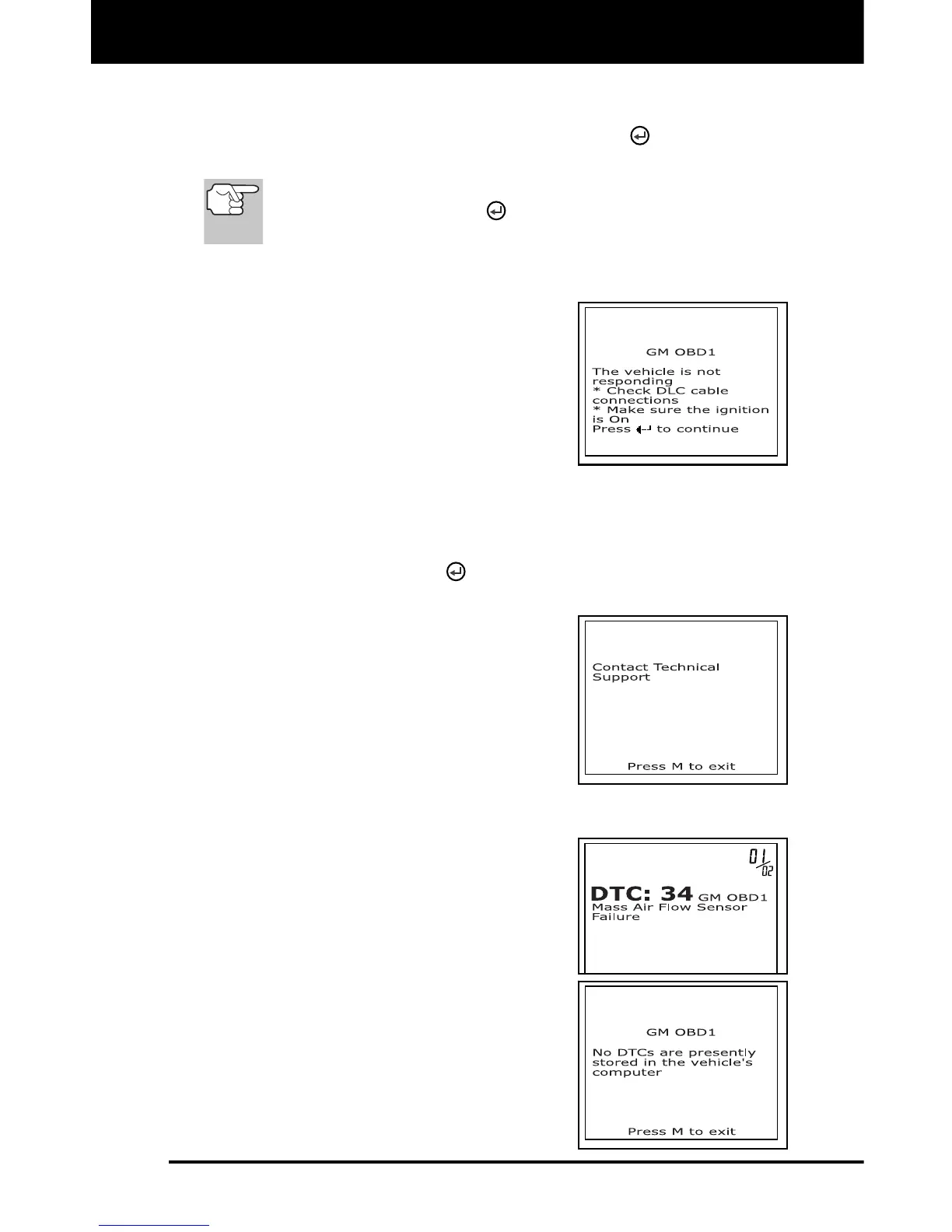
If the scan tool fails to link to the
vehicle's computer, a "Vehicle is not
responding" message shows on the
scan tool’s LCD display. Do the
following:
- Verify the ignition is ON.
- Check the cable connections at
the scan tool and at the vehicle’s
DLC.
- Turn the ignition OFF, wait 10-12 seconds, then turn back ON
to reset the computer.
- Press the ENTER
button and repeat steps 4 and 5 as
necessary.
If the scan tool cannot link to the
vehicle’s computer after three
attempts, the message “Contact
Technical Support” displays.
- Press the M button to return to
the GM OBD1 menu.
- Turn the ignition OFF, and
disconnect the scan tool.
- Contact Technical Support for assistance.
6. If the scan tool was able to link to the
vehicle successfully, a "Code retrieval
was successful..." message shows
temporarily on the scan tool’s LCD
display, followed by any retrieved DTCs.
The scan tool will display a code
only of codes are present in the
vehicle's computer memory. If no
codes are present, a "No DTC's are
presently stored in the vehicle's
computer" is displayed.
7. If more than one code was retrieved,
press the DTC/FF button, as necessary,
to display additional codes one at a time.


 To Next Page