EasyManua.ls Logo

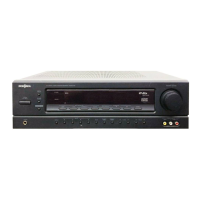
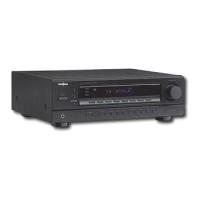
Insignia NS-R5101HD - AV Receiver - User Manual

Insignia NS-R5101HD - AV Receiver
30 pages
Print Icon
To Next Page IconTo Next Page
Loading...
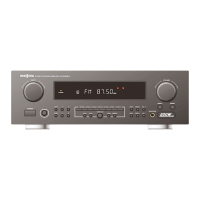
5.1 Surround Sound Receiver
NS-R5101HD
User Guide

Table of Contents

Other manuals for Insignia NS-R5101HD - AV Receiver

Questions and Answers

  • R
    ronaldyoungAug 19, 2025
    Why is there no sound coming from my Insignia NS-R5101HD - AV Receiver?
    • M
      Michelle MartinAug 19, 2025
      If there is no sound from your Insignia Stereo Receiver, check the following: * Make sure the speaker cables are correctly connected. * Adjust the master volume to a suitable level. * Ensure the receiver is not muted by pressing the MUTE button on the remote. * Press the SPEAKER ON/OFF button on the front of the receiver to turn on the speakers. * Select the correct input source. * Verify all component cables are properly connected. * Set HDMI to AMP.
  • D
    Debra RichardsonAug 21, 2025
    Why is there no sound through surround speakers on my Insignia Stereo Receiver?
    • F
      Frank RamirezAug 21, 2025
      If you're not getting sound through the surround speakers on your Insignia Stereo Receiver, make sure that the sound mode is not set to STEREO; select a surround mode. Adjust the master volume. Ensure that you are using a stereo or surround source and change the speaker setting.
  • K
    Kent BoyleAug 25, 2025
    Why is there no sound from the center speaker on my Insignia NS-R5101HD - AV Receiver?
    • M
      Matthew GonzalezAug 25, 2025
      If there is no sound coming from the center speaker of your Insignia Stereo Receiver, check that the sound mode is not set to STEREO and select a surround mode. Also, ensure the center speaker setting is not set to NO; change the center speaker setting. Adjust the master or center volume.
  • C
    Christopher JordanAug 26, 2025
    Why is there no sound from the surround back speakers on my Insignia NS-R5101HD - AV Receiver Stereo Receiver?
    • R
      rlaneAug 27, 2025
      If there is no sound from the surround back speakers on your Insignia Stereo Receiver, the input signal format or the current surround mode may not support the 7.1 (or 6.1) surround. Under the correct situations, perform the 7.1 (or 6.1) surround playback. Adjust master volume and surround back level. Select a surround back speaker setting.
  • A
    Angela ButlerAug 28, 2025
    How to fix an Insignia NS-R5101HD - AV Receiver that has no power?
    • L
      lori19Aug 28, 2025
      If your Insignia Stereo Receiver isn't powering on, first ensure the power cord is securely plugged into both the receiver and a functioning power outlet. Test the outlet by plugging in another device, like a lamp. If the lamp doesn't light up, try a different outlet.
  • R
    Robin FrancisAug 30, 2025
    What to do if the Insignia Stereo Receiver remote control does not work?
    • Q
      qfigueroaAug 30, 2025
      If the Insignia Stereo Receiver remote control isn't working, make sure that batteries are properly installed, or replace them with new ones. Also, ensure there are no obstructions between the remote and the receiver's sensor.
  • C
    catherine38Sep 1, 2025
    How to fix Insignia NS-R5101HD - AV Receiver when radio stations are not received?
    • J
      Jessica Oneill PhDSep 1, 2025
      If your Insignia Stereo Receiver isn't picking up radio stations, make sure an antenna is connected. Tune to the correct station frequency and try repositioning the antenna for better reception.
  • M
    msanchezSep 3, 2025
    What to do if there is no picture with an HDMI connection on Insignia Stereo Receiver?
    • S
      Stephen KiddSep 3, 2025
      If you're not getting a picture with an HDMI connection on your Insignia Stereo Receiver, check the HDMI connection between the receiver and the TV. If the issue persists, your TV might not support HDCP; try using a different connection method.
  • B
    brandonjohnsonSep 5, 2025
    Why is there no picture from my Insignia Stereo Receiver?
    • J
      Juan RiosSep 5, 2025
      If you're not getting a picture on your TV when using the Insignia Stereo Receiver, check that all connections between the receiver and the TV are correctly made. Also, make sure the correct input source is selected on your TV.
  • A
    Angela CampbellSep 7, 2025
    How can I improve poor FM reception on my Insignia Stereo Receiver?
    • S
      Stacy HowardSep 8, 2025
      To improve poor FM reception on your Insignia Stereo Receiver, ensure an antenna is connected. Try moving the antenna to a different position to improve the signal.

Summary

Important Safety Instructions

General Safety Precautions

General safety guidelines for operation, installation, and handling.

Installation and Environmental Cautions

Warnings related to ventilation, heat, moisture, and disposal.

Remote Control Operation

Aiming the Remote Control

Instructions on how to aim the remote control for optimal operation.

Making Connections Guide

General guidance and notes before making various audio/video connections.

Product Introduction and Features

Introduction

Congratulates the user and describes the product's quality and design.

Features and Package Contents

Lists the main components and features included with the receiver.

Remote Control Functions

Remote Control Overview

Details the buttons and functions of the remote control.

Installing Remote Control Batteries

Instructions for inserting batteries into the remote control.

Antenna and Video Connections

Connecting an FM Antenna

Guide on connecting indoor and outdoor FM antennas for better reception.

About Video Connections

Explains HDMI, component, and composite video connection types.

Audio and Source Connections

Connecting an AM Antenna

Instructions for connecting the AM loop antenna for radio reception.

Connecting a DVD Recorder

Steps for connecting a DVD recorder using HDMI or DVI connections.

Connecting Audio;Video Sources

Connecting a VCR

Guide on connecting a VCR using standard video and audio cables.

Connecting a Blu-ray Disc Player or DVD Player

Instructions for connecting players via HDMI or component video.

TV Connectivity

Connecting a TV via HDMI

Steps for connecting a TV using an HDMI cable for video and audio.

Connecting a TV via Composite Video

Guide for connecting a TV using standard composite video and audio cables.

Front Panel and Digital Audio Connections

Connecting a Device to Front AV Jacks

How to connect devices like camcorders or game consoles to front jacks.

Connecting Digital Audio

Instructions for connecting coaxial and optical digital audio devices.

Audio Output Connections

Connecting Headphones

How to plug headphones into the receiver and manage speaker output.

Connecting Speakers

Guide on connecting speaker wires to the receiver's terminals.

Speaker System Setup

Connecting Subwoofer and Surround Back Speakers

Instructions for connecting a subwoofer and surround back speakers.

Speaker Placement Recommendations

Recommendations for optimal placement of front, center, and surround speakers.

Speaker Configuration

Selecting Speaker Type

How to select speaker size (Large/Small) and subwoofer presence.

Adjusting Speaker Settings

Guide for adjusting crossover frequency, channel level, and speaker distance.

Speaker Settings Fine-Tuning

Selecting the Crossover Frequency

How to set the crossover frequency for speakers based on their capabilities.

Adjusting Speaker Output Levels

Guide on adjusting the volume levels for individual speakers.

Advanced Speaker Adjustments

Adjusting Channel Level

How to adjust the volume level for each speaker channel.

Selecting Speaker Distance

Guide to setting speaker distance for optimal surround sound timing.

Room Acoustic Optimization

Setting the Listening Environment (ROOM EQ)

Automated setup process using a microphone for optimal room acoustics.

Input Assignment and Channel Level

Adjusting a Channel Level

Fine-tuning individual channel volume levels for preference.

Assigning Component Video Inputs

How to assign component video inputs to specific devices.

Audio Settings and Language

Turning the Tone Control Effect On or Off

How to enable or disable bass and treble adjustments.

Selecting the OSD Language

Guide for changing the language displayed on the on-screen menu.

Radio Tuning and Presets

Automatically Tuning to a Radio Station

Instructions for automatic scanning and tuning of radio stations.

Manually Tuning to a Radio Station

Steps for manually tuning to specific radio frequencies.

Radio Presets and Recording

Presetting Radio Stations

How to store favorite radio stations for quick access.

Recording Audio Signals

Guide for recording audio from connected devices via GAME/AUX jacks.

Timer and Display Settings

Setting the Sleep Timer

How to set the receiver to automatically turn off after a specified time.

Adjusting Display Brightness

Instructions for changing the brightness of the receiver's display.

Troubleshooting and Solutions

Troubleshooting Guide

Common problems and their solutions for receiver operation.

Technical Specifications

General Specifications

Technical details including power, dimensions, and weight.

Amplifier Specifications

Technical details about the amplifier's power output and distortion.

Legal and Warranty Information

FCC Compliance Information

Compliance information regarding FCC rules for radio frequency emissions.

One-Year Limited Warranty

Details of the product's warranty coverage, duration, and service.

Insignia NS-R5101HD - AV Receiver Specifications

General IconGeneral
Power Output100 watts per channel
Audio Formats SupportedDolby Digital, DTS
FM TunerYes
Remote ControlYes
RMS Output Power100 watts
Input Impedance47 kOhms
Frequency Response20 Hz - 20 kHz
Input Sensitivity200 mV
Tuner BandsFM
Total Harmonic Distortion0.1%
InputsHDMI, RCA, Optical
OutputsHDMI, RCA
Speaker Impedance8 Ω
Signal to Noise Ratio80dB (Line In)

Related product manuals