Chapter 4 — Configure the Computer
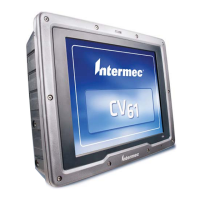
58 CV61 Vehicle Mount Computer (Windows 7) User Guide
8 If you choose PEAP or EAP-FAST:
a Load a root certificate of the authentication server on your
computer. For help, see “Load a Certificate” on page 59.
b Tap Settings. The Properties screen appears.
c Select Validate server certificate.
d Tap the User Credentials tab.
e Select Use saved user name and password, and enter a User
Name and a Password. When you are finished, type in your
password again in Confirm Password.
f Tap OK to exit the Properties screen.
g Tap OK to save the Microsoft Security settings.
9 If you choose Smart Card or other certificate:
a Load a root certificate of the authentication server on your
computer. For help, see “Load a Certificate” on page 59.
b Tap Settings. The Properties screen appears.
c Select Validate server certificate.
d Tap OK to exit the Properties screen.
e Tap OK to save the Microsoft Security settings.
Configure Static WEP Security With Microsoft
Use the following procedure to configure static WEP security with
Microsoft security. Intermec recommends that you use WPA2-PSK
instead of WEP if possible.
1 Make sure the communications and radio parameters on your
computer are configured.
2 Tap Start > Control Panel. The Control Panel appears.
3 In the View by: drop-down menu, select either Large or Small
icons.
4 Tap Network and Sharing Center > Manage Wireless Networks
and select the wireless network you want to configure.
5 In the Security type, choose No authentication (Open).


 To Next Page