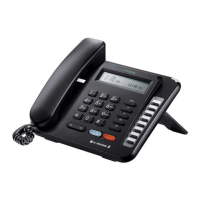
LIP-8008D User Guide
25
4.4.1 Setting up a Conference Room
In addition to establishing a Conference, up to 9
Conference Rooms can be set up, letting up to 24
parties converse when using a MCIM. When setting up
a Conference Room, a password can be designated for
invited parties (internal and external parties) to use for
accessing the established Conference Room.
To retrieve the Conference from Hold:
Press the CONF button.
To establish an Unsupervised Conference:
Establish conference with two external parties,
Press the CONF button.
Hand-up handset.
To retrieve an Unsupervised Conference:
Lift the handset,
Press the CONF button
In iPECS-LIK
To set-up a Conference Room:
Press the TRANS/PGM button,
Dial 53 to create a Conference Room,
Dial the desired Conference Room number (1-9),
If desired enter a password for the Conference Room (up to 12
digits),
Press HOLD/SAVE to establish the Room.
To join a Conference Room:
Press the TRANS/PGM button,
Dial 59 (Conference Room entry code),
Dial the Conference Room Number,
Dial the Conference Room password.
To delete a Conference Room:
Press the TRANS/PGM button,
Dial 54 (delete Conference Room code),
Dial the Conference Room number (1-9),
Dial the Conference Room password,
Press HOLD/SAVE to delete the Conference Room.



 To Next Page