135YLS-K
10.4.3 Downloading the events file via LaserNet
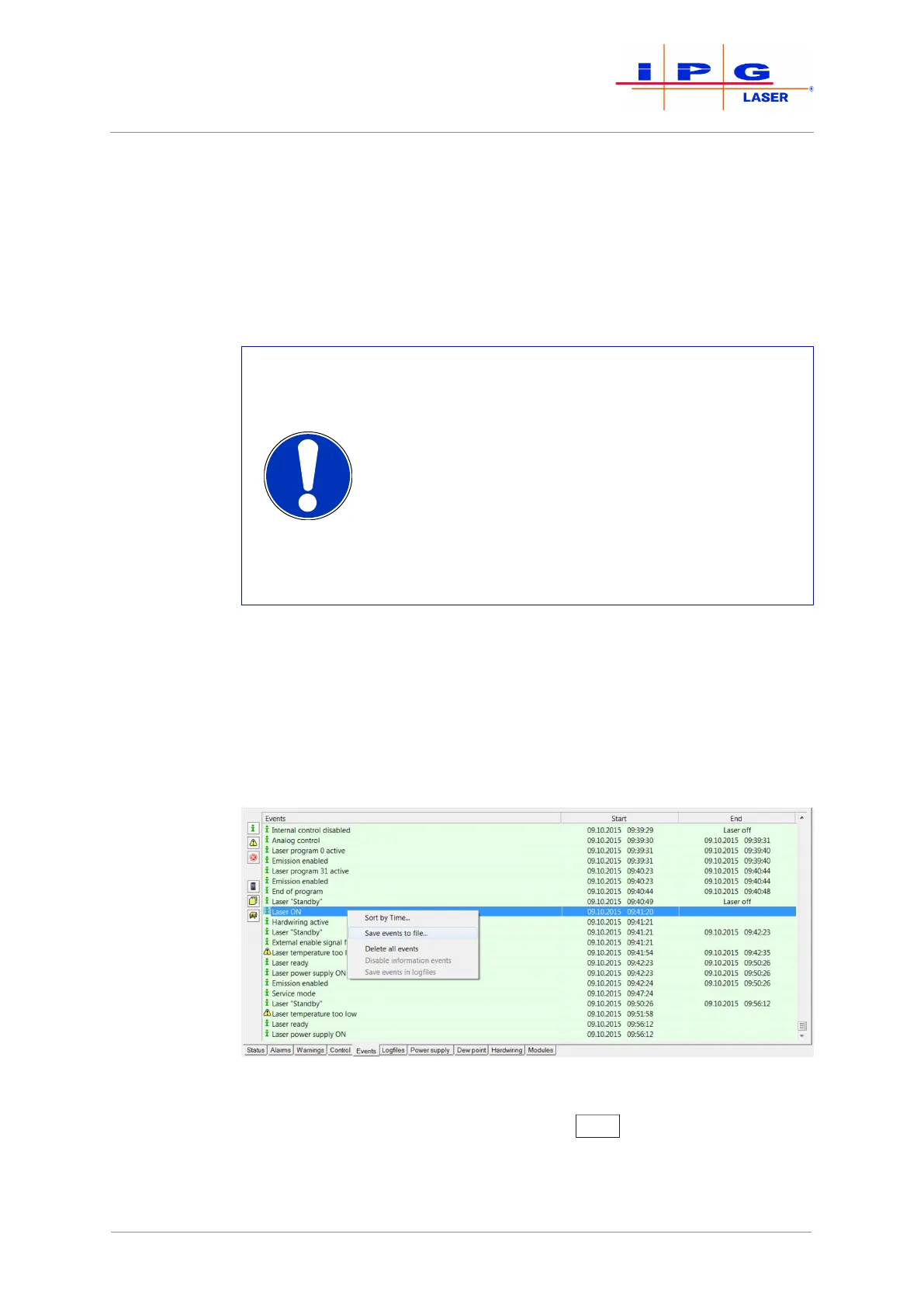
In the Events tab, all events reported during the laser operation are
logged and listed in chronological order. These event messages can sup-
ply useful information about the cause of the fault and should be sent by
email together with the log files to the competent IPG service depart-
ment in the event of a fault.
Mixing of events
If you connect the same laptop to different lasers
with the same name, the events of the currently con-
nected laser will be copied to the memory of the lap-
top and mixed with the existing events of the other
laser with the same name. Associating an event with
a specific laser is then no more possible. To avoid
this, do as follows:
ð Give all lasers different names or delete all
events in the Events, tab before connecting
the laptop to a laser.
To download the events in the form of a .txt file, do as follows:
1. Start the LaserNet software.
2. Make certain that there is a network connection to the laser.
3. Select the Events tab.
Right-click on one of the event messages and use the left mouse button
to select the option Save events to file.
Figure83: Saving events to a .txt file
4. Select the save location and click on Save
.
The events file is saved. It contains the serial number of the laser in its name.
| Messages and troubleshooting



 To Next Page