| LaserNet software
76
YLS-K
8. In the IP Configuration dialog window, click on the button
Add
to create a laser name.
The first line of the dialog window is filled in.
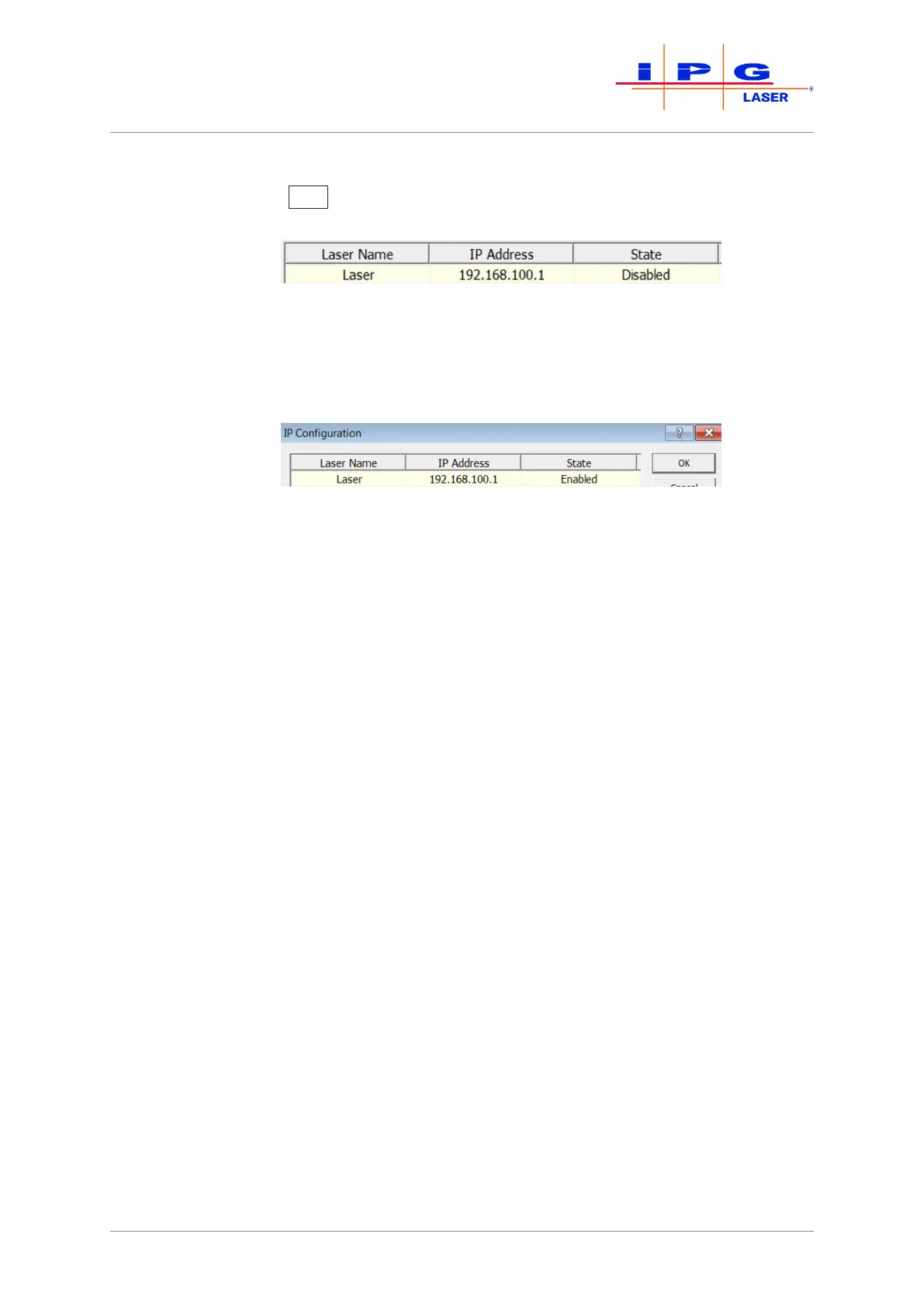
9. Activate the Disabled cell in the State column by double-clicking
on it.
A drop down menu appears.
10. Click in the drop down menu on Enabled to activate the laser.
11. Click on OK.
The connection may take several seconds.
As soon as the connection between the laser and the program has been estab-
lished, the connection status in the LaserNet user interface changes from Net Con-
nection: NO to Net Connection: OK.
8.4 Starting LaserNet
1. Before starting LaserNet, make certain that the laser and com-
puter are connected to the same local network (LAN) and config-
ured appropriately.
2. Start the software by double-clicking the LaserNet.exe file or
its link LaserNet[VERSION].
The connection may take several seconds.
The window of the Status tab appears.



 To Next Page