11
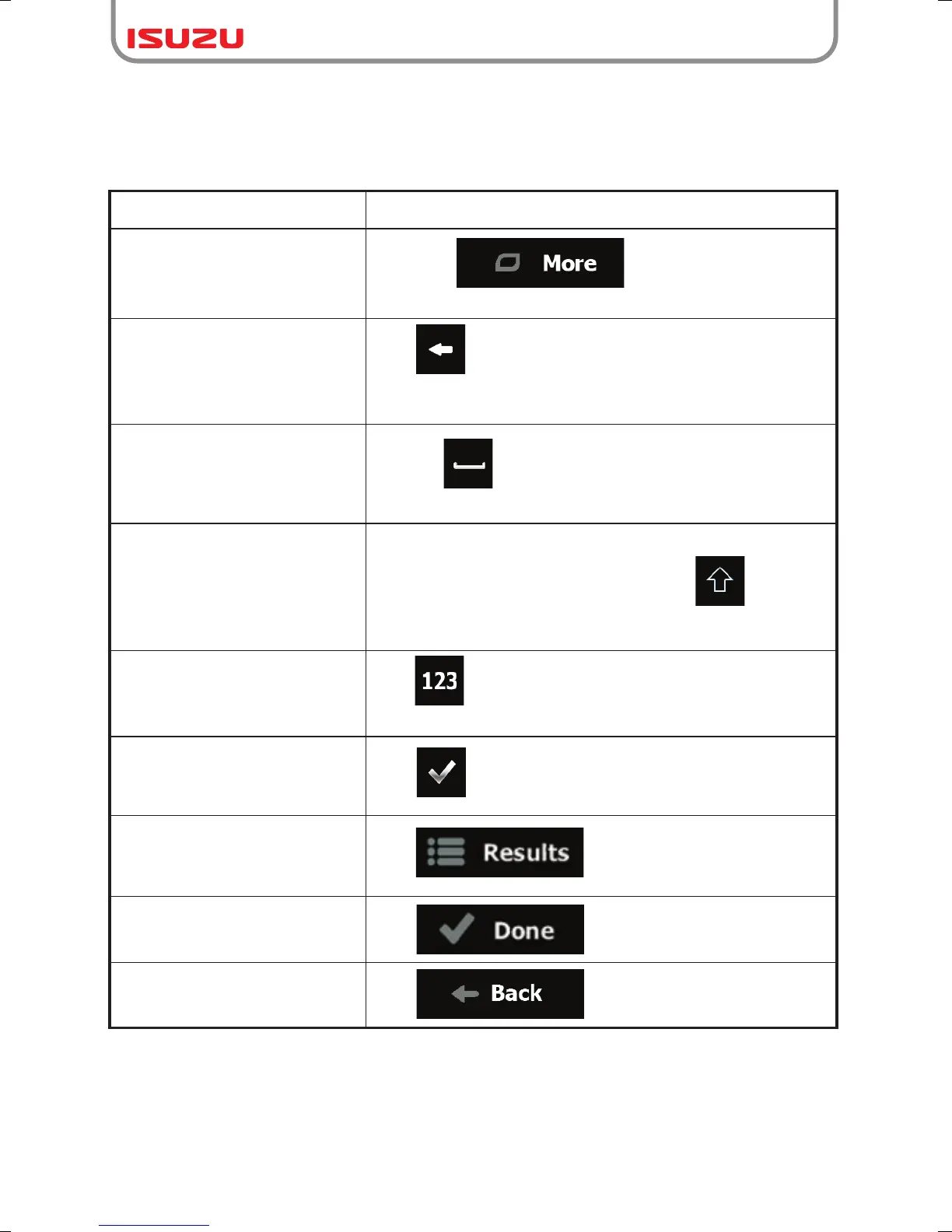
2.3.1 Using keyboards
Correcting your entry on the
keyboard
Tap to remove the unneeded character(s).
Tap and hold the button to delete several characters or
the entire input string.
Entering a space, for example
between a first name and a
family name or in multi-word
street names
Tap the button at the bottom centre of the screen.
Entering upper and lower case
letters
When entering a text, the first character appears in upper
case while
Entering numbers and symbols
Tap to switch to a keyboard offering numeric and
symbol characters.
Finalising the keyboard entry
Tap .
Tap .
Tap .
Tap .
Finalising the keyboard entry
(opening the list of search
results)
Finalising the keyboard entry
(saving your input)
Cancelling the keyboard entry
(returning to the previous screen)
You only need to enter letters or numbers when you cannot avoid it. You can type with your
fingertips on the full-screen keyboards and you can switch between various keyboard
layouts, for example English, Greek or numerical.
Task Instruction
Switching to another keyboard
layout, for example from an
English keyboard to a Greek
keyboard
Tap the button and select the
new keyboard layout from the list.
the rest of the text is in lower case. Tap to enter
an upper case letter or tap twice to turn on Caps Lock.
Tap again and lower case letters return.
(accepting the suggested
search result)



 To Next Page