51
4. Each jack will perform a nal grounding touch.
1. Press the button at the bottom of the touch panel
to power up the display.
2. Select MyRV Control Panel from the menu list-
ing on the screen.
3. Then select the Leveler icon.
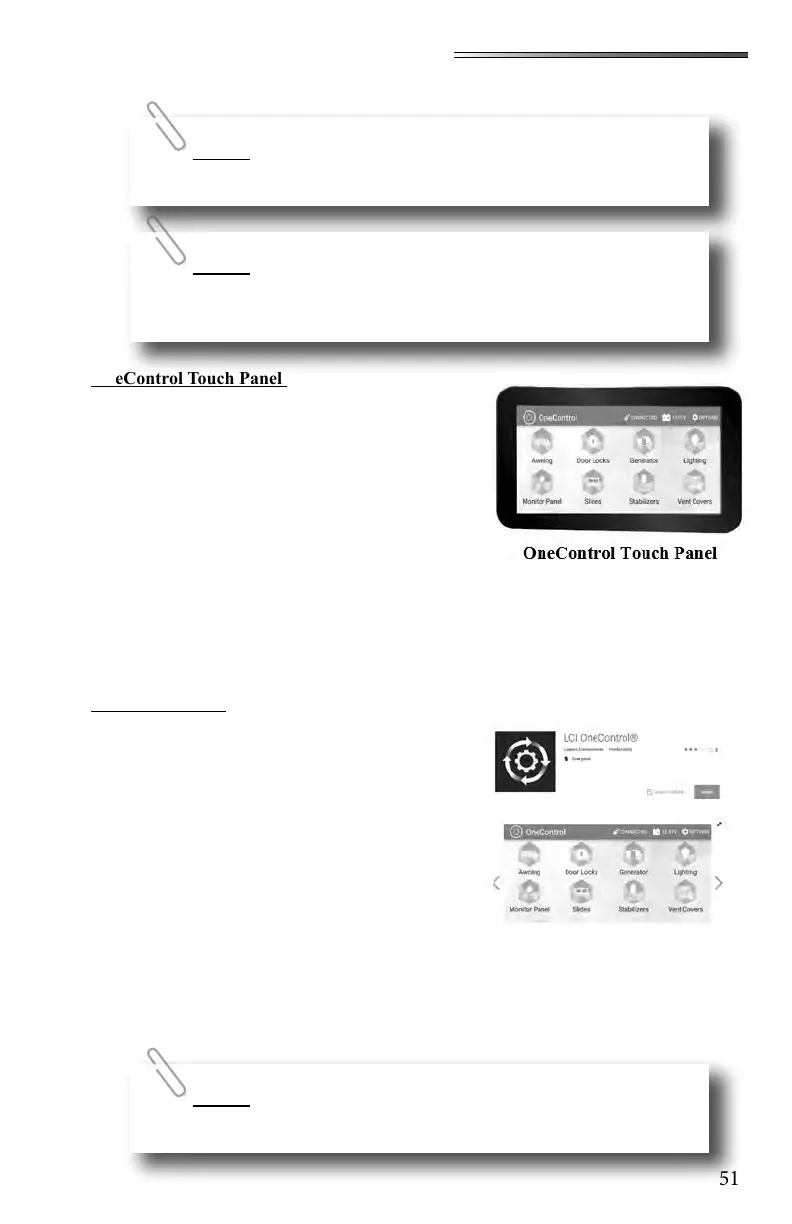
The following functions can be operated using the
OneControl Touch Panel inside the RV. Refer to the
Lippert Ground Control 3.0 manual for complete in-
structions.
Standard Mode and Menu
Basic Jack operation
Unhitching instructions
Auto Leveling
Hitch Recognition
1. Download the OneControl App for your device
from Google Play Store or Itunes.
2. To access the OneControl App, ensure there is
power to the RV’s wireless network hub.
3. Navigate to the device’s Wi-Fi settings (on the
phone, tablet, etc). Turn the wireless feature on
and connect to the MyRV wireless network.
4. A password will be required to access the net-
work. The password is found on the RV’s wire-
less hub (8 capital alpha characters).
5. Open the OneControl App on the phone or tab-
let.
6. The App will request the user to “Agree” with a license agreement, connect to the
MyRV system by entering the PIN (default is 1,2,3,4 for OneControl Touch Panel).
Then it will prompt you to create a new PIN and then re-enter the new PIN.
On a 6 point system the 2 middle jacks will be grounded to stabi-
lize the trailer. The 2 middle jacks do not level the RV
If the AUTO LEVEL sequence does not perform as described
above, place the system in manual mode and test that the jacks operate
correctly by using the OneControl touch panel inside the RV.
The PIN is not needed or asked for if the tablet is attached to the
docking station and connected to the USB cable inside the RV.




 To Next Page