280 MULTIMEDIA
Remote Commands
Remote Commands lets you send a request to
yo
ur vehicle in one of three ways:
Anywhere using your mobile device and
Uconnect App
From your computer on the Owner’s Site (not
available on all functions)
Contacting SiriusXM Guardian™ Customer
Care (not available on all functions)
Using A Remote Command Through Your Mobile
De
vice And The Uconnect App
1. Press the desired Remote Command icon
o
n your mobile device.
2. A pop-up screen will appear asking for your
S
iriusXM Guardian™ Security PIN (this is the
same four-digit code established when you
activated your SiriusXM Guardian™
system). Enter the SiriusXM Guardian™
Security PIN on the keypad.
3. It may take 30 seconds or more for the
c
ommand to go through to your vehicle.
4. A message will let you know if the command
w
as received by your vehicle.
Using A Remote Command Through Your
Ow
ner’s Site
1. Log on to your Owner’s Site using the
u
sername and password you used when
activating your SiriusXM Guardian™
services in your vehicle.
NOTE:
If you forgot your username or password, links
ar
e provided on the website to help you retrieve
them.
2. If you have more than one vehicle
r
egistered into your Owner’s Site, select the
vehicle you want to send the command to by
clicking on its image along the top.
3. On your dashboard, you will see remote
c
ommands. Press the desired icon to
activate that feature.
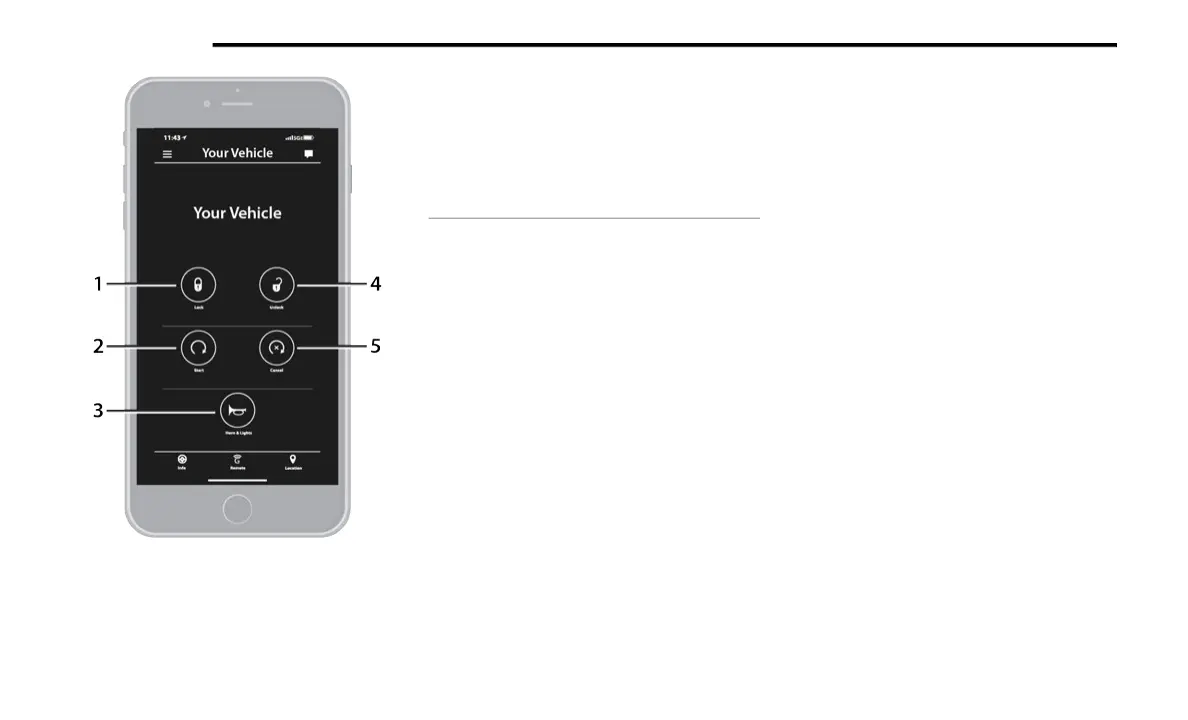
1 — Lock Press
Press this button to lock your vehicle.
2 — Vehicle Start
Press this button to start your vehicle.
3 — Horn & Lights
Press this button to sound the horn and activate
your lights.
4 — Unlock
Press this button to unlock your vehicle.
5 — Cancel Vehicle Start
Press this button to cancel remote start.






 To Next Page