TEC3xx1-00_2018-07-01T1. The files are saved locally
and on the USB drive’s root directory. See Table 16 if
the settings are not backed up correctly.
7. After the settings are saved onto the USB drive,
remove the USB drive from the TEC3000.
Restoring the settings
About this task:
If the TEC3000 is connected to a network (for example,
MS/TP or wireless), you must manually set or verify the
BACnet
®
Instance ID and BACnet Address, or both, in
the Network Setup page after the restore so they do not
conflict with other devices on the same network.
1. Ensure that the TEC screen is on.
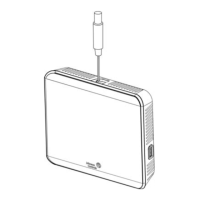
2. Insert the USB drive into the right side of the TEC.
See Figure 1 for the USB port location.
3. Press the Menu icon.
4. Press Update.
5. Press Restore.
6. Select Local Storage or the correct configuration
file created from a previous backup operation.
The setting files are named based on the TEC3000
model name, date, and time stamp (for example,
TEC3xx1-00_2018-07-01T1). The files are saved locally
and on the USB drive’s root directory.
7. Press Confirm if you have the correct file name.
The settings are loaded from the USB drive.
8. After the settings are loaded from the USB drive,
remove the USB drive from the TEC3000.
Choosing the Communication mode
(TEC3630, TEC3631 Models)
1. Ensure the TEC screen is on.
2. Press the Menu icon.
3. Press Setup.
4. Press Network Setup.
5. Press FC Comm Mode.
6. Select BACnet or N2 by pressing the up and down
arrows.
Proceed to Step 7 to perform BACnet communication
and Step 15 to perform N2 communication.
7. Press the back arrow to return to the previous
screen.
8. Press BACnet Instance ID.
9. Enter the unique BACnet
®
instance ID using the
keypad. This value should be different to the other
controllers on the site.
10. Press Save.
11. Press the back arrow to return to the previous
screen.
12. Press BACnet Address.
13. Enter the BACnet MS/TP address through the
keypad.
14. Press Save.
15. After selecting N2 in Step 6, press Save.
16. Press the back arrow to return to the previous
screen.
17. Press N2 Address.
18. Enter the N2 address through the keypad.
19. Press Save.
Configuring the network settings for
wireless models
1. Ensure the TEC screen is on.
2. Press the Menu icon.
3. Press Setup.
4. Press Network Setup.
5. Press FC Comm Mode and the Wireless Field Bus
appears. This setting cannot be changed.
6. Press the back arrow to return to the previous
screen.
7. Press BACnet Instance ID.
8. Enter the BACnet
®
instance ID using the keypad.
This value should be different to the other
controllers on the site.
9. Press Save.
10. Press the back arrow to return to the previous
screen.
11. Press BACnet Address.
12. Enter the BACnet address using the keypad. This
value should be different to the other controllers
on the PAN.
13. Press Save.
14. Press the back arrow to return to the previous
screen.
15. Press PAN ID.
16. Enter the PAN ID using the keypad. This value
needs to be the same as set in the associated
ZFR182x or ZFR183x Coordinator Radio.
17. Press Save.
Once the PAN is set, the TEC attempts to connect to
the wireless network. Provided that other devices on
the PAN are in radio range, the connection should
occur within one minute. It can then take up to 10
minutes for the WNC gateway to display that the
device is online.
Configuring the thermostat controller
Use the Menu icon on the home screen to access and
change the basic operating parameters of the thermostat
controller. During normal operation, press the Menu icon
once to access the following parameters:
• Fault Status
• Setpoints
• Schedule
• Display Settings
• Setup
• Trend
• Status
• Update
TEC3000 Series Networked and Wireless Single- or Two-Stage Economizer Thermostat Controllers Installation Guide16


 To Next Page
 Loading...