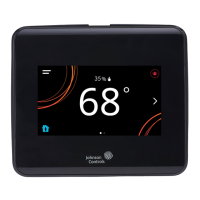
Table 6: Touchscreen icons
Icon Icon name Description
Home Returns the display to the main home screen.
Save Saves the current configuration and parameter settings.
Delete Deletes the scheduled event.
Clear Clears the password entry on the keypad screen.
Exclamation point Indicates that an error has occurred.
User lockout
You can select from three different levels of access at
the local display to manage functionality through the
supervisory controller. This lockout is independent of
any display or passcode settings. The existing temporary
occupancy capability is unaffected by this feature. User
lockout hides the icons that are not operable. The lockout
levels are described in Table 7.
Table 7: User lockout levels
Lockout
level
Capability
State 0 Provides full access to Home Screen
Display Adjustments and icons (default).
State 1 Hides the Menu icon.
State 2 Only allows the screen to trigger
temporary occupancy. Menu, Unit Power,
the Up and Down arrows, and Run/Hold
are hidden.
Using the USB port
Use the USB port to quickly and easily load firmware
upgrades, back up the current settings, and restore
settings to the TEC3000 by using a USB drive. The TEC3000
can recognize eight configuration files or firmware
package files. The USB drive format must be FAT or FAT32.
The drive cannot be NTFS format or USB 3.0. If you are
upgrading firmware or copying configuration files, you
need the passcode if one has been set up. Do not remove
the USB drive until the firmware upgrade is complete.
The TEC3000 may restart and go offline to the NAE after
a firmware upgrade. The upgrade takes approximately
three minutes.
Configurations are copied, except for the Communication
mode. See Choosing the Communication mode (TEC3630,
TEC3631 Models) to configure the networked devices.
Loading the firmware
1. Ensure that the TEC screen is on.
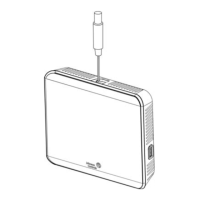
2. Insert the USB drive into the right side of the TEC.
See Figure 1 for the USB port location.
3. Press the Menu icon.
4. Scroll down the menu and press Update.
5. Press Load Firmware.
6. Select the correct firmware version. The correct file
name has the .pkg extension.
7. Press Confirm if you have the correct firmware
version.
The firmware is loaded from the USB drive into the
TEC3000 operating system. The TEC3000 locates the
new firmware only if the new firmware is on the root
drive of the USB drive. See Table 16 if the firmware is
not loaded correctly.
8. Remove the USB drive from the TEC3000 controller
when the update is complete.
The TEC3000 firmware update is complete when the
TEC3000 restarts and returns to the home screen.
Backing up the settings
About this task:
Note: When you back up the settings, the network
settings are not backed up or restored.
1. Ensure that the TEC screen is on.
2. Insert the USB drive into the right side of the TEC.
See Figure 1 for the USB port location.
3. Press the Menu icon.
4. Scroll down the menu and press Update.
5. Press Backup.
A message appears stating that the file is saved
locally and on a USB drive.
6. Press Confirm to save locally and on USB.
The setting files are named based on the TEC3000
model name, date, and time stamp. For example,
TEC3000 Series Networked and Wireless Single- or Two-Stage Economizer Thermostat Controllers Installation Guide 15


 To Next Page
 Loading...