110
SYSTEM Menu
Creating a User Touch Curve
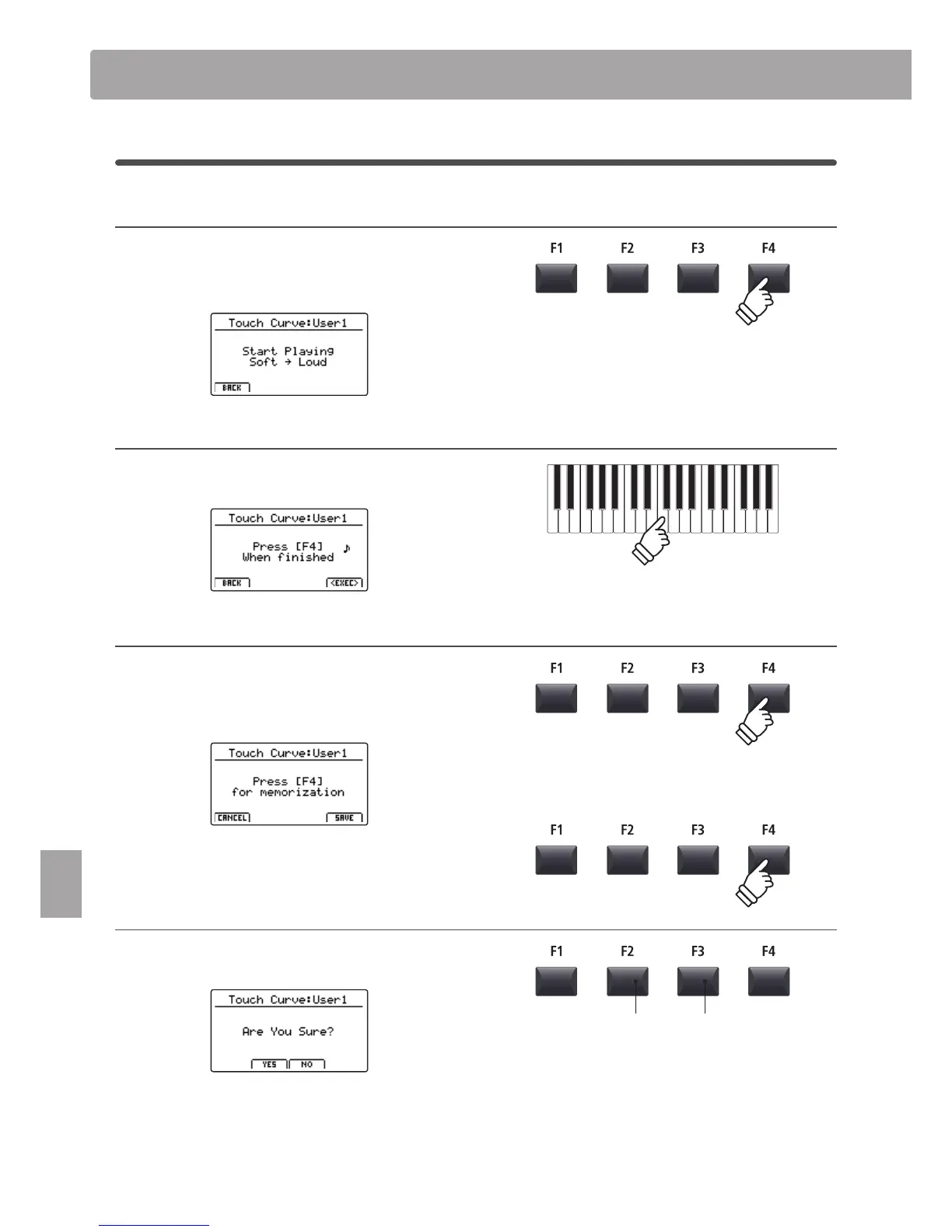
1. Starting the User Touch Curve analysis
After selecting the User Touch Curve memory to be edited:
Press the F4 function button (NEXT) to start the User Touch
Curve analysis.
2. Capturing the dynamic range
Play the piano dynamically from very soft to very loud, allowing
the instrument to analyse the personal playing technique.
3. Completing the User Touch Curve analysis
Press the F4 function button (EXEC) to complete the User Touch
Curve analysis.
A conrmation screen will be shown in the LCD display.
Play the piano to check the newly created touch curve, then
press the F4 function button (SAVE) to store it to user memory.
4. Storing the User Touch Curve
Press the F2 button (YES) to conrm the store operation, or the
F3 button (NO) to return to the previous screen.
* The +/YES and –/NO buttons can also be used to conrm or cancel the
store operation.
The new User Touch Curve will be used for the selected sound
section automatically.
SYSTEM Menu Parameters & Functions
F3 button:
NO: Cancel
F2 button:
YES: Conrm
* More than one attempt may be required in order to create an accurate
User Touch Curve.
* Reducing the master volume fader to the lowest position before creating
the User Touch Curve may help to reduce user distractions, thus improving
accuracy.


 To Next Page