14
B2 C3
ZONE 1
ZONE 2
2.3 Layer
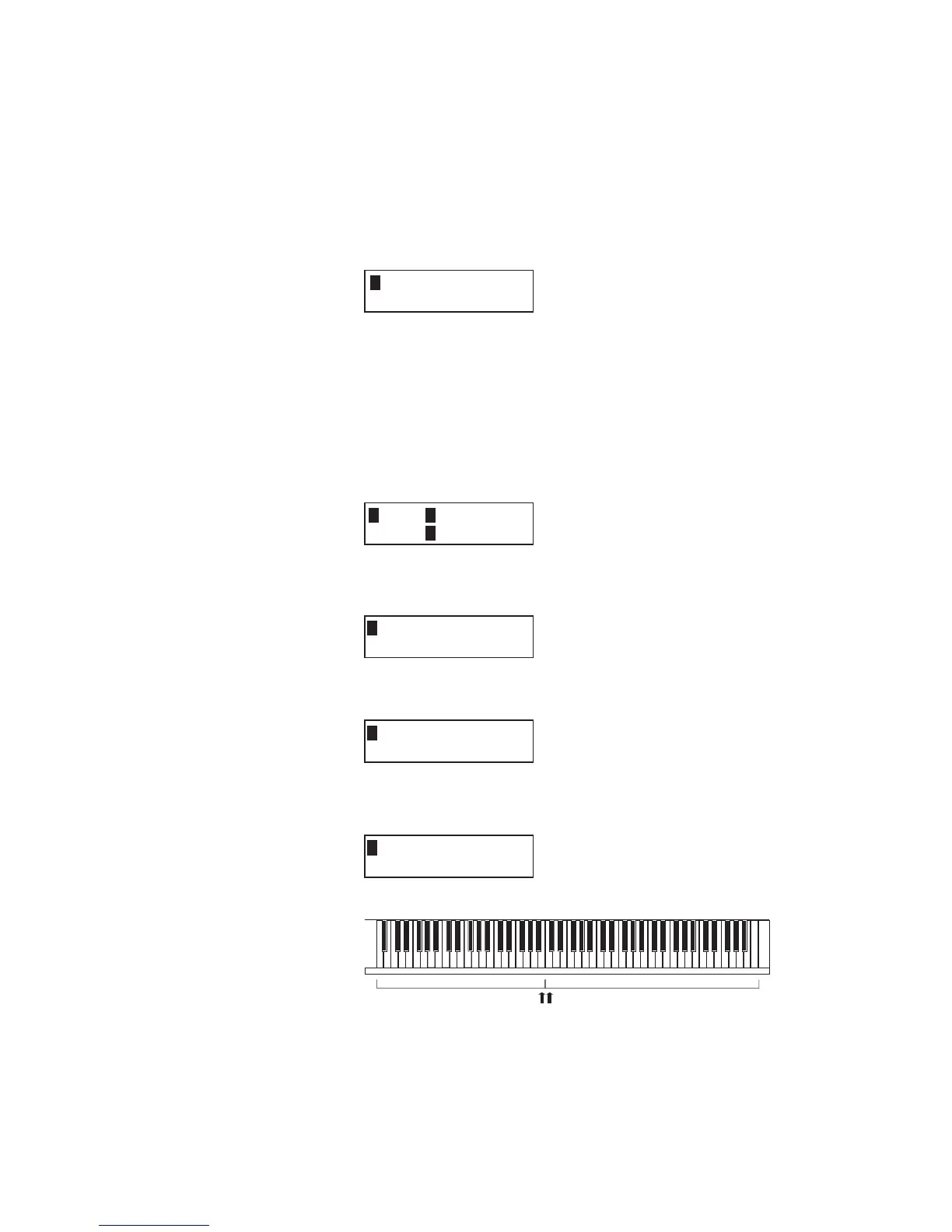
Let’s try layering another sound. Turn the zone 2 on by pressing the ZONE
ON/OFF button for zone 2. The ZONE SELECT button for zone 2 is
automatically selected and the display shows the sound name for zone 2.
Select the sound for zone 2 with the SOUND SELECT buttons as shown in
the previous section.
Adjust the volume balance of zone 1 and 2 with the faders for each zone.
2.4 Split
Now let’s split the keyboard and play different sounds in upper and lower
sections.
Press and hold the ZONE SELECT button for zone 1. The display shows
the key range for zone 1 as follows.
While still holding down the ZONE SELECT button for zone 1, press the
lowest note on the keyboard. The display changes as follows.
While still holding down the ZONE SELECT button for zone 1, select the
highest note for zone 1, for example, B2 by pressing B2 key on the keyboard.
Repeat the same procedure for zone 2 while holding down the ZONE
SELECT button for zone 2 and set the key range from C3 to C7.
Now the keyboard is split as follows.
Note:
In this method, the key ranges for internal and external zones always
change together. If you want individual settings, use the Key Range Hi/
Lo parameter in MENU (see page 31).
2 String Pad
1Key IC-2 >G8
RangeEC-2 >G8
=IA-1 > ----
1KeyRange(Both)
1KeyRange(Both)
=IA-1 > B2
2KeyRange(Both)
=IC3 > C7



 To Next Page